
If your smart home devices suddenly disconnect, video calls freeze, or streaming buffers every time you walk into a specific room, you're likely facing a localized Wi-Fi signal drop. This is especially frustrating when the rest of your house enjoys strong, stable coverage from a modern mesh network system. Unlike older single-router setups, mesh networks are designed to eliminate dead zones—but even they aren’t immune to performance hiccups in isolated areas.
The issue isn’t always about distance or weak signal strength. Often, it’s a combination of physical obstructions, electronic interference, suboptimal node placement, or even firmware quirks. Understanding the root cause requires more than guesswork—it demands a methodical approach to diagnosis and resolution.
Understanding Mesh Network Behavior
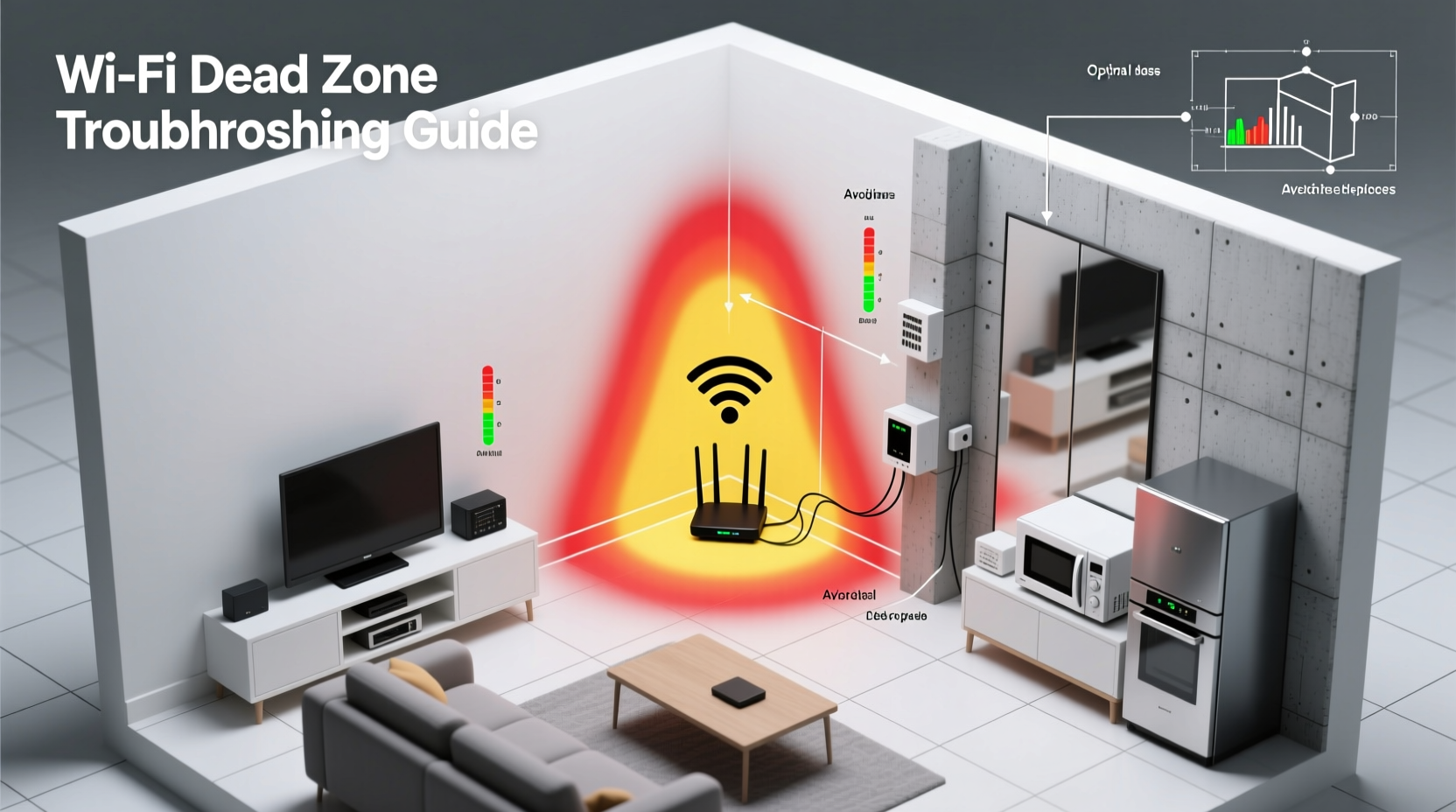
Mechanically, mesh networks use multiple nodes (a main router and satellite units) that communicate with each other to create a seamless Wi-Fi blanket across your home. These systems dynamically route data through the strongest available path, often switching between nodes as you move. However, this intelligence doesn’t make them impervious to environmental challenges.
When a single room experiences poor connectivity while others remain unaffected, it typically indicates a localized problem rather than a systemic failure. The key is identifying whether the issue lies in hardware behavior, structural interference, or configuration oversight.
“Mesh networks excel at wide-area coverage, but they can struggle in rooms with dense materials like concrete or metal framing—even if those rooms are close to a node.” — David Lin, Senior Network Engineer at HomeTech Labs
Common Causes of Room-Specific Signal Drops
Before diving into fixes, it’s essential to pinpoint what might be disrupting the signal in just one area. Below are the most frequent culprits:
- Physical barriers: Thick walls, mirrors, metal studs, or concrete flooring can block or reflect Wi-Fi signals, especially on the 5 GHz band.
- Electronic interference: Appliances like microwaves, cordless phones, baby monitors, or refrigerators emit electromagnetic noise that overlaps with Wi-Fi frequencies.
- Poor node placement: A satellite unit placed too high, behind furniture, or near metallic objects may fail to serve nearby rooms effectively.
- Channel congestion: Overlapping networks from neighbors can force your mesh system to switch channels unpredictably, causing instability.
- Firmware bugs: Outdated or buggy firmware can lead to inconsistent handoffs between nodes or incorrect band steering.
- Client device limitations: Older smartphones, laptops, or IoT gadgets may have weak antennas or outdated Wi-Fi drivers, making them prone to disconnections in marginal zones.
Step-by-Step Troubleshooting Guide
Follow this structured process to diagnose and resolve the dead zone efficiently:
- Verify the problem exists across devices. Use a smartphone, laptop, and tablet to run speed tests in the problematic room. Compare results with adjacent rooms.
- Check physical proximity to the nearest node. Measure distance and note any walls or large appliances between the node and the room.
- Use your mesh app to inspect signal strength. Most systems (like Google Nest Wifi, Eero, or TP-Link Deco) show real-time RSSI (Received Signal Strength Indicator) values. Anything below -70 dBm is considered weak.
- Temporarily disable band steering. Some users report improved stability by manually connecting to either 2.4 GHz (better range) or 5 GHz (faster speeds) instead of relying on automatic switching.
- Reboot all nodes. Power cycle the main router and satellites. Wait two minutes before restoring power to allow full reinitialization.
- Update firmware. Check your mesh system’s app for pending updates. Manufacturers frequently release patches addressing connection stability.
- Change the node location. Even a few feet can make a difference. Avoid placing nodes inside cabinets, near TVs, or on metal shelves.
- Run a Wi-Fi scan. Use tools like NetSpot (desktop) or Wi-Fi Analyzer (Android) to detect channel congestion and identify optimal settings.
Do’s and Don’ts of Mesh Node Placement
| Do’s | Don’ts |
|---|---|
| Place nodes at waist-to-eye level in open areas | Mount nodes on ceilings or high shelves (unless designed for it) |
| Position nodes centrally between rooms needing coverage | Place nodes behind thick masonry or metal-framed walls |
| Keep at least 3–5 feet away from large electronics | Install near microwaves, refrigerators, or fish tanks |
| Ensure line-of-sight where possible between nodes | Hide nodes inside entertainment centers or bookshelves |
| Use Ethernet backhaul if available (wired connections between nodes) | Rely solely on wireless backhaul through obstructed paths |
Real-World Case Study: The Basement Office Dead Zone
Consider Mark, a remote worker living in a two-story suburban home. His Eero Pro 6 mesh system covers most of the house well—except his basement office, where Zoom calls regularly drop and downloads stall. The nearest node is upstairs in the hallway, just 15 feet away vertically.
Initial testing showed -78 dBm signal strength in the office—below the reliable threshold. After ruling out device issues, Mark used the Eero app to confirm his office devices were connecting to the 5 GHz band, which struggles with floor penetration. He also discovered his old cordless phone base station was emitting interference on channel 11.
His solution? He relocated the upstairs node slightly closer to the stairwell, disabled band steering temporarily, and connected his work laptop to the 2.4 GHz network. He also replaced the cordless phone with a DECT 6.0 model operating outside Wi-Fi bands. Result: signal improved to -65 dBm, and call quality stabilized immediately.
This case illustrates how a combination of subtle factors—not just distance—can create a dead zone. Addressing each layer led to a complete resolution.
Advanced Fixes for Persistent Dead Zones
If basic troubleshooting fails, consider these deeper interventions:
- Add a third node strategically. In larger homes or those with awkward layouts, a third satellite can bridge coverage gaps. Place it so it has clear communication with both the main router and the struggling zone.
- Enable wired backhaul. If you have Ethernet cabling, connect your satellites via cable. This removes wireless hop latency and boosts reliability, especially in critical areas.
- Adjust transmit power (if supported). Some enterprise-grade mesh systems allow manual adjustment of radio output. Lowering power on overcrowded channels can reduce interference.
- Switch to AP mode with a dedicated access point. For rooms that remain problematic, install a standalone access point (like an Ubiquiti NanoHD) connected via Ethernet. This bypasses mesh limitations entirely.
- Conduct a heat map analysis. Use professional tools like Ekahau Sidekick or open-source options like inSSIDer to generate visual coverage maps and identify blind spots.
“In environments with complex building materials, no mesh system will perform perfectly out of the box. Optimization takes measurement, iteration, and sometimes hybrid solutions.” — Lena Patel, Wireless Infrastructure Consultant
Troubleshooting Checklist
Use this checklist to systematically eliminate potential causes:
- ✅ Test Wi-Fi on multiple devices in the affected room
- ✅ Confirm signal strength via mesh app (aim for > -70 dBm)
- ✅ Reboot all mesh nodes and modem
- ✅ Check for firmware updates
- ✅ Relocate the nearest node for better line-of-sight
- ✅ Identify and remove sources of interference (appliances, mirrors, etc.)
- ✅ Switch client device to 2.4 GHz temporarily
- ✅ Run a Wi-Fi channel analysis
- ✅ Consider adding a new node or using wired backhaul
- ✅ Contact ISP or manufacturer support if unresolved
Frequently Asked Questions
Can a mirror really kill my Wi-Fi signal?
Yes. Mirrors contain metallic backing that reflects 5 GHz Wi-Fi signals, potentially creating shadow zones. Large mirrors on walls or wardrobe doors can significantly degrade performance in adjacent spaces.
Why does my phone show full bars but still have no internet?
Full bars indicate strong signal *from a node*, but not necessarily good throughput. The node itself might have a poor backhaul connection, or there could be DNS, MTU, or routing issues preventing actual internet access.
Is it worth upgrading my mesh system for one bad room?
Not necessarily. Before upgrading, try optimizing placement, reducing interference, or adding a single additional node. Many times, the existing system can be tuned to perform adequately without replacement.
Conclusion: Take Control of Your Home Network
A single-room Wi-Fi drop isn’t just an annoyance—it disrupts work, entertainment, and smart home functionality. But with the right diagnostic mindset and tools, most dead zones are solvable without costly upgrades. Start with simple checks: verify the issue, assess node placement, eliminate interference, and update firmware. When needed, escalate to strategic node additions or wired enhancements.
Your mesh network was built to adapt. Now it’s time to help it adapt to your home’s unique layout. By applying these proven techniques, you’ll restore seamless connectivity and reclaim full control over your digital environment.




 浙公网安备
33010002000092号
浙公网安备
33010002000092号 浙B2-20120091-4
Comments
No comments yet. Why don't you start the discussion?