
Nothing disrupts a relaxing evening or an energetic party like a Bluetooth speaker that suddenly stutters, drops audio, or cuts out entirely mid-song. While Bluetooth technology has improved significantly over the years, signal instability remains a common frustration. The root causes are often not hardware failures but environmental interference, device limitations, or configuration oversights. Understanding the science behind Bluetooth transmission—and knowing how to mitigate common issues—can restore seamless playback and extend the functional life of your speaker.
Understanding Bluetooth Signal Behavior
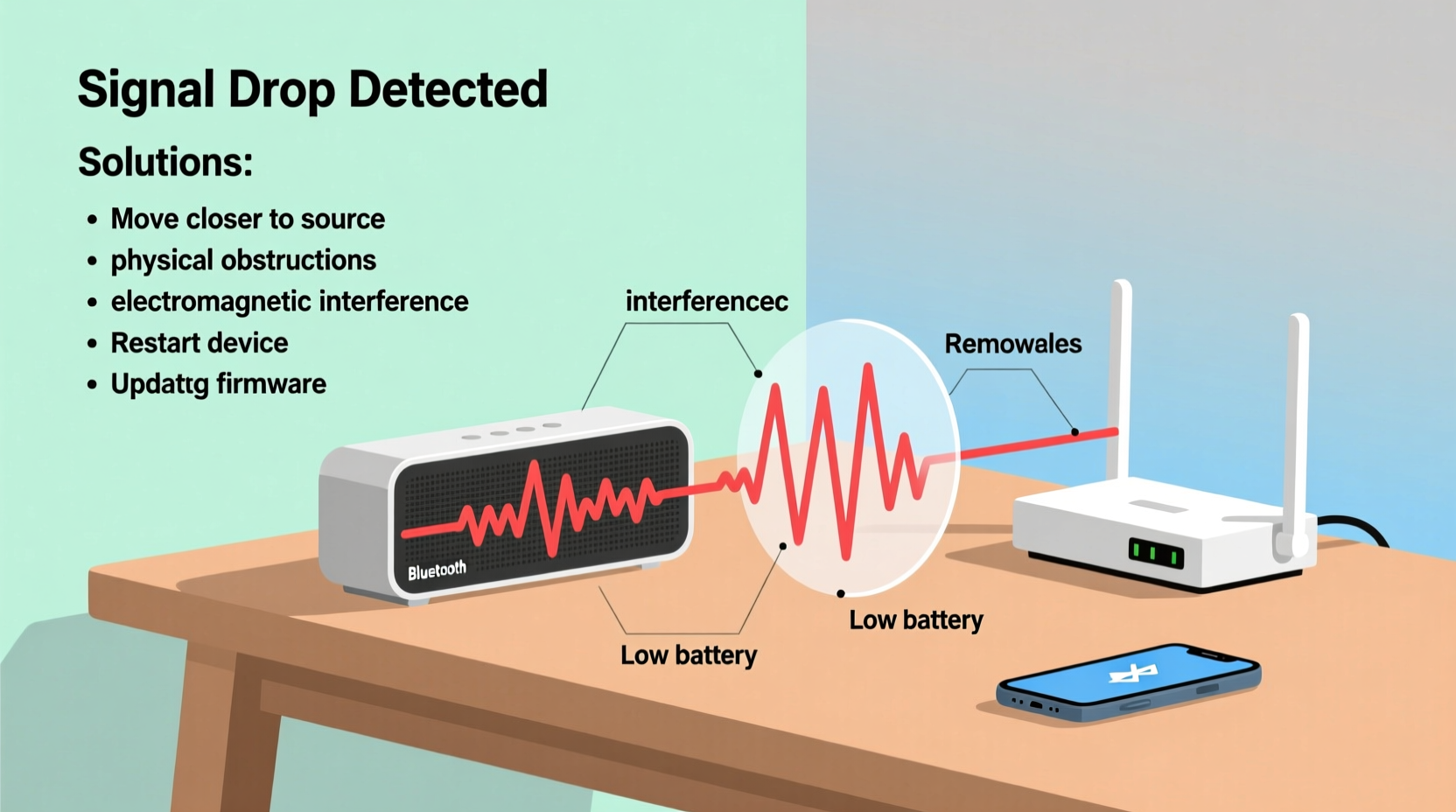
Bluetooth operates in the 2.4 GHz frequency band, the same range used by Wi-Fi routers, microwaves, cordless phones, and many smart home devices. This shared spectrum increases the likelihood of interference, especially in modern homes saturated with wireless electronics. Bluetooth uses frequency-hopping spread spectrum (FHSS) technology to minimize disruption by rapidly switching between frequencies, but it’s not immune to congestion.
The effective range of most Bluetooth speakers is between 30 to 100 feet (10–30 meters), assuming a clear line of sight. However, walls, furniture, metal objects, and even human bodies can absorb or reflect signals, weakening connectivity. Additionally, older Bluetooth versions (like 4.0 or earlier) are more prone to latency and dropouts compared to newer standards such as Bluetooth 5.0 and 5.3, which offer better range, speed, and resistance to interference.
“Bluetooth performance isn’t just about the speaker—it’s a two-way connection between devices. Both the source and receiver impact stability.” — Dr. Alan Zhou, Wireless Communications Engineer
Common Causes of Bluetooth Speaker Dropouts
Intermittent audio is rarely due to a single factor. More often, it's a combination of physical, technical, and environmental variables. Identifying the culprit requires methodical troubleshooting.
- Wi-Fi and RF Interference: Routers operating on 2.4 GHz can overpower nearby Bluetooth signals, especially if both devices are close together.
- Physical Obstructions: Walls, cabinets, or large appliances block or scatter Bluetooth waves, reducing signal strength.
- Low Battery: A weak battery can impair a speaker’s ability to maintain a stable wireless connection.
- Outdated Firmware: Manufacturers release updates to fix bugs and improve Bluetooth stability—ignoring these leaves devices vulnerable.
- Source Device Issues: Phones or tablets with overloaded processors, outdated OS versions, or poor Bluetooth stacks may struggle to transmit consistently.
- Distance and Range Limits: Exceeding the effective range—even slightly—can cause intermittent cutouts.
- Multiple Paired Devices: Some speakers automatically switch between connected devices, leading to unexpected disconnections.
Step-by-Step Guide to Eliminate Bluetooth Interference
Solving dropout issues doesn't require technical expertise—just patience and systematic testing. Follow this sequence to isolate and resolve the problem.
- Power Cycle Both Devices: Turn off your speaker and source (phone, tablet, laptop). Wait 30 seconds, then power them back on. This clears temporary glitches in the Bluetooth stack.
- Reduce Physical Distance: Move closer to the speaker—within 10 feet—and remove any visible obstructions. Test playback in this optimal setup before expanding range.
- Check for Wi-Fi Congestion: Temporarily disable your Wi-Fi router or switch it to 5 GHz mode (if dual-band). If audio stabilizes, interference was likely the issue.
- Forget and Re-Pair the Device: On your phone or tablet, go to Bluetooth settings, select your speaker, and choose “Forget.” Then re-pair from scratch to establish a clean connection.
- Update Firmware: Visit the manufacturer’s website or app (e.g., Bose Connect, JBL Portable, Sony Music Center) to check for firmware updates. Install any available patches.
- Test with Another Source: Play audio from a different phone or tablet. If the problem disappears, the original device may have Bluetooth driver issues.
- Disable Other Wireless Devices: Turn off nearby Bluetooth accessories (keyboards, headphones, smartwatches) to reduce signal contention.
- Use Wired Alternatives Temporarily: If possible, connect via AUX cable to confirm the speaker itself isn’t faulty. Stable wired audio indicates the issue is wireless-related.
Do’s and Don’ts: Bluetooth Best Practices
| Do’s | Don’ts |
|---|---|
| Maintain line of sight between speaker and source when possible | Place the speaker inside a cabinet or behind thick walls |
| Keep both devices charged above 30% | Run the speaker until battery is critically low during use |
| Use Bluetooth 5.0+ devices for longer range and better stability | Rely on older smartphones (pre-2018) for critical audio playback |
| Position the speaker away from microwaves and routers | Set up near kitchen appliances or dense clusters of electronics |
| Limit active Bluetooth connections to one primary device | Leave multiple phones paired simultaneously without managing priority |
Real-World Example: Solving Cutouts at a Backyard Gathering
Mark hosted a weekend barbecue using his JBL Charge 5 placed on a patio table. Guests noticed frequent audio interruptions whenever someone walked between the speaker and his iPhone on the dining table. Initially, he assumed the speaker was defective. After reading about signal obstruction, he moved the phone closer to the speaker and switched his home Wi-Fi to 5 GHz. He also disabled his Bluetooth smart light strip temporarily. The audio stabilized immediately. Later, he updated the speaker’s firmware via the JBL app, which improved overall responsiveness. The fix wasn’t costly or complex—just informed adjustments based on signal behavior.
This scenario illustrates how everyday environments introduce subtle but impactful interference. Simple awareness and minor repositioning can make a dramatic difference.
Advanced Tips for Persistent Issues
If basic fixes don’t resolve the problem, consider deeper optimizations:
- Switch Audio Codecs (Android): Use developer options to force higher-quality codecs like aptX or LDAC, which offer more stable streams than default SBC—if your speaker supports them.
- Reset Network Settings (iOS/Android): This clears all saved Wi-Fi, Bluetooth, and cellular configurations. Useful if the device shows erratic wireless behavior beyond just one speaker.
- Use a Bluetooth Transmitter Extender: For large spaces, plug a USB Bluetooth transmitter into a laptop or media box near the speaker and stream through it as a relay.
- Monitor for Electromagnetic Noise: Fluorescent lights, dimmer switches, and poorly shielded electronics emit electromagnetic interference (EMI). Try turning off nearby lighting circuits to test.
Checklist: Fix Bluetooth Speaker Cutouts in Under 15 Minutes
Use this quick-reference checklist to troubleshoot efficiently:
- ✅ Restart both the speaker and source device
- ✅ Move closer—within 10 feet and direct line of sight
- ✅ Forget and re-pair the Bluetooth connection
- ✅ Disable Wi-Fi or switch to 5 GHz band
- ✅ Check for firmware updates on the speaker
- ✅ Ensure the speaker battery is above 50%
- ✅ Test playback with a second device
- ✅ Remove other active Bluetooth devices from pairing list
- ✅ Avoid placement near microwaves, routers, or metal surfaces
- ✅ Confirm no physical damage or water exposure to the speaker
Frequently Asked Questions
Why does my Bluetooth speaker cut out when I move my phone?
Bluetooth relies on proximity and line of sight. Movement—especially behind obstacles like walls or people—interrupts signal continuity. Newer Bluetooth versions handle motion better, but physical barriers still degrade performance. Keep your phone within 15 feet and avoid placing it in pockets or bags during playback.
Can Wi-Fi really interfere with my Bluetooth speaker?
Yes. Both operate in the 2.4 GHz band. When multiple devices compete for bandwidth, Bluetooth packets can be delayed or lost, causing audio stutters. Dual-band routers allow you to offload Wi-Fi traffic to 5 GHz, freeing up space for smoother Bluetooth operation.
Is it worth upgrading to a Bluetooth 5.0+ speaker?
Absolutely. Bluetooth 5.0 doubles the range, quadruples data speed, and improves broadcast capacity compared to 4.2. It also includes better coexistence features that reduce interference from other wireless signals. If you frequently experience dropouts, upgrading both your speaker and source device offers long-term reliability.
Conclusion: Regain Control Over Your Listening Experience
Bluetooth speaker cutouts are frustrating but rarely unsolvable. By understanding the interplay between environment, device compatibility, and wireless congestion, you can diagnose and correct most issues with simple, actionable steps. Most solutions require no additional cost—just attention to placement, maintenance, and connectivity hygiene. Whether you're hosting a gathering, working remotely, or unwinding after work, uninterrupted audio enhances every moment.




 浙公网安备
33010002000092号
浙公网安备
33010002000092号 浙B2-20120091-4
Comments
No comments yet. Why don't you start the discussion?