
Email remains one of the most essential tools for communication, both in personal and professional settings. When messages take hours to deliver—or worse, fail to send at all—it disrupts workflows, damages credibility, and creates unnecessary stress. While occasional delays can happen due to external factors, persistent sending issues usually point to preventable causes. Understanding why your email is delayed empowers you to diagnose and resolve problems quickly.
Email delivery isn't always instantaneous. Behind the scenes, multiple systems must cooperate: your device, email client, internet connection, outgoing mail server (SMTP), recipient’s server, and spam filters. Any hiccup along this chain can cause delays. The good news? Most issues are diagnosable and fixable with a systematic approach.
Common Causes of Email Sending Delays
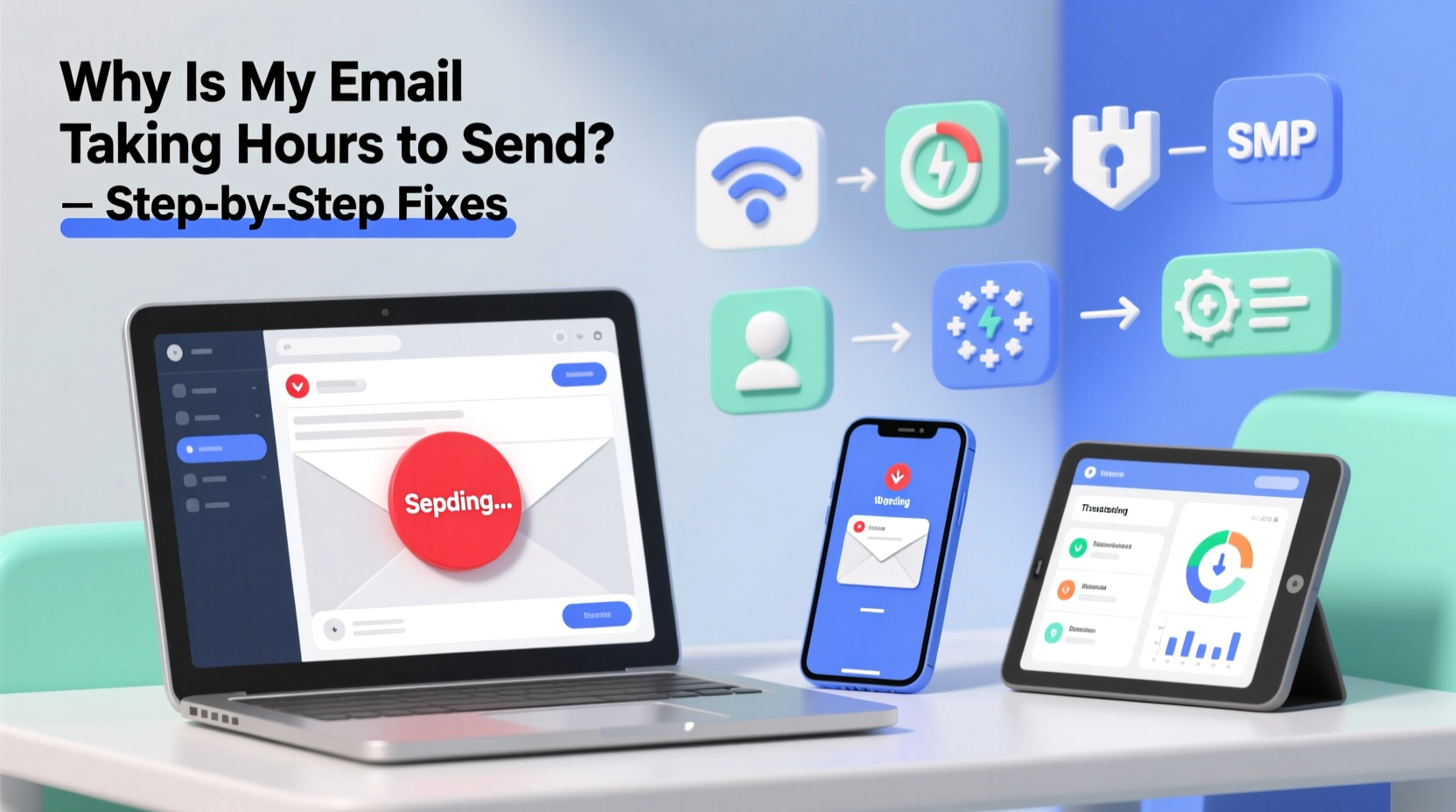
Emails don’t just vanish into thin air when they’re delayed. They often get stuck somewhere in transit or are rejected before leaving your outbox. Identifying the root cause starts with understanding the most frequent culprits.
- Slow or unstable internet connection: If your network is weak or fluctuating, data transmission slows down or fails intermittently.
- Overloaded SMTP servers: Your email provider’s outgoing server may be experiencing high traffic or technical issues.
- Large attachments: Emails with oversized files require more time to upload and process, especially on slower connections.
- Spam filter interference: Overly aggressive filtering on either end can delay or block emails.
- Incorrect SMTP settings: Misconfigured ports, authentication errors, or outdated security protocols prevent successful handoff to the server.
- Full inbox or storage limits: Some email clients pause syncing when storage thresholds are reached.
- Antivirus or firewall interference: Security software sometimes blocks outbound email traffic it deems suspicious.
Step-by-Step Guide to Diagnose and Fix Email Delays
Follow this structured timeline to isolate and resolve the source of your email delays. Each step builds on the previous one, helping you rule out variables efficiently.
- Check your internet connection
Open a browser and load a few websites. Run a speed test using a free tool like Speedtest.net. If upload speeds are below 1 Mbps, that could explain slow sending. Restart your router if needed. - Verify the recipient’s address
A typo in the email address might not trigger an immediate bounce but can cause routing confusion. Double-check spelling and domain validity (e.g., @gmail.com vs. @gnail.com). - Review your sent folder and outbox
If the message sits in \"Outbox\" for hours, it hasn't left your device. This indicates a local or client-side failure. If it appears in \"Sent,\" the delay likely occurs after dispatch—pointing to server or recipient-side issues. - Test with a different device or network
Try sending the same email from another phone, tablet, or computer, preferably on a different Wi-Fi or cellular network. If it sends immediately, the original device or network is the problem. - Reduce attachment size
Compress large files or use cloud-sharing links (Google Drive, Dropbox) instead. Most providers cap attachments at 25MB; exceeding this limit forces retries or failures. - Temporarily disable antivirus/firewall
While not recommended long-term, briefly disabling security software can confirm if it's interfering. Re-enable immediately after testing. - Update your email client
Outdated apps may have bugs affecting SMTP performance. Check for updates in your app store or via the developer’s website. - Reconfigure SMTP settings
Ensure your outgoing mail server uses the correct port and encryption. For example, Gmail requires TLS on port 587. Incorrect settings cause repeated failed attempts, leading to delays.
Real Example: Marketing Manager Faces Client Communication Delay
Sarah, a marketing manager at a mid-sized agency, noticed her campaign follow-ups were arriving hours late. Clients complained about unresponsiveness, though she sent replies promptly. After checking her sent folder, she saw emails lingering in “Outbox” for up to four hours. She tested from her phone—same account, different network—and the emails sent instantly. The issue was traced to her office Wi-Fi, which prioritized video conferencing traffic over background services like email sync. Switching her laptop to a hotspot resolved the delay immediately. She later worked with IT to adjust Quality of Service (QoS) settings on the router, ensuring balanced bandwidth distribution.
Email Configuration Best Practices by Provider
Different email services have specific requirements for optimal performance. Using incorrect settings is a common but easily overlooked reason for sending delays.
| Provider | SMTP Server | Port (TLS) | Port (SSL) | Authentication Required |
|---|---|---|---|---|
| Gmail | smtp.gmail.com | 587 | 465 | Yes |
| Outlook/Hotmail | smtp-mail.outlook.com | 587 | — | Yes |
| Yahoo Mail | smtp.mail.yahoo.com | 587 | 465 | Yes |
| Apple iCloud | smtp.mail.me.com | 587 | — | Yes |
| Custom Domain (cPanel) | mail.yourdomain.com | 587 | 465 | Yes |
Expert Insight: What Happens Behind the Scenes
Email infrastructure relies on protocols designed decades ago, now strained by modern demands. Understanding how messages travel helps contextualize delays.
“Email wasn’t built for real-time expectations. When you hit ‘send,’ your message goes to a queue on the SMTP server. If the recipient server is unreachable, temporarily blacklisted, or throttling incoming mail, your message waits. Some queues can hold messages for up to 48 hours before bouncing.” — David Lin, Senior Network Engineer at CloudMail Systems
This queuing behavior explains why some emails appear to “eventually” send after hours. It's not your client finally working—it's the server retrying delivery according to RFC 5321 standards. However, prolonged queuing should prompt investigation, as it may indicate reputation issues or configuration flaws.
Troubleshooting Checklist: Resolve Email Delays Fast
Use this concise checklist whenever you experience sending delays. Tick off each item until the issue resolves.
- ✅ Confirm internet connectivity and upload speed
- ✅ Verify recipient email address for typos
- ✅ Check if email is stuck in Outbox
- ✅ Reduce attachment size or use file-sharing links
- ✅ Test sending from another device or network
- ✅ Ensure correct SMTP settings (server, port, encryption)
- ✅ Confirm login credentials are up to date
- ✅ Disable third-party plugins or add-ons temporarily
- ✅ Clear cache in email client or reinstall if necessary
- ✅ Contact your email provider’s support with error logs
Frequently Asked Questions
Why does my email say “sent” but the recipient hasn’t received it?
An email marked as “sent” means it left your device successfully. The delay likely occurs during transit or at the recipient’s end. Possible reasons include spam filtering, server downtime, or inbox rules that automatically archive or delete messages. Ask the recipient to check their spam folder and verify server status.
Can a full inbox cause sending problems?
Directly, no—your sent items are stored separately from your inbox. However, some older email clients or servers impose overall storage quotas. If your total mailbox exceeds the limit, syncing may halt entirely, preventing new messages from being processed. Regularly clean up old emails and empty trash folders to avoid quota-related issues.
How do I know if my IP address is blacklisted?
Blacklisting happens when your outgoing IP is flagged for sending spam. Use free tools like MXToolbox or Spamhaus to enter your IP and check its status. If blacklisted, identify the source (e.g., malware-infected device on your network) and request delisting through the reporting service. Businesses using dedicated mail servers should monitor reputation regularly.
When to Contact Your Email Provider
Despite best efforts, some issues stem from server-side problems beyond user control. Contact your email service provider if:
- You’ve verified all settings and still can’t send after multiple attempts.
- Multiple users on the same domain or network report identical delays.
- You receive bounce-back messages indicating server rejection (e.g., “554 Message rejected”).
- Your IP or domain appears on a blacklist without clear cause.
When reaching out, provide specific details: timestamps, recipient domains, error messages, and steps already taken. This accelerates diagnosis and resolution.
Conclusion: Take Control of Your Email Reliability
Email delays are frustrating, but rarely unsolvable. By methodically evaluating your connection, configuration, and environment, you can pinpoint the bottleneck and restore smooth communication. Most fixes require no technical expertise—just attention to detail and a willingness to test alternatives. Whether you're managing personal correspondence or business-critical messages, reliable email performance is non-negotiable.




 浙公网安备
33010002000092号
浙公网安备
33010002000092号 浙B2-20120091-4
Comments
No comments yet. Why don't you start the discussion?