
It’s a frustrating scenario many users face: you run a speed test, and the numbers look great—fast download speeds, low latency, solid upload rates. Yet, in practice, your video buffers, pages load slowly, and Zoom calls freeze. If your internet feels sluggish despite excellent speed test results, you're not imagining things. The disconnect between test metrics and real-world performance points to deeper network dynamics that standard tests often fail to capture.
This guide dives into the technical and environmental factors that can degrade your actual browsing experience—even when your ISP promises top-tier speeds. From Wi-Fi interference to device limitations and background processes, we’ll uncover what’s really happening behind the scenes and provide actionable solutions to restore smooth, reliable connectivity.
Understanding the Speed Test vs. Real-World Performance Gap
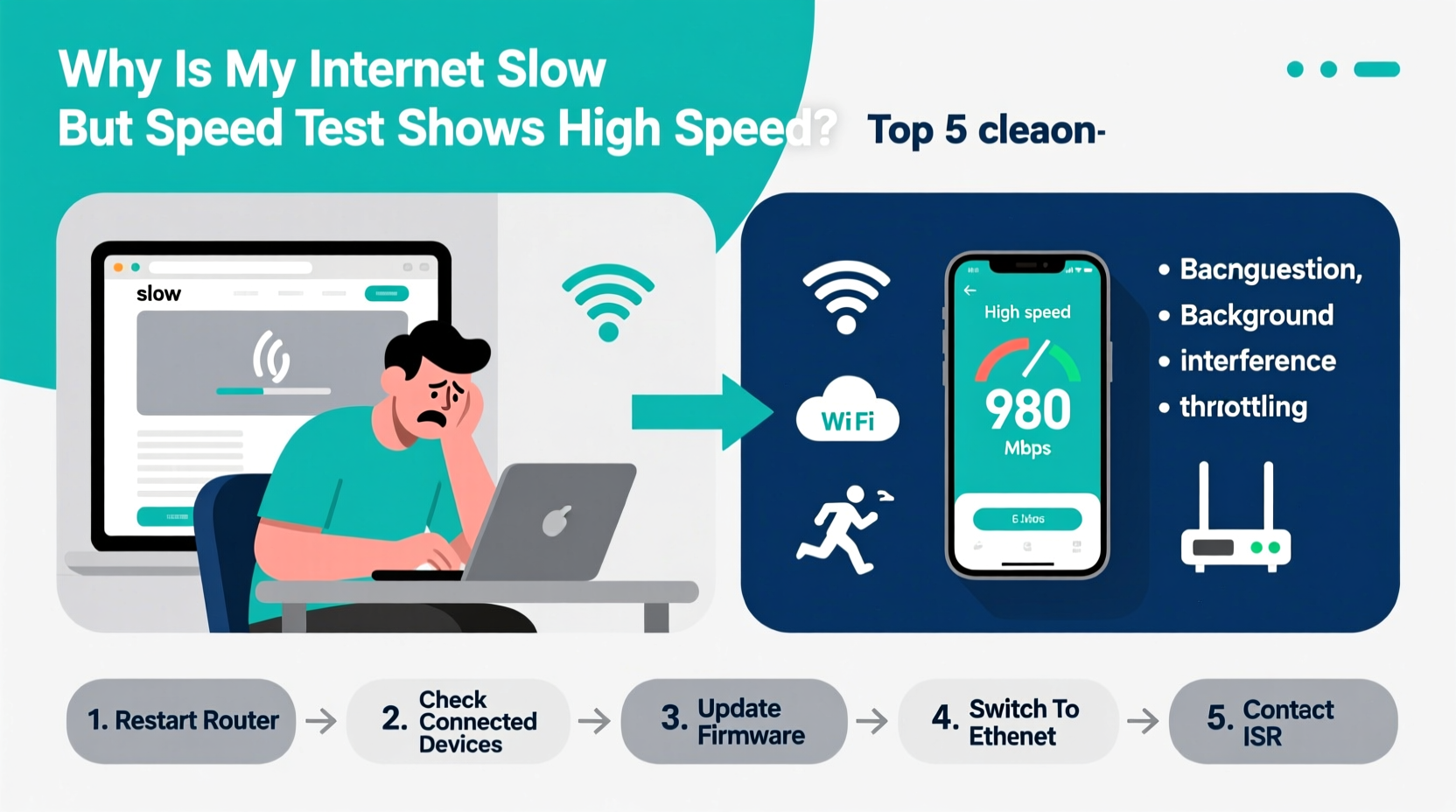
Speed tests measure raw bandwidth between your device and a nearby server under ideal conditions. They typically assess:
- Download speed: How fast data comes from the internet to your device.
- Upload speed: How quickly your device sends data out.
- Latency (ping): The time it takes for a signal to travel to a server and back.
- Jitter: Variability in latency, which affects real-time applications like gaming or video calls.
However, these metrics don’t reflect everyday usage patterns. Real-world performance depends on multiple variables beyond raw bandwidth:
- Multiplexing across devices
- Wi-Fi signal strength and congestion
- Server-side throttling by websites or services
- Device processing power and memory
- Background apps consuming bandwidth
“Speed tests are useful diagnostics, but they don’t simulate the complexity of modern home networks with multiple connected devices and fluctuating demand.” — Dr. Alan Reyes, Network Systems Engineer at OpenNet Labs
Common Causes of Slow Internet Despite High Speed Test Results
1. Wi-Fi Signal Degradation
Even with a powerful router, physical obstacles like walls, metal appliances, and distance can weaken your Wi-Fi signal. A strong speed test result near the router doesn’t guarantee consistent coverage throughout your home.
Materials such as concrete, brick, and mirrors absorb or reflect radio waves. Additionally, older 2.4 GHz bands suffer from interference due to their widespread use in household devices (microwaves, baby monitors, cordless phones).
2. Network Congestion from Multiple Devices
Modern homes average 10–20 connected devices—from smartphones and laptops to smart TVs, thermostats, and security cameras. While your total bandwidth may be high, shared usage fragments available resources.
For example, a 300 Mbps connection might deliver excellent speed test results when only one device is active. But when four devices stream HD video simultaneously, each receives roughly 75 Mbps—or less, if one device hogs bandwidth via automatic updates or cloud backups.
3. Background Applications and Automatic Updates
Many apps run silently in the background, syncing data, updating software, or uploading files. Common culprits include:
- Cloud storage services (Google Drive, Dropbox)
- Operating system updates (Windows, macOS)
- Streaming apps preloading content
- Gaming platforms downloading patches
These processes consume bandwidth without user awareness, creating bottlenecks during peak usage times.
4. DNS Latency and Server Routing Issues
Your Domain Name System (DNS) translates website addresses (like www.example.com) into IP addresses. Slow or unreliable DNS servers can delay page loading—even with high-speed connectivity.
Additionally, inefficient routing between your ISP and destination servers can increase latency. Some websites host content on distant or overloaded servers, causing delays regardless of your local speed.
5. Device Limitations
An aging laptop, outdated smartphone, or budget tablet may lack the hardware to fully utilize high-speed internet. Older Wi-Fi adapters support slower standards (e.g., 802.11n instead of Wi-Fi 5 or 6), limiting throughput.
Low RAM or high CPU usage can also bottleneck network performance. For instance, trying to stream 4K video on a device struggling to decode the stream will result in buffering—even with ample bandwidth.
Troubleshooting Checklist: Step-by-Step Fixes
- Restart your modem and router. Power cycle both devices to clear temporary glitches and refresh connections.
- Move closer to the router or switch to Ethernet. Eliminate Wi-Fi interference by testing with a wired connection.
- Check for active downloads or updates. Review Task Manager (Windows) or Activity Monitor (Mac) for bandwidth-hogging processes.
- Limit connected devices temporarily. Disconnect unused devices to isolate performance issues.
- Change your DNS server. Use faster alternatives like Google DNS (8.8.8.8) or Cloudflare (1.1.1.1).
- Update router firmware. Manufacturers release updates to fix bugs and improve stability.
- Test on multiple devices. Determine if the issue is device-specific or network-wide.
- Scan for malware. Malicious software can secretly use your bandwidth for botnet activity.
- Adjust Quality of Service (QoS) settings. Prioritize traffic for critical applications like video calls or gaming.
- Contact your ISP. Ask about line quality, signal levels, and potential throttling policies.
Comparative Analysis: Where Speed Tests Succeed and Fall Short
| Metric | What It Measures | Limits in Real Usage |
|---|---|---|
| Download Speed | Data transfer rate from server to device | Doesn’t account for simultaneous multi-device use or application efficiency |
| Upload Speed | Data sent from device to server | Often lower than advertised; impacted by asymmetric ISP plans |
| Latency (Ping) | Response time to a server | Can vary significantly based on server location and network hops |
| Jitter | Consistency of latency over time | High jitter disrupts VoIP and live streaming, even with good average ping |
| Packet Loss | Percentage of data not reaching destination | Rarely shown in consumer speed tests but critical for stable connections |
As shown above, most consumer-facing speed tests omit packet loss and real-time jitter analysis—both crucial for interactive applications. Consider using advanced tools like PingPlotter, M-Lab, or your router’s built-in diagnostics for a fuller picture.
Real-World Example: Home Office Connectivity Breakdown
Sarah, a freelance graphic designer in Austin, TX, upgraded her internet plan to 500 Mbps after experiencing lag during client video meetings. Her speed tests consistently showed 480 Mbps download and 20 ms ping. Yet, her Zoom calls still froze every few minutes.
After investigation, she discovered several issues:
- Her router was located in the basement, far from her second-floor office.
- Her NAS drive was performing nightly backups during work hours.
- Her laptop’s Wi-Fi adapter only supported 802.11ac, limiting real-world speeds.
She resolved the problem by relocating the router, rescheduling backups to 2 AM, and connecting her workstation via Ethernet. Video call stability improved immediately—even though her speed test results remained unchanged.
Frequently Asked Questions
Why does my phone show fast speeds but my laptop lags?
Different devices have varying Wi-Fi capabilities and background processes. Your phone may connect more efficiently or run fewer background tasks. Check your laptop for outdated drivers, excessive startup programs, or thermal throttling affecting performance.
Can my ISP throttle certain services even with high speed test results?
Yes. Some ISPs use deep packet inspection to prioritize or deprioritize traffic types (e.g., video streaming, peer-to-peer sharing). While speed tests often bypass throttling by using direct routes, real-world services may be affected. Using a reputable VPN can help bypass selective throttling.
Is Wi-Fi 6 worth upgrading for better performance?
If you have multiple high-bandwidth devices or experience frequent congestion, Wi-Fi 6 offers significant improvements. It supports higher throughput, better handling of multiple connections (via OFDMA), and reduced latency. However, both your router and devices must support Wi-Fi 6 to benefit.
Final Recommendations for Sustainable Performance
To maintain consistent internet performance, adopt a proactive maintenance routine:
- Perform monthly router reboots.
- Keep firmware and device OS updated.
- Use Ethernet for mission-critical devices (gaming consoles, desktops, smart TVs).
- Monitor bandwidth usage through your router’s admin panel or third-party apps like GlassWire or NetBalancer.
- Consider mesh Wi-Fi systems for large homes to eliminate dead zones.
“The best network isn’t always the fastest—it’s the one that delivers stable, predictable performance when you need it.” — Lin Zhao, Senior Network Architect at Urban Broadband Solutions




 浙公网安备
33010002000092号
浙公网安备
33010002000092号 浙B2-20120091-4
Comments
No comments yet. Why don't you start the discussion?