
If your internet crawls every evening—when you're trying to stream, work, or game—you’re not alone. Millions of households experience the same frustrating slowdown between 7 PM and 10 PM. The culprit isn’t always your ISP or router; it’s often a combination of network congestion, device overload, and environmental interference. Understanding why this happens—and how to fix it—is key to reclaiming fast, reliable connectivity after dark.
The Evening Internet Crunch: What’s Really Happening?
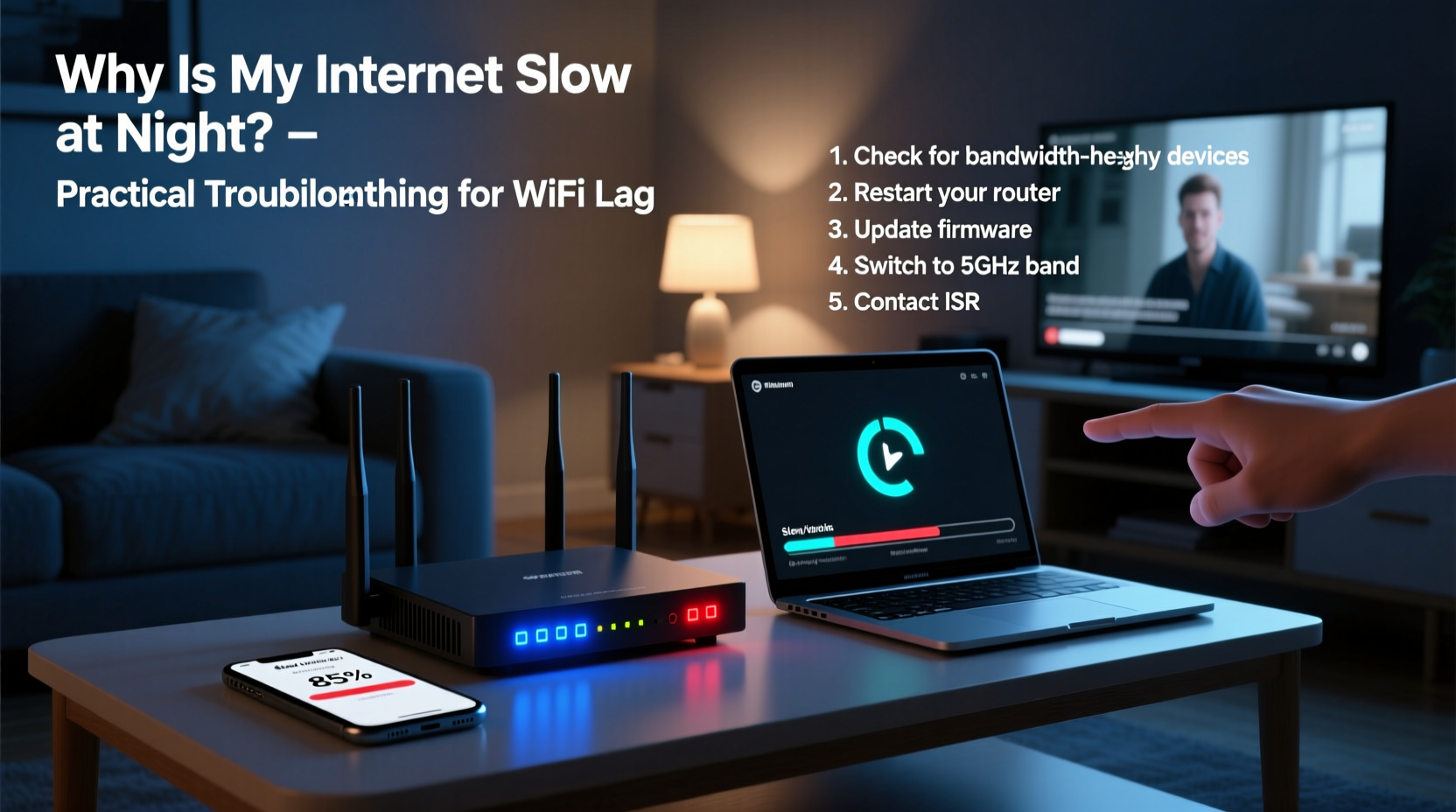
Internet speed drops at night due to increased demand on both local and regional networks. When schools are closed, kids come home, families gather, and people finish work, multiple devices connect simultaneously. Streaming platforms, online gaming, video calls, and cloud backups all spike in usage during peak hours. This surge affects two layers: your home network and your internet service provider's infrastructure.
Your ISP allocates bandwidth across a neighborhood node. If dozens of homes in your area are streaming 4K video at once, that shared connection can become overwhelmed—even if you have a 300 Mbps plan. Think of it like rush-hour traffic: more cars (data) on the same road (bandwidth) means slower movement for everyone.
“Peak-time congestion is one of the most underdiagnosed causes of poor home internet performance. Many users blame their router when the issue lies upstream.” — Dr. Lena Patel, Network Performance Analyst at Broadband Insights Group
Step-by-Step Guide to Diagnose Nighttime Lag
Before making changes, confirm the source of the slowdown. Follow this timeline to isolate the problem:
- Test baseline speed (Daytime): Run a speed test using a wired Ethernet connection between noon and 5 PM. Record download, upload, and ping values.
- Repeat at peak time (Night): At 8 PM, run the same test from the same device and location. Compare results.
- Check Wi-Fi vs. Wired: Repeat the night test with a direct Ethernet cable. If wired speed holds but Wi-Fi lags, the issue is local network-related.
- Test multiple devices: Try smartphones, laptops, and tablets. If all perform poorly, it’s likely network-wide.
- Restart modem/router: Power cycle your equipment and retest. A fresh connection can temporarily resolve glitches.
If speeds remain low even on a wired connection during peak hours, the bottleneck is external—your ISP’s network capacity. If only Wi-Fi suffers, focus on internal fixes.
Optimize Your Home Network Setup
Even with sufficient bandwidth, poor Wi-Fi performance can mimic slow internet. Signal interference, outdated hardware, and inefficient placement degrade performance exactly when you need it most.
Router Placement and Signal Health
Position matters. A router tucked in a closet, basement, or behind metal appliances struggles to broadcast effectively. For best coverage:
- Place the router centrally in your home, elevated off the floor.
- Avoid proximity to microwaves, cordless phones, baby monitors, and refrigerators.
- Keep away from large metal objects and thick walls (especially brick or concrete).
- If using a dual-band router, ensure devices connect to the less congested 5 GHz band where possible.
Update Firmware and Reduce Device Load
Outdated router firmware can introduce bugs and security flaws that impair performance. Log into your router’s admin panel (usually via 192.168.1.1 or 192.168.0.1) and check for updates under “Administration” or “Firmware.”
Also, disconnect devices not in active use. Smart TVs, tablets, and IoT gadgets (like smart bulbs or thermostats) constantly sync data in the background. Limiting connected devices reduces overhead and frees up bandwidth.
Practical Solutions and Upgrades
Once you’ve diagnosed the issue, implement targeted fixes. Some require no cost; others involve modest investment with high returns.
Use Quality of Service (QoS) Settings
Most modern routers support QoS—a feature that prioritizes certain devices or applications. For example, you can assign higher priority to your work laptop or streaming box, ensuring they get bandwidth before lower-priority devices like smart speakers.
To enable QoS:
- Access your router’s web interface.
- Navigate to “QoS” or “Traffic Control.”
- Select the device or application to prioritize (e.g., Netflix, Zoom, gaming console).
- Set its priority level to “High.”
Switch Wi-Fi Channels to Avoid Interference
In dense neighborhoods, neighboring Wi-Fi networks can interfere with yours. Routers default to auto-channel selection, but this doesn’t always choose optimally. Manually switching to a less crowded channel improves stability.
| Wi-Fi Band | Recommended Channels | Notes |
|---|---|---|
| 2.4 GHz | 1, 6, 11 | Non-overlapping channels; best for range but prone to interference. |
| 5 GHz | 36–48 or 149–161 | Faster, less interference; shorter range. Avoid DFS channels unless necessary. |
After changing channels, reboot the router and monitor signal strength and speed over the next few evenings.
Upgrade Hardware When Necessary
If your router is more than four years old, it may lack support for modern standards like Wi-Fi 5 (802.11ac) or Wi-Fi 6 (802.11ax). Older models struggle with multiple simultaneous connections and advanced traffic management.
Consider upgrading to a Wi-Fi 6 router if you have:
- More than five connected devices.
- Large file transfers or frequent 4K streaming.
- A home larger than 1,500 sq ft.
For multi-story homes, mesh Wi-Fi systems (like Eero, Netgear Orbi, or TP-Link Deco) eliminate dead zones and distribute load efficiently.
Troubleshooting Checklist: Fix Slow Night Internet
Follow this actionable checklist to systematically address nighttime lag:
- ✅ Run a speed test during the day and again at night to compare results.
- ✅ Connect a device via Ethernet to rule out Wi-Fi issues.
- ✅ Restart your modem and router to clear temporary glitches.
- ✅ Check for firmware updates on your router.
- ✅ Reposition the router to a central, elevated, unobstructed location.
- ✅ Switch to a less congested Wi-Fi channel using an analyzer tool.
- ✅ Enable QoS settings to prioritize critical devices.
- ✅ Disconnect unused devices to reduce network load.
- ✅ Consider upgrading to a Wi-Fi 6 router or mesh system if needed.
- ✅ Contact your ISP to verify if throttling or node congestion is occurring.
Real Example: How Sarah Fixed Her Family’s Streaming Struggles
Sarah, a remote worker and mother of two in suburban Chicago, noticed her internet slowed every evening. Netflix buffering messages interrupted family movie nights, and her Zoom calls froze during client meetings. She paid for a 200 Mbps plan and had a three-year-old router, so she assumed the ISP was at fault.
She followed diagnostic steps: first testing wired vs. Wi-Fi speeds. Her laptop showed 180 Mbps on Ethernet at night but dropped to 25 Mbps over Wi-Fi. That pointed to a local network issue.
Using a Wi-Fi scanner, she found her router was on channel 6—used by seven nearby networks. She manually switched to channel 11. She also moved the router from a cabinet in the kitchen to a shelf in the living room. Finally, she enabled QoS to prioritize her laptop and TV.
Results? Wi-Fi speeds jumped to 140 Mbps at night. No more buffering. “I didn’t need a new plan or expensive gear,” she said. “Just smarter setup.”
Frequently Asked Questions
Can my ISP throttle my internet at night?
Some ISPs engage in traffic shaping or throttling during peak hours, especially if you exceed a data cap. However, outright throttling without notice is rare in regions with net neutrality protections. To check, use a VPN during a speed test—if speeds improve significantly, your ISP may be filtering certain types of traffic.
Does turning off Wi-Fi at night help performance?
Turning Wi-Fi off doesn’t improve performance, but restarting it nightly can prevent memory leaks and connection buildup. Many routers benefit from a daily reboot, either manually or via a smart plug on a timer.
Is it better to use 2.4 GHz or 5 GHz at night?
The 5 GHz band is faster and less prone to interference but has shorter range. Use 5 GHz for devices near the router (laptops, smart TVs). Use 2.4 GHz for distant or low-power devices (smart lights, doorbells). Dual-band routers automatically steer devices, but manual assignment gives more control.
Final Thoughts: Take Control of Your Connection
Nighttime internet lag doesn’t have to be inevitable. While some factors—like neighborhood congestion—are beyond your control, many solutions are simple, affordable, and highly effective. From adjusting router placement to enabling QoS and upgrading hardware, small changes yield dramatic improvements.
Start with diagnostics. Know whether the issue is local or systemic. Then apply the right fixes in order of impact. Most users see noticeable gains without spending a dime. For others, a modest investment in a modern router pays for itself in smoother streaming, fewer frustrations, and better productivity.




 浙公网安备
33010002000092号
浙公网安备
33010002000092号 浙B2-20120091-4
Comments
No comments yet. Why don't you start the discussion?