
Laptops are essential tools for work, education, and entertainment, but few things disrupt productivity like a device that shuts down unexpectedly due to overheating. If your laptop feels hot to the touch, fans are constantly running at high speed, or performance suddenly drops, heat is likely the culprit. While some assume this requires a technician, most overheating issues stem from preventable causes and can be resolved at home with simple, effective steps.
Understanding the root causes of laptop overheating—and knowing how to address them—can extend your device’s lifespan, improve performance, and avoid costly repairs. This guide walks through the science behind laptop heat, common triggers, and actionable fixes you can apply immediately.
How Laptops Generate and Dissipate Heat
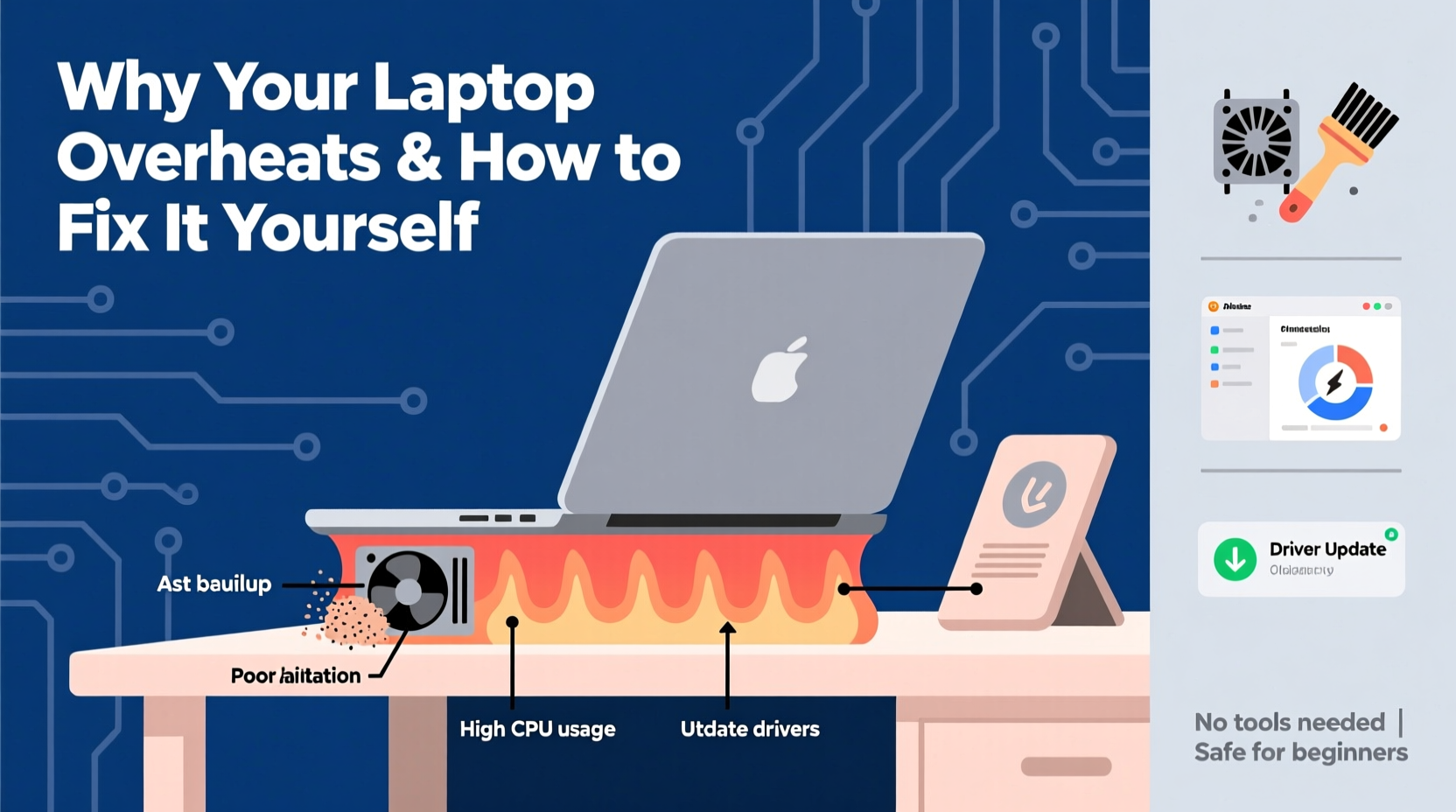
All laptops produce heat during operation. The central processing unit (CPU) and graphics processing unit (GPU) generate thermal energy when executing tasks. Even routine activities like browsing the web or watching videos require power, which in turn produces heat. Under normal conditions, your laptop manages this heat through internal cooling systems: fans draw air in, pass it over metal heat sinks attached to critical components, and expel warm air through exhaust vents.
However, this system only works efficiently when airflow is unobstructed and components are clean. Over time, dust accumulation, software strain, and poor usage habits compromise cooling efficiency. When heat isn’t properly dissipated, internal temperatures rise, triggering thermal throttling—a safety feature that slows down the processor to reduce heat. In severe cases, the laptop may shut down automatically to prevent hardware damage.
“Over 60% of laptop failures related to heat are preventable with basic maintenance.” — Dr. Alan Zhou, Hardware Systems Engineer at Midwest Tech Labs
Common Causes of Laptop Overheating
Before attempting fixes, identify what might be causing excessive heat. Most issues fall into one of these categories:
- Dust buildup in vents and fans: Dust acts as insulation, trapping heat inside the chassis.
- Blocked airflow: Using a laptop on soft surfaces like beds or couches blocks intake vents.
- Outdated or failing thermal paste: The compound between the CPU and heat sink degrades over time, reducing heat transfer.
- Background processes and malware: Hidden software can push the CPU to 100%, increasing heat output.
- Aging or underperforming cooling fans: Fans may slow down or stop due to wear or electrical faults.
- High ambient temperature: Operating in hot rooms or direct sunlight increases baseline heat.
Step-by-Step Guide to Fix Overheating at Home
You don’t need technical expertise to resolve most overheating problems. Follow this structured approach to diagnose and correct the issue safely.
- Shut down and unplug the laptop. Let it cool completely before handling. Wait at least 30 minutes if it was recently in use.
- Clean the exterior vents. Use a soft brush or compressed air to remove visible dust from intake and exhaust grills. Hold the can upright and spray in short bursts to avoid moisture buildup.
- Evaluate your usage environment. Move the laptop away from direct sunlight, heaters, or humid areas. Ideal operating temperature is between 20°C and 25°C (68°F–77°F).
- Check CPU usage via Task Manager (Windows) or Activity Monitor (Mac). Look for processes consuming excessive resources. End unnecessary tasks or uninstall suspicious applications.
- Update your operating system and drivers. Manufacturers often release firmware updates that optimize thermal management.
- Reset power settings. On Windows, set the power plan to “Balanced” instead of “High Performance,” which reduces CPU strain. On Mac, disable “Power Nap” if enabled.
- Use a laptop cooling pad. These external devices enhance airflow with additional fans and elevate the laptop for better ventilation.
Deep Cleaning the Internal Components (Advanced)
If external cleaning doesn’t help, internal dust buildup may be the issue. This requires opening the bottom panel—proceed with caution.
- Turn off the laptop and disconnect all cables.
- Remove the battery if it’s user-accessible.
- Use a Phillips screwdriver to unscrew the back panel. Keep screws organized.
- Gently blow compressed air across the fan blades, heat sink fins, and internal vents. Do not touch components with metal tools.
- Inspect the fan for wobbling or resistance. If it doesn’t spin freely, it may need replacement.
- Reassemble the laptop carefully and test performance.
Software Optimization to Reduce Heat Output
Hardware isn’t the only contributor to overheating. Software inefficiencies can cause sustained high CPU usage, generating excess heat even with perfect airflow.
Identify Resource-Hogging Applications
On Windows:
- Press Ctrl + Shift + Esc to open Task Manager.
- Click the “CPU” column to sort by usage.
- End tasks consuming more than 50% CPU for extended periods unless necessary.
On macOS:
- Open “Activity Monitor” from Applications > Utilities.
- Sort by % CPU and investigate unfamiliar processes.
Disable Startup Programs
Many apps launch automatically at startup, consuming background resources. Disable non-essential ones:
- Windows: Task Manager > Startup tab > Right-click and disable unwanted entries.
- macOS: System Settings > General > Login Items > Toggle off unnecessary apps.
Scan for Malware
Malicious software often runs hidden processes that max out CPU usage. Run a full system scan using trusted antivirus software like Windows Defender, Malwarebytes, or Bitdefender.
| Symptom | Possible Cause | Solution |
|---|---|---|
| Fan runs loudly even when idle | Background app or malware | Check Task Manager, end high-CPU tasks |
| Laptop shuts down under load | Dust-clogged vents or dried thermal paste | Clean internals or consider repasting |
| Bottom feels excessively hot | Poor ventilation or high ambient heat | Use on hard surface, add cooling pad |
| Screen freezes during video calls | Thermal throttling due to CPU overload | Close unused tabs, update drivers |
Real-World Example: Sarah’s Work-from-Home Struggle
Sarah, a freelance graphic designer, began experiencing frequent crashes during client Zoom meetings. Her laptop would become too hot to touch within 15 minutes of use, forcing her to pause sessions. Initially, she assumed the device was failing and considered buying a new one.
Instead, she followed a basic diagnostic process. She noticed the exhaust vent near the hinge was clogged with pet hair and dust. After using compressed air to clean it, the fan noise decreased significantly. She also discovered that an outdated version of her design software was running background updates continuously. Uninstalling and reinstalling the latest version reduced CPU usage from 95% to 30% during idle.
Within two hours and zero cost, Sarah restored stable performance. Her laptop now runs cooler and lasts longer on battery—proof that many overheating issues are solvable without technical expertise.
When to Consider Thermal Paste Replacement
Thermal paste is a conductive compound applied between the CPU/GPU and the heat sink. It fills microscopic gaps to improve heat transfer. Over time—typically after 2–4 years—it dries out and loses effectiveness.
Symptoms of degraded thermal paste include:
- Overheating despite clean internals
- High temperatures (>90°C) under moderate load
- Thermal throttling during everyday tasks
Replacing thermal paste is a low-cost fix ($5–$10 for quality paste like Arctic MX-4). However, it requires disassembling the laptop to access the CPU. If you’re uncomfortable doing this, skip it and focus on other solutions. For tech-savvy users, YouTube tutorials specific to your laptop model can guide the process safely.
Preventive Checklist to Avoid Future Overheating
Stay ahead of heat issues with regular maintenance. Use this checklist monthly:
- ✅ Clean exterior vents with compressed air
- ✅ Check Task Manager/Activity Monitor for abnormal CPU usage
- ✅ Update operating system and drivers
- ✅ Restart the laptop to clear memory and background tasks
- ✅ Verify that fans are spinning freely (listen during boot-up)
- ✅ Use a hard, flat surface or cooling pad
- ✅ Avoid exposing the laptop to direct sunlight or hot environments
Frequently Asked Questions
Can I use a vacuum cleaner to clean my laptop vents?
No. Household vacuums generate static electricity that can damage sensitive electronics. Use compressed air instead, holding the nozzle at least 2 inches from the vent to avoid fan damage.
Is it safe to run my laptop while charging if it gets hot?
Yes, but only if temperatures remain below 85°C (185°F). If the device becomes uncomfortably hot, unplug it, let it cool, and investigate airflow or software issues. Continuous high heat shortens battery life and risks component failure.
Will closing unused browser tabs really reduce heat?
Yes. Modern browsers like Chrome can consume significant CPU and RAM per tab, especially with video or ads. Closing unused tabs reduces processing load, lowering heat output and improving responsiveness.
Conclusion: Take Control of Your Laptop’s Temperature
Laptop overheating is a common but manageable issue. With awareness and routine care, you can maintain optimal performance without spending money on repairs or replacements. Most fixes—like cleaning vents, managing software, and improving airflow—are simple, cost-free, and highly effective.
Start today: inspect your laptop’s vents, review running processes, and adjust your usage habits. Small changes can lead to dramatic improvements in stability, speed, and longevity. Share your experience or ask questions in the comments—your insight could help others keep their devices cool and running smoothly.




 浙公网安备
33010002000092号
浙公网安备
33010002000092号 浙B2-20120091-4
Comments
No comments yet. Why don't you start the discussion?