
Laptops are designed for portability and convenience, but few things disrupt productivity and comfort like a machine that runs hot—especially when you're only browsing the web. If your laptop heats up rapidly during light tasks like checking email or watching videos, it's not normal, and ignoring the issue can lead to long-term damage. Overheating reduces system lifespan, throttles performance, and in extreme cases, causes sudden shutdowns. The good news? Most common causes are fixable with simple, low-cost solutions. Understanding why heat builds up and how to manage it empowers you to maintain a cooler, more reliable device.
Why Browsing Can Trigger Overheating
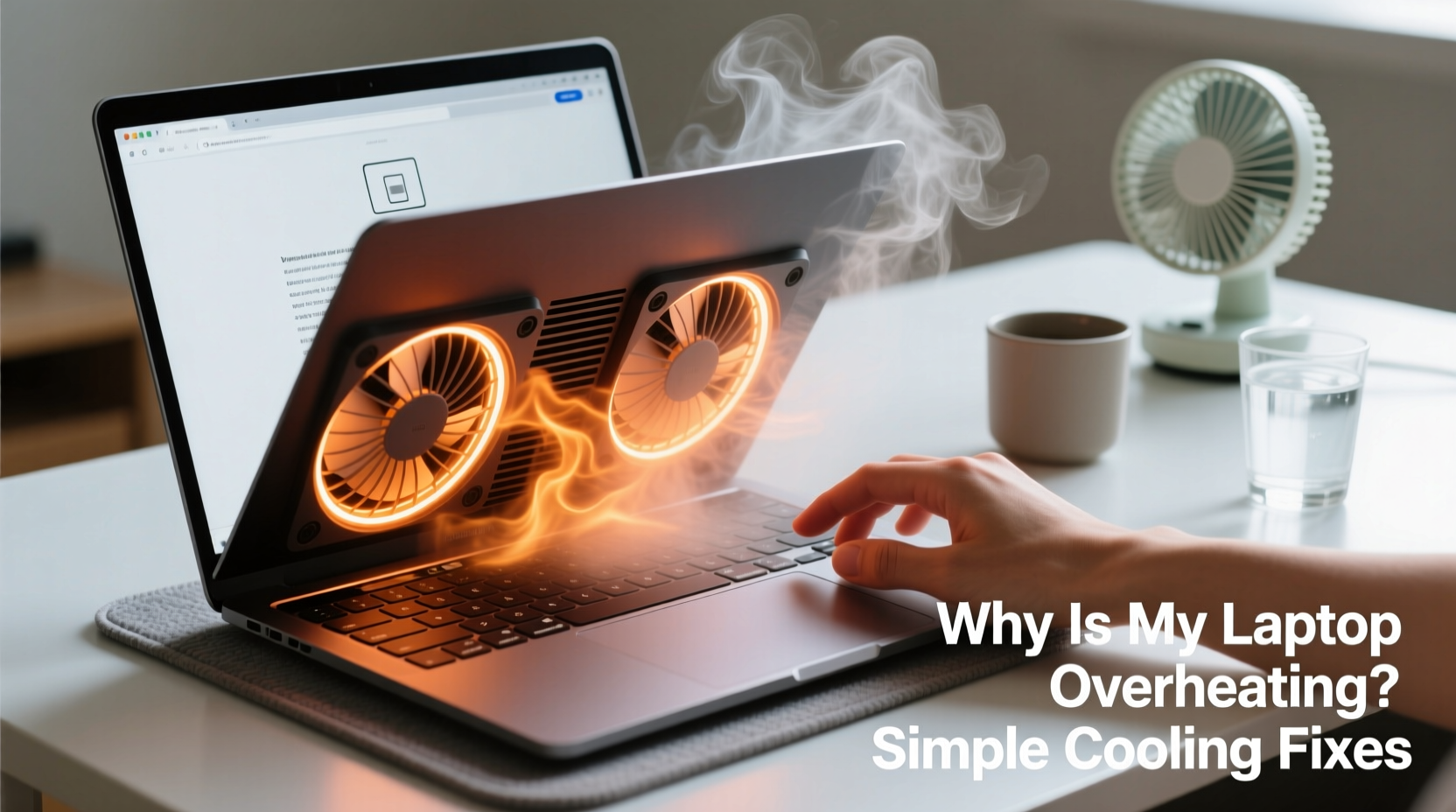
Modern web browsing is far more demanding than it once was. Streaming HD video, loading complex JavaScript-heavy websites, autoplaying ads, and running multiple browser tabs simultaneously place significant strain on your CPU and GPU. Even if you’re not gaming or editing video, background processes like ad scripts, auto-play videos, and crypto-mining scripts (malicious or otherwise) can spike processor usage and generate excess heat.
Additionally, laptops use compact internal designs with tightly packed components. Heat generated by the processor and graphics chip must travel through small heat pipes and dissipate via tiny fans and radiators. When airflow is restricted—even slightly—the system struggles to cool itself efficiently.
“Many users assume browsing is ‘light’ usage, but modern websites often consume as much processing power as desktop applications did a decade ago.” — Dr. Alan Reeves, Thermal Systems Engineer at MobileTech Labs
Common Causes of Excessive Heat During Browsing
- Dust buildup in vents and fans: Blocks airflow and insulates heat-generating components.
- Worn or dried thermal paste: Reduces heat transfer from CPU/GPU to the cooling system.
- Background browser extensions: Some add-ons run constant scripts that max out CPU cycles.
- Outdated drivers or firmware: Inefficient power management increases heat output.
- Poor ventilation setup: Using a laptop on soft surfaces like beds or couches blocks intake vents.
- Aging battery or power circuits: Can generate excess heat even under low load.
Step-by-Step Cooling Fixes You Can Do Today
Before considering hardware repairs or replacements, try these practical steps to reduce overheating. Most require no technical expertise and can be completed in under an hour.
- Elevate Your Laptop for Better Airflow
Place your laptop on a hard, flat surface. Use a book, tray, or dedicated laptop stand to raise the back edge slightly. This improves natural convection and prevents the bottom vents from being blocked. - Clean the Vents and Fans
Power off the laptop and unplug it. Use compressed air to blow dust from the side and bottom vents. Hold the fan blades in place with a toothpick or plastic tool while blowing air to prevent overspinning. Repeat until no more dust escapes. - Monitor CPU Usage While Browsing
Open Task Manager (Windows) or Activity Monitor (Mac). Sort by CPU usage while browsing. Identify any browser tabs or extensions consuming over 20% CPU consistently. Consider disabling or removing them. - Disable Hardware Acceleration in Your Browser
While useful for performance, hardware acceleration can overwork your GPU. In Chrome, go to Settings > System and toggle off “Use hardware acceleration when available.” Restart the browser and test temperature changes. - Update Browser, OS, and Drivers
Outdated software may lack efficient thermal management. Check for updates in your operating system, graphics drivers, and browser. Enable automatic updates where possible. - Reset Browser Settings or Try a Lightweight Alternative
Reset Chrome or Firefox to default settings to eliminate problematic configurations. Alternatively, switch to a lightweight browser like Firefox with privacy-focused add-ons disabled.
When to Consider Internal Cleaning
If external cleaning doesn’t help, internal dust accumulation may be the culprit. Over time, fine particles settle inside the chassis, coating heat sinks and fans. For most users, opening the laptop carries risk, but if you're comfortable with basic tools:
- Power down and remove the battery (if removable).
- Unscrew the back panel carefully.
- Use compressed air to clean internal components, focusing on the fan and heat sink fins.
- Reassemble and test.
Note: Opening your device may void warranty. Consult your manufacturer’s guidelines first.
Do’s and Don’ts of Laptop Cooling
| Do’s | Don’ts |
|---|---|
| Use your laptop on hard, flat surfaces | Place it on beds, pillows, or blankets |
| Clean vents every 2–3 months | Ignore visible dust buildup |
| Use a cooling pad with adjustable fans | Rely solely on cooling pads without fixing root issues |
| Close unused tabs and disable heavy extensions | Run 20+ tabs with autoplay videos enabled |
| Monitor temperatures with tools like HWMonitor or Core Temp | Assume everything is fine because the laptop hasn’t shut down |
Real Example: How Sarah Fixed Her Overheating Laptop
Sarah, a freelance writer, noticed her three-year-old laptop would become too hot to touch after just 20 minutes of browsing news sites. The fan ran constantly, and she experienced occasional freezes. Initially, she assumed the machine was simply aging. But instead of upgrading, she decided to investigate.
She opened Task Manager and found that one tab—running a site with autoplay video ads—was using 78% of her CPU. She installed an ad blocker and disabled hardware acceleration. Next, she used compressed air to clean the side vents, revealing a thick layer of lint. After these steps, her CPU temperature dropped from 94°C to 68°C during typical use.
The fix cost nothing and took less than 30 minutes. Sarah now cleans her laptop every few months and keeps browser extensions minimal. Her laptop feels faster and quieter, proving that small interventions yield major results.
Advanced Fix: Reapplying Thermal Paste
After 2–3 years, thermal paste between the CPU/GPU and the heat sink can dry out, crack, or degrade. This creates a barrier to heat transfer, causing the processor to run hotter even under light loads.
Reapplication requires disassembling the laptop to access the processor. Once exposed:
- Remove old thermal paste with isopropyl alcohol (90% or higher) and a lint-free cloth.
- Apply a pea-sized drop of high-quality thermal paste (e.g., Arctic MX-4 or Noctua NT-H1).
- Reattach the heat sink and reassemble the laptop.
This fix can reduce CPU temperatures by 10–15°C. However, it’s not recommended for beginners unless you have prior experience or access to a teardown guide for your specific model.
“Thermal paste degradation is one of the most overlooked causes of long-term overheating. It’s inexpensive to replace and can breathe new life into an aging laptop.” — Lena Park, Senior Technician at TechRevive Services
Checklist: Quick Cooling Maintenance Routine
Follow this monthly checklist to keep your laptop running cool and efficient:
- ✅ Clean exterior vents with compressed air
- ✅ Check Task Manager/Activity Monitor for high-CPU tabs or apps
- ✅ Update operating system and browser
- ✅ Disable unnecessary browser extensions
- ✅ Ensure laptop is used on a hard, flat surface
- ✅ Verify fan noise isn’t unusually loud or inconsistent
- ✅ Monitor internal temperatures using free tools
- ✅ Restart your laptop weekly to clear memory and background processes
Frequently Asked Questions
Can a cooling pad really help?
Yes, but with caveats. A quality cooling pad improves airflow, especially if your laptop’s intake is on the bottom. However, it won’t fix underlying issues like dust buildup or failing fans. Use it as a supplement—not a substitute—for proper maintenance.
Is it safe to use my laptop while it’s hot?
Short-term exposure to heat is generally safe due to built-in thermal throttling and shutdown protections. However, prolonged high temperatures accelerate wear on the battery, motherboard, and storage drive. Consistently running above 90°C can shorten your laptop’s lifespan by years.
Why does my laptop overheat even when idle?
If your laptop heats up without active use, suspect background processes. Malware, software updates, syncing services, or failing hardware (like a shorted component) could be the cause. Boot into Safe Mode and check if temperatures remain high. If they drop, the issue is software-related.
Conclusion: Take Control of Your Laptop’s Temperature
Overheating during browsing isn’t inevitable—it’s a warning sign that something in your system needs attention. Whether it’s dust-choked vents, bloated browser tabs, or degraded internal materials, the solutions are often simple and affordable. By adopting regular maintenance habits and understanding what drives heat generation, you extend your laptop’s performance and reliability.
Don’t wait for a system crash or permanent damage. Start today: clean your vents, audit your browser usage, and monitor temperatures. Small actions now prevent costly repairs later. A cooler laptop isn’t just more comfortable—it’s faster, quieter, and built to last.




 浙公网安备
33010002000092号
浙公网安备
33010002000092号 浙B2-20120091-4
Comments
No comments yet. Why don't you start the discussion?