
Smart Christmas lights promise effortless control, dynamic color effects, and festive automation—all from your smartphone. But when the app won’t connect, the magic quickly turns into frustration. Whether you're setting up for the first time or trying to revive last year’s display, connection issues are common but rarely permanent. The good news: most problems stem from predictable causes—Wi-Fi misconfigurations, outdated firmware, or simple setup oversights—and can be resolved without technical expertise.
This guide breaks down the root causes of smart light app disconnections and provides a structured troubleshooting approach. From network diagnostics to device resets and firmware updates, you’ll learn how to restore connectivity and enjoy a glitch-free holiday season.
Common Causes of App Connection Failures
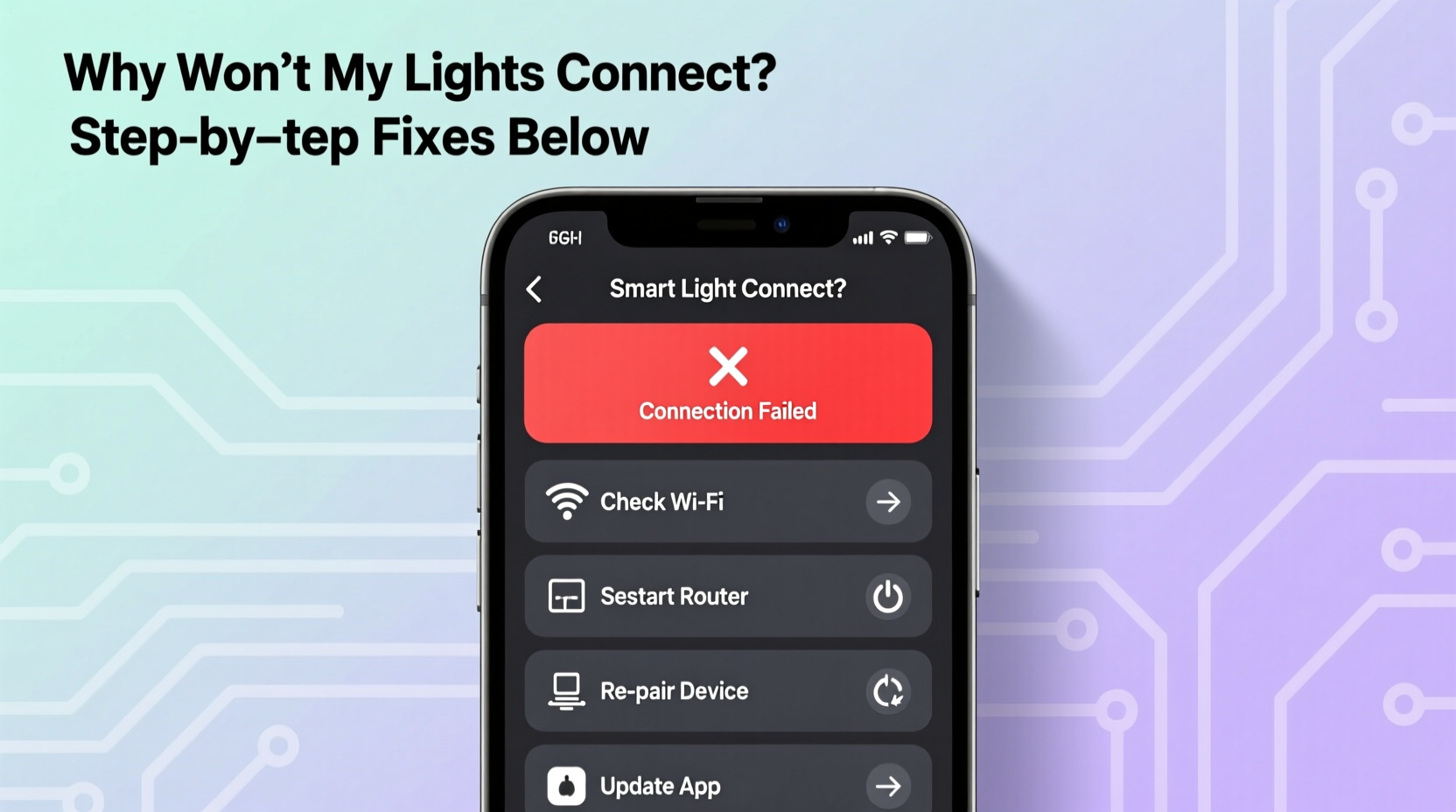
Before diving into fixes, it helps to understand what might be going wrong. Smart Christmas lights rely on a chain of communication: your phone → home Wi-Fi → router → cloud server (or local hub) → the light controller. A break at any point disrupts the entire system.
- Wi-Fi signal weakness: Lights placed far from the router may struggle to maintain a stable connection.
- Incorrect network selection: Many apps fail because the lights were set up on a 5GHz band instead of the required 2.4GHz.
- App or firmware bugs: Outdated software versions often contain unresolved glitches that prevent pairing.
- Router settings blocking devices: Firewalls, MAC filtering, or guest mode restrictions can block new IoT devices.
- Device overload: Too many connected smart devices can saturate your network, causing timeouts.
- Physical interference: Metal gutters, thick walls, or nearby electronics can disrupt wireless signals.
Understanding these factors helps narrow down the issue and avoid wasting time on ineffective solutions.
Step-by-Step Troubleshooting Guide
Follow this logical sequence to isolate and fix the problem. Each step builds on the previous one, ensuring no stone is left unturned.
- Reboot all components
Unplug your router and smart light string for 30 seconds, then power them back on. Wait two minutes for full initialization before attempting to reconnect. - Verify Wi-Fi band compatibility
Most smart Christmas lights only support 2.4GHz networks. If your router broadcasts dual-band SSIDs (e.g., “HomeNetwork” and “HomeNetwork_5G”), ensure you’re using the 2.4GHz version during setup. - Check app permissions and notifications
On iOS and Android, go to Settings > Apps > [Your Light App] and confirm that location services, Bluetooth, and background data are enabled. Some apps require Bluetooth for initial pairing even if Wi-Fi is used afterward. - Reinstall the app
Delete the app completely, restart your phone, then download the latest version from the official app store. Older versions may lack security patches or updated device profiles. - Forget and re-pair the device
In the app, remove the light strip from your account. Then reset the lights (usually via a button hold or power cycle), and go through the setup process as if it were new. - Test with another device
Try connecting the lights using a different smartphone or tablet. If it works, the issue lies with your original device’s OS, cache, or settings. - Check firewall and router settings
Log into your router admin panel (often via 192.168.1.1). Disable AP isolation, disable MAC filtering temporarily, and ensure UPnP (Universal Plug and Play) is enabled. These features can block IoT device communication. - Update firmware manually
Some brands allow manual firmware updates via USB or direct download. Check the manufacturer’s website for instructions specific to your model.
If none of these steps work, consider whether the issue is environmental—such as distance from the router or electromagnetic interference from outdoor transformers.
Troubleshooting Checklist
Use this checklist as a quick reference when diagnosing connection problems:
- ✅ Rebooted router and lights
- ✅ Connected to 2.4GHz Wi-Fi (not 5GHz)
- ✅ App updated to latest version
- ✅ Phone permissions granted (Bluetooth, Location, Background Data)
- ✅ Device removed and re-added in the app
- ✅ Tried setup on a second mobile device
- ✅ Router firewall/AP isolation disabled temporarily
- ✅ Firmware checked and updated if available
- ✅ Signal strength tested near lights (minimum -70dBm recommended)
- ✅ No conflicting smart home hubs interfering (e.g., multiple Zigbee coordinators)
Checking off each item ensures a methodical approach and reduces the chance of overlooking a simple fix.
Do’s and Don’ts When Setting Up Smart Lights
| Do | Don’t |
|---|---|
| Use a dedicated 2.4GHz network for IoT devices | Assume 5GHz works just as well |
| Keep lights within 30 feet of the router (or use a Wi-Fi extender) | Install lights in metal enclosures or behind foil-backed insulation |
| Label each string after setup to avoid confusion later | Plug lights into surge protectors with built-in switches unless necessary |
| Update firmware quarterly | Ignore app update notifications |
| Test connections before final installation | Leave lights plugged in during thunderstorms without protection |
Following best practices significantly improves reliability and reduces seasonal setup stress.
Real-World Example: Fixing a Persistent Disconnection Issue
Sarah in Denver purchased a popular brand of RGBW smart icicle lights for her front porch. During setup, the app repeatedly failed to detect the device despite being on the correct Wi-Fi network. She followed the standard reset procedure three times with no success.
After reading online forums, she discovered that her mesh Wi-Fi system was assigning devices to the nearest node, which sometimes operated on 5GHz. She temporarily disabled the 5GHz broadcast on her secondary node and forced all IoT devices onto the primary 2.4GHz network. She also turned off AP isolation in her router settings—a feature designed for security but known to block IoT traffic.
On her fourth attempt, the app connected instantly. Later, she created a separate SSID named “IoT_Network” exclusively for smart lights and plugs, preventing future conflicts. Her experience highlights how seemingly minor network settings can derail an otherwise smooth setup.
“Over 60% of smart lighting support tickets are resolved by adjusting router settings, not replacing hardware.” — Mark Lin, Senior Support Engineer at LuminWave Technologies
Frequently Asked Questions
Why does my smart light app say “device offline” even though my Wi-Fi is working?
This usually means the lights lost their connection to the network. It could be due to a router reboot, IP address conflict, or signal dropout. Try power cycling the lights and checking if they appear in your router’s connected devices list. If not, re-pair them through the app.
Can I use a Wi-Fi extender with smart Christmas lights?
Yes, but choose extenders that support 2.4GHz and don’t create a separate network name (SSID). A seamless roaming network ensures the lights stay connected as they communicate with the cloud. Avoid powerline adapters unless specifically rated for high-speed IoT use, as electrical noise can interfere with signals.
My app connects but won’t save schedules—what’s wrong?
This often points to a firmware bug or unstable internet connection. First, confirm your router has consistent internet access. Then check for firmware updates in the app. If the issue persists, recreate the schedule after clearing the app cache or logging out and back in.
Expert Tips for Long-Term Reliability
Maintaining consistent performance goes beyond initial setup. Seasonal storage and proactive maintenance play key roles in ensuring your lights work year after year.
- Label controllers: Use waterproof tags to mark each string’s name in the app (e.g., “Front Roof,” “Tree Top”). This prevents confusion when managing multiple zones.
- Store properly: Wrap lights around cardboard or reels to avoid tangling. Keep controllers in sealed bags with silica packets to prevent moisture damage.
- Seasonal checkups: Two weeks before decorating, plug in each set and verify app connectivity. This gives you time to replace faulty units or contact customer support.
- Use static IPs: Assign fixed IP addresses to your lights in your router settings. This prevents connection drops caused by DHCP lease changes.
Proactive care transforms smart lights from a seasonal hassle into a reliable tradition.
Conclusion: Regain Control and Enjoy the Holidays
A disconnected smart Christmas light app doesn’t have to ruin your holiday plans. With systematic troubleshooting, most issues can be resolved in under an hour. Start with the basics—reboots, Wi-Fi bands, and app updates—then move to advanced settings like router configuration and firmware. Real-world cases show that persistence and attention to detail pay off.
Once your lights are back online, take a moment to optimize your setup for next year: label devices, assign static IPs, and create a dedicated IoT network. These small steps prevent recurring issues and make future installations effortless.




 浙公网安备
33010002000092号
浙公网安备
33010002000092号 浙B2-20120091-4
Comments
No comments yet. Why don't you start the discussion?