
There’s nothing more frustrating than stringing up your smart Christmas lights, opening the app, and being met with a spinning wheel or error message. You’re ready to dazzle the neighborhood with synchronized color waves and festive patterns, but instead, your phone refuses to talk to the lights. This issue affects thousands of users every holiday season, regardless of brand—whether you're using Philips Hue, Govee, Twinkly, or a budget-friendly Amazon option. The good news: most connection problems are fixable with the right approach. The bad news: generic advice like “restart your router” often doesn’t go deep enough. This guide cuts through the noise with real, tested solutions based on user experiences, technical diagnostics, and expert insights.
Understanding the Connection Ecosystem
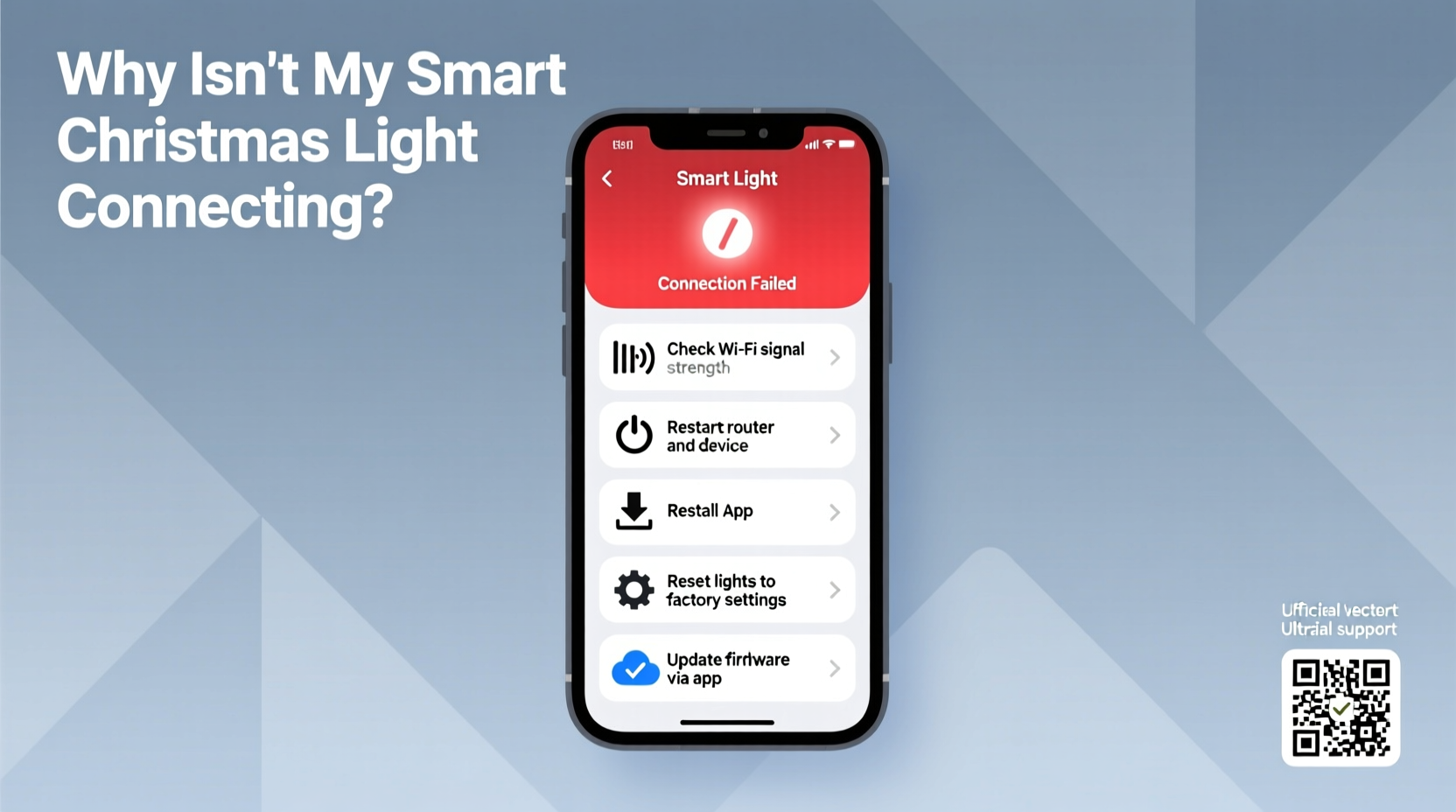
Smart Christmas lights don’t connect directly to the internet. Instead, they rely on a layered communication system involving Bluetooth, Wi-Fi, or proprietary protocols like Zigbee or Z-Wave, depending on the model. Most consumer-grade smart lights use either:
- Wi-Fi + Cloud App: Lights connect to your home Wi-Fi network, then communicate with a cloud server. Your smartphone app pulls data from that server to send commands.
- Bluetooth Direct: No Wi-Fi needed. Your phone connects directly to the lights via Bluetooth (short range only).
- Hybrid (Wi-Fi + Local Control): Some newer models support local control even when the internet is down, reducing latency and dependency on cloud servers.
When the app fails to connect, the breakdown could occur at any point: your phone, the app itself, the router, signal interference, or the lights’ firmware. Diagnosing where the failure happens is key to fixing it.
Step-by-Step Troubleshooting Guide That Works
Follow this logical sequence to isolate and resolve the issue. Many users skip early steps, assuming they’ve already tried them, but small oversights can derail the entire process.
- Verify Power and Physical Status
Ensure the lights are plugged in and powered. Check for any blinking indicator lights on the controller box. A red or amber blink often signals a failed boot or pairing mode. Solid green or blue usually means ready. - Check Phone Permissions and Settings
Modern smartphones restrict background app activity, location access, and Bluetooth/Wi-Fi scanning. Open your phone settings and confirm:- Location services are enabled (required for Bluetooth discovery on Android and iOS).
- The app has permission to access Wi-Fi and Bluetooth.
- Battery optimization is disabled for the app (Android).
- Restart Everything – In Order
Not all restarts are equal. Follow this sequence:- Unplug the lights for 30 seconds.
- Turn off your phone’s Wi-Fi and Bluetooth, wait 10 seconds, turn them back on.
- Reboot your router (unplug for 30 seconds).
- Power the lights back on.
- Restart your smartphone.
- Forget and Re-pair the Network
If the lights connect to Wi-Fi, they may have retained outdated credentials. Use the app to delete the device, then go through setup as if it were new. Do not skip this—even if the app shows the lights as “connected,” cached data can cause silent failures. - Test on Another Device
Try connecting with a different smartphone or tablet. If it works, the issue is isolated to your original device’s OS, cache, or settings. If not, the problem lies with the lights or network. - Clear App Cache and Data
On Android: Go to Settings > Apps > [Your Light App] > Storage > Clear Cache and Clear Data.
On iOS: Offload the app (Settings > General > iPhone Storage > [App] > Offload App), then reinstall. - Update Firmware Manually
Some apps allow manual firmware updates under “Device Settings.” If an update fails silently during initial setup, the lights may be running incompatible software. Force a firmware refresh after reconnection.
Common Connection Issues by Brand and How to Fix Them
Different brands use different architectures, leading to unique pain points. Here's a comparison of frequent issues and targeted fixes:
| Brand | Common Issue | Solution |
|---|---|---|
| Govee | App shows “Offline” despite lights being on | Router uses 5GHz-only; switch to 2.4GHz or enable dual-band. Govee does not support 5GHz Wi-Fi. |
| Twinkly | Can’t find lights during setup | Enable “Hotspot Mode”: Hold power button for 10 seconds until lights flash rapidly. Connect phone directly to Twinkly_XXXX network. |
| Philips Hue | Hue Bridge not detected | Check Ethernet cable connection between bridge and router. Restart bridge. Ensure UPnP is enabled on router. |
| Christmas Magic / Generic Brands | App crashes during pairing | These often use white-labeled firmware. Delete app, reboot phone, reinstall latest version from official store. |
Expert Insight: Why Connectivity Fails Beyond the Basics
Many assume connectivity issues stem from weak signals or poor apps. But deeper technical factors often play a role. According to Raj Patel, a network engineer specializing in IoT devices:
“Smart holiday lights operate on crowded frequency bands. During December, homes add dozens of new wireless devices—doorbells, cameras, speakers. This creates channel congestion, especially on 2.4GHz Wi-Fi. Even if your router supports modern standards, legacy modes or interference from microwaves or cordless phones can disrupt low-power signals from LED controllers.”
Patel recommends logging into your router’s admin panel and switching the 2.4GHz channel to 1, 6, or 11—these are non-overlapping and less prone to interference. He also advises setting up a dedicated IoT VLAN or subnet if your router supports it, isolating holiday devices from high-bandwidth traffic.
Real-World Case Study: The Lights That Wouldn’t Sync
Debra M., a homeowner in Portland, OR, spent three evenings trying to get her Govee RGBIC strips working. The app would detect the lights briefly, then lose connection. She replaced batteries, moved closer, and even bought a Wi-Fi extender—nothing worked.
After reviewing her router settings, she discovered her ISP-provided modem was broadcasting two separate networks: “HomeNetwork” (2.4GHz) and “HomeNetwork-5G” (5GHz). Her phone automatically connected to the 5GHz band, which Govee doesn’t support. Even though the lights were on the 2.4GHz network, the app couldn’t maintain stable communication because her phone kept switching bands.
The fix? She renamed both networks to make the distinction clear—“Home-2.4” and “Home-5G”—then manually connected her phone to the 2.4GHz network during setup. The lights paired instantly and have worked flawlessly since.
This case highlights a subtle but common issue: dual-band routers with identical SSIDs confuse IoT devices and their companion apps, leading to intermittent drops and failed handshakes.
Do’s and Don’ts of Smart Light Setup
Avoid these common pitfalls that sabotage connectivity from the start.
| Do | Don’t |
|---|---|
| Use a 2.4GHz Wi-Fi network for Wi-Fi-enabled lights | Assume 5GHz is better—most smart lights don’t support it |
| Keep your phone within 10 feet during initial pairing | Try to pair from another room or floor |
| Update the app and firmware before first use each season | Use an outdated app version from last year |
| Label your controller boxes for multi-string setups | Mix up controllers, causing cross-communication errors |
| Test lights indoors before outdoor installation | Install outside first—moisture and cold can affect early performance |
When Hardware Might Be the Problem
If all software and network troubleshooting fails, consider hardware failure. Common signs include:
- Lights power on but don’t respond to any commands.
- Controller emits a continuous beep or flickers erratically.
- Multiple devices fail on the same network, but other IoT devices work fine.
Water damage is a frequent culprit for outdoor lights stored improperly. Even if sealed, repeated exposure to moisture over seasons can corrode internal circuits. If you suspect hardware failure:
- Inspect the controller and power adapter for discoloration or swelling.
- Test with a known-good power supply (same voltage and amperage).
- Contact the manufacturer—many offer one-time replacements even outside warranty for holiday products.
Frequently Asked Questions
Why does my smart light app keep disconnecting?
Intermittent disconnections are often due to Wi-Fi instability, phone battery-saving features killing background app processes, or signal interference. Disable battery optimization for the app and ensure your router firmware is up to date. Also, verify that your phone isn’t switching between 2.4GHz and 5GHz bands automatically.
Can I use a Wi-Fi extender with smart Christmas lights?
Yes, but with caution. Place the extender close enough to the router to receive a strong signal, and ensure it broadcasts a 2.4GHz network. Some extenders create a separate SSID (e.g., “Extender-2.4”), which you must manually connect to during setup. Avoid mesh systems that use band steering unless you can assign lights to a specific node.
What if the app won’t even open or crashes?
This usually indicates a corrupted app installation or OS-level conflict. Uninstall completely, restart your phone, then download the latest version from the official app store. Avoid third-party APKs or sideloaded versions, which may contain malware or outdated code.
Final Checklist Before Giving Up
Before concluding your lights are broken, run through this final checklist:
- ✅ Are the lights receiving power? Test with a multimeter or alternate outlet.
- ✅ Is your phone on the 2.4GHz Wi-Fi network (if applicable)?
- ✅ Has the app been updated to the latest version?
- ✅ Have you cleared the app cache or reinstalled it?
- ✅ Did you restart the router and lights together?
- ✅ Can another device connect to the lights successfully?
- ✅ Are there firmware updates pending in the app?
- ✅ Is your router blocking unknown devices via MAC filtering or firewall rules?
If all steps fail, contact customer support with your device model, app version, and a detailed description of what you’ve tried. Companies are more likely to assist users who demonstrate troubleshooting effort.
Conclusion: Restore the Sparkle This Holiday Season
Smart Christmas lights should enhance the joy of the holidays, not become a source of stress. While connection issues are common, they are rarely permanent. With systematic troubleshooting, attention to network details, and a few insider techniques, most problems can be resolved in under an hour. Don’t let a glitchy app dim your display. Apply these strategies, share what works in your setup, and bring back the magic—one pixel at a time.




 浙公网安备
33010002000092号
浙公网安备
33010002000092号 浙B2-20120091-4
Comments
No comments yet. Why don't you start the discussion?