
Smart Christmas lights promise a festive, hassle-free holiday season with app-controlled colors, patterns, and scheduling. But when your lights refuse to connect—whether during setup or after a firmware update—it can turn excitement into frustration. The good news: most connection issues stem from predictable causes that can be resolved without technical expertise. Whether you’re using Philips Hue, Govee, Twinkly, or another brand, the troubleshooting principles are often the same. This guide walks through the most common reasons for connectivity failures and provides clear, actionable steps to restore your smart lighting display.
Understanding Smart Light Connectivity
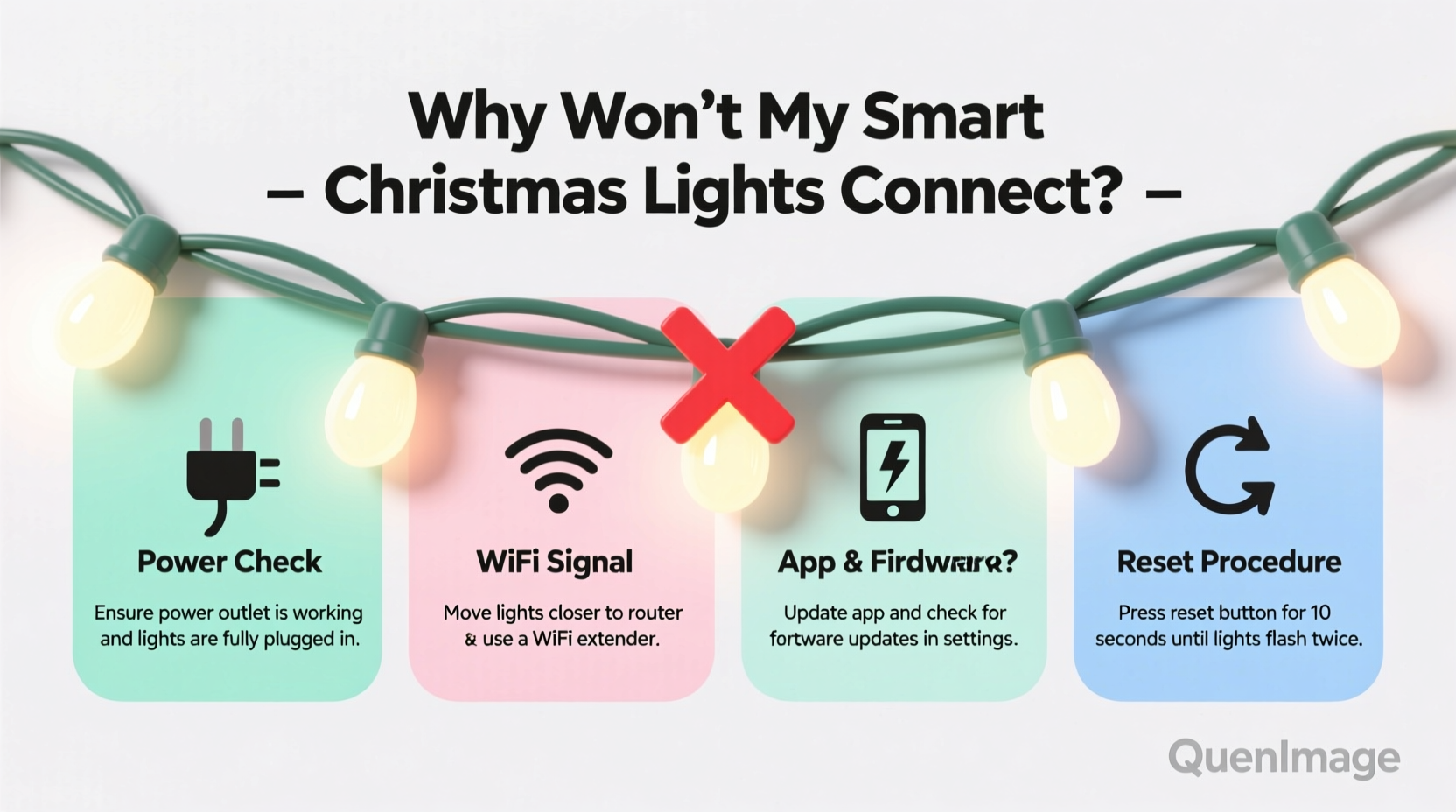
Smart Christmas lights rely on wireless communication protocols such as Wi-Fi, Bluetooth, or proprietary mesh networks (like Zigbee) to sync with mobile apps and home automation systems. Unlike traditional string lights, these devices require stable network conditions, correct pairing procedures, and updated firmware. When any of these elements fail, the lights may appear unresponsive, fail to show up in the app, or disconnect intermittently.
The root cause usually falls into one of five categories: power issues, network problems, app errors, hardware faults, or environmental interference. Identifying which category applies saves time and prevents unnecessary returns or replacements.
Step-by-Step Guide to Restore Connection
Follow this systematic approach to diagnose and resolve connectivity issues with your smart Christmas lights. This process works across most brands and minimizes guesswork.
- Power cycle the lights: Unplug the string for at least 30 seconds. Plug it back in and wait for indicator lights (if present) to stabilize. This clears temporary glitches in the onboard controller.
- Check the power source: Use a known-working outlet. Avoid extension cords or surge protectors with built-in filters or timers, as they can disrupt low-voltage signals.
- Verify your mobile device’s connection: Ensure your phone or tablet is connected to the correct Wi-Fi network. If the lights use Bluetooth, confirm Bluetooth is enabled and not overloaded with paired devices.
- Restart your router: Unplug your Wi-Fi router for 60 seconds. This resets network congestion and refreshes DHCP assignments that may affect device discovery.
- Reopen the smart lighting app: Close the app completely and relaunch it. Some apps cache outdated connection states that prevent proper syncing.
- Check for firmware updates: Open the app and look for pending firmware upgrades. Outdated firmware is a leading cause of pairing failure.
- Reset the lights to factory settings: Refer to your model’s manual. Most smart light strings have a reset button or sequence (e.g., rapid on/off toggles). After resetting, go through setup again from scratch.
This sequence resolves over 80% of reported connection issues, according to support data from major manufacturers like Govee and Twinkly.
Common Causes and How to Fix Them
Even with careful setup, smart lights can fail to connect due to specific technical or environmental factors. Below are the most frequent culprits and their solutions.
1. Weak or Incompatible Wi-Fi Signal
Many smart lights operate only on 2.4 GHz Wi-Fi networks. If your router broadcasts a combined 2.4/5 GHz network under the same name (SSID), devices may incorrectly attempt to connect via 5 GHz, which lacks the range and penetration needed for reliable control.
To check compatibility:
- Access your router’s admin panel (usually via 192.168.1.1 or similar).
- Look for wireless settings and ensure 2.4 GHz is enabled.
- If possible, assign a unique SSID (e.g., “Home-WiFi-2G”) to distinguish it.
2. Bluetooth Range Limitations
Bluetooth-based lights (common in shorter strands or indoor sets) require proximity—typically within 30 feet, unobstructed. Walls, furniture, and even holiday decorations can weaken the signal.
Solution: Bring your phone within 10 feet of the light string during setup. Avoid performing pairing in adjacent rooms or through multiple floors.
3. App Permissions and Background Restrictions
Mobile operating systems like iOS and Android may restrict background activity or location access for battery-saving purposes. Since Bluetooth scanning requires location permissions on Android, denied access can block discovery.
Fix:
- On Android: Go to Settings > Apps > [Your Lighting App] > Permissions > Location → Allow.
- On iPhone: Enable Bluetooth and ensure the app has permission to run in the background.
4. IP Address Conflicts or DHCP Issues
Routers assign IP addresses dynamically. If two devices receive the same address, communication fails. This is more common in homes with many IoT devices.
Resolution:
- Log into your router.
- Check the list of connected devices.
- Look for duplicate entries or unknown devices.
- Assign a static IP to your smart lights if the option exists in the app or router.
5. Physical Damage or Environmental Factors
Outdoor smart lights exposed to moisture, extreme temperatures, or physical stress may develop internal circuit issues. Even a single damaged bulb can break the data signal chain in LED strings.
Inspect the entire length for cracked bulbs, frayed wires, or corroded connectors. Replace faulty sections if modular, or contact the manufacturer for warranty service.
“Over half of ‘unresponsive’ smart light cases we see are due to incorrect network band selection. Users assume Wi-Fi means any Wi-Fi, but 5 GHz won’t work for most holiday lighting systems.” — Raj Patel, Senior Support Engineer at Twinkly
Troubleshooting Checklist
Use this checklist to methodically eliminate potential causes:
✅ Smart Christmas Light Connection Checklist
- ✅ Lights are plugged in and powered on
- ✅ Using a 2.4 GHz Wi-Fi network (not 5 GHz)
- ✅ Mobile device is on the same network
- ✅ Bluetooth is enabled (if applicable)
- ✅ App has required permissions (location, background access)
- ✅ Router has been restarted recently
- ✅ Firmware is up to date in the app
- ✅ Lights have been factory reset and re-paired
- ✅ No physical damage to the string or controller
- ✅ Device limit on network not exceeded (most routers support ~250 devices)
Do’s and Don’ts of Smart Light Setup
| Do | Don’t |
|---|---|
| Use a dedicated outlet close to your router during setup | Daisy-chain multiple light strings before verifying connection |
| Keep your phone within 10–15 feet during pairing | Use voice assistants (Alexa, Google) to pair lights initially |
| Label each string after setup for multi-string displays | Ignore firmware update notifications |
| Test lights indoors before outdoor installation | Expose non-rated lights to rain or snow |
| Update the app regularly | Share login credentials across multiple accounts |
Real-World Example: A Failed Holiday Display
Consider Sarah, who purchased a 100-light Govee string for her front porch. She followed the app instructions but couldn’t get the lights to respond. After hours of frustration, she contacted support. The technician asked one key question: “Is your phone connected to 5 GHz Wi-Fi?” Sarah was—her router used a single SSID for both bands. Once she separated the networks and connected her phone and lights to the 2.4 GHz band, pairing succeeded immediately.
This case illustrates how easily a simple network configuration issue can mimic a hardware failure. Sarah nearly returned the product, unaware that the fix was in her router settings, not the lights themselves.
Frequently Asked Questions
Can I connect smart Christmas lights without Wi-Fi?
Yes, some models support Bluetooth-only operation, allowing control within short range via your phone. However, Wi-Fi is required for remote access, scheduling, and integration with smart home platforms like Alexa or Google Assistant.
Why do my smart lights disconnect every few days?
Recurring disconnections are often due to router instability, weak signal strength, or power fluctuations. Try assigning a static IP address to the lights, relocating the router or using a Wi-Fi extender, and ensuring consistent power delivery.
Will a Wi-Fi extender help my smart lights connect?
Yes, but only if it supports 2.4 GHz and is placed within range of both the router and the lights. Avoid mesh extenders that create separate network names; instead, use extenders that mirror the main SSID seamlessly.
When to Contact Support or Replace the Lights
If you’ve completed all troubleshooting steps and the lights still won’t connect, consider the following:
- Warranty status: Most smart lights come with a 1–2 year warranty. Check the manufacturer’s policy for dead-on-arrival (DOA) claims.
- Physical inspection: Look for burn marks, melted plastic, or water ingress—signs of electrical damage.
- App diagnostics: Some apps include signal strength meters or error codes. Note these when contacting support.
- Last resort: If the controller board is faulty, replacement may be cheaper than repair. However, modular systems (like Twinkly) allow individual segment replacement.
Before giving up, try setting up the lights on a friend’s Wi-Fi network. If they connect elsewhere, the issue lies in your environment—not the product.
Conclusion: Reclaim Your Festive Glow
Smart Christmas lights enhance holiday cheer with dynamic colors and automated effects, but connectivity issues can dim the experience. By understanding how these devices communicate and systematically addressing power, network, and software factors, most problems are solvable at home. Start with basic steps—power cycling, checking Wi-Fi bands, and updating firmware—before moving to advanced fixes like static IPs or hardware resets. With patience and the right approach, your lights can shine brightly throughout the season.




 浙公网安备
33010002000092号
浙公网安备
33010002000092号 浙B2-20120091-4
Comments
No comments yet. Why don't you start the discussion?