
As holiday seasons grow more connected, smart Christmas lights have become a centerpiece of modern celebrations. Their vibrant colors, synchronized patterns, and app-based control bring magic to homes with just a tap. But when your smart lights stop responding to the app—ignoring commands, failing to power on, or dropping off the network—the frustration can dim the festive mood quickly.
The good news: most issues are fixable. Whether it’s a Wi-Fi hiccup, firmware glitch, or simple misconfiguration, understanding why your smart Christmas lights aren’t obeying the app is the first step toward restoring seamless control. This comprehensive guide walks you through diagnosing the root cause, performing proper resets, and preventing future disruptions—so your holiday display shines as bright as intended.
Understanding Common Causes of App Non-Response
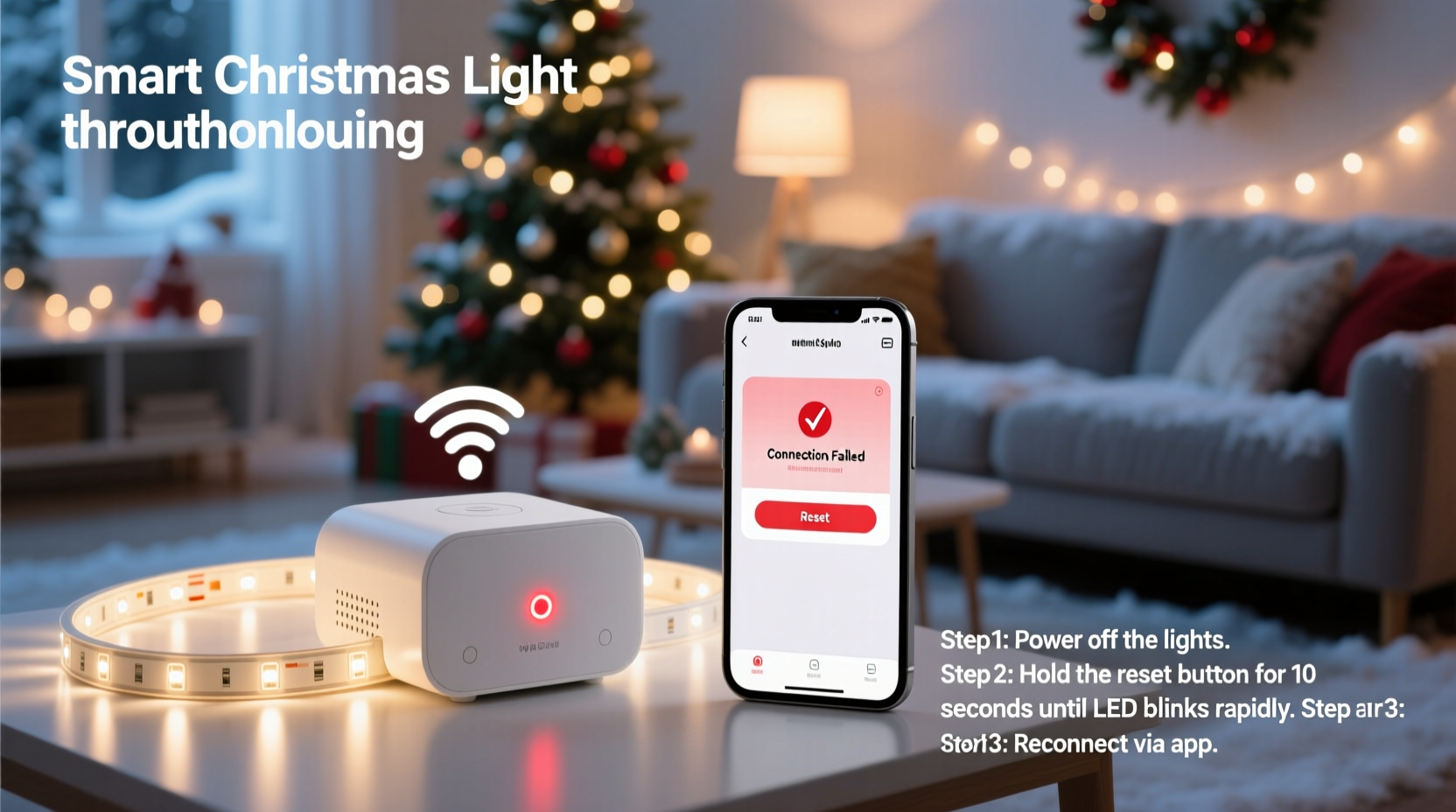
Before jumping into resets, it’s essential to identify what might be disrupting communication between your smartphone and the lights. Smart Christmas lights rely on a stable ecosystem involving hardware, wireless networks, and software. A failure in any component can break the chain.
- Wi-Fi connectivity issues: Weak signal strength, router interference, or incorrect network selection prevent the lights from receiving commands.
- App bugs or outdated versions: Software glitches or compatibility problems may block command execution even if the device is online.
- Power supply problems: Inadequate voltage, faulty adapters, or tripped GFCI outlets can cause intermittent operation.
- Firmware corruption: After a failed update or sudden power loss, internal firmware may become unstable.
- Device overload or IP conflicts: Too many smart devices on one network can lead to IP address clashes or bandwidth saturation.
- Physical damage or environmental factors: Moisture ingress, extreme temperatures, or physical wear can degrade performance.
Addressing these variables systematically increases your chances of recovery without needing replacements.
Step-by-Step Reset Guide for Non-Responsive Lights
A proper reset clears cached data, re-establishes network connections, and forces the device into a known state. The exact method varies by brand (e.g., Philips Hue, Govee, Twinkly, LIFX), but the following universal steps apply to most models.
- Disconnect Power Completely
Unplug the light string from the outlet. Wait at least 30 seconds. This ensures capacitors discharge fully and temporary memory resets. - Check Physical Connections
Inspect the power adapter, extension cords, and connectors. Look for fraying, corrosion, or loose joints. Replace damaged components immediately. - Reboot Your Router
Turn off your Wi-Fi router, wait 30 seconds, then power it back on. Allow two minutes for all devices to reconnect. Many smart lighting issues stem from stale network states. - Force-Close and Reopen the App
Swipe away the app from your phone’s recent apps list, then relaunch it. On iOS, double-click Home; on Android, use the Recents menu. - Forget and Reconnect the Device
In the app, remove the light from your account (usually under Settings > Devices > [Your Lights] > Remove). Then go through pairing mode again. - Enter Pairing Mode Manually
Most brands require a specific sequence:- Govee: Plug in, unplug after 2 seconds, repeat 5 times rapidly.
- Twinkly: Power cycle three times within 10 seconds.
- LIFX: Turn on/off five times in quick succession.
- Reconnect to Wi-Fi
Follow the app’s prompts to re-pair the lights. Ensure your phone is connected to a 2.4 GHz band (not 5 GHz, which many smart lights don’t support). - Update Firmware
If the device reconnects, check for available firmware updates in the app. Install them promptly to patch known bugs.
After completing these steps, send a basic command—such as turning the lights white or adjusting brightness. If they respond, the reset was successful.
Troubleshooting Checklist: What to Verify Before Resetting
Sometimes, a full reset isn’t necessary. Use this checklist to rule out simpler causes first:
- ✅ Is the power source working? Test the outlet with another device.
- ✅ Are the lights within range of your Wi-Fi router?
- ✅ Is your smartphone connected to the same Wi-Fi network used during setup?
- ✅ Have you restarted both the app and your phone?
- ✅ Are other smart devices functioning normally on the same network?
- ✅ Is the app updated to the latest version?
- ✅ Do the lights show any signs of life (e.g., blinking during boot)?
If all items are confirmed and the lights still don’t respond, proceed with the full reset process outlined above.
Do’s and Don’ts When Handling Smart Light Resets
Mistakes during the reset process can prolong downtime or even brick the device. The table below summarizes best practices.
| Do | Don't |
|---|---|
| Wait at least 30 seconds between power cycles to allow full discharge. | Rapidly plug/unplug without pauses—this can damage circuitry. |
| Use the correct voltage-rated power adapter specified by the manufacturer. | Substitute with third-party adapters that don’t match specs. |
| Perform resets during low network traffic hours (e.g., early evening). | Attempt pairing during peak internet usage times. |
| Keep the app open and active during firmware updates. | Switch apps or lock your phone mid-update. |
| Label outdoor strands clearly to avoid confusion during maintenance. | Assume all strings behave identically—each model has unique protocols. |
Real-World Example: Recovering a Frozen Govee Setup
Mark installed Govee RGBIC LED strips around his porch in December. For weeks, they worked flawlessly—responding to voice commands, music sync, and schedule triggers. Then, after a storm caused a brief power outage, the lights stopped responding entirely. The app showed “Offline,” and no amount of refreshing helped.
He began by checking the outlet with a lamp—power was live. His Wi-Fi was up, and other smart bulbs responded. He force-closed the Govee app, rebooted his phone, and even reinstalled the app—but the lights remained unresponsive.
Following the reset guide, Mark unplugged the strip, waited 30 seconds, and performed five rapid plug-unplug cycles. The strip blinked blue rapidly, indicating pairing mode. He reopened the app, selected “Add Device,” and followed the instructions. Within 90 seconds, the lights reappeared in the app. A firmware update prompt appeared; he installed it immediately.
The lights were restored—and now synced better than before. Mark learned that power interruptions could corrupt connection states, so he added a small UPS to protect his outdoor smart devices next season.
“Many smart lighting failures aren’t hardware defects—they’re recoverable software states. A proper reset is often all it takes.” — David Lin, IoT Support Engineer at SmartHome Labs
When Factory Reset Isn’t Enough: Advanced Fixes
If standard resets fail, consider these advanced interventions:
- Change DNS Settings: Some routers block IoT device communications. Try setting your router’s DNS to Google Public DNS (8.8.8.8 and 8.8.4.4) or Cloudflare (1.1.1.1).
- Use a Wi-Fi Extender: If the lights are far from the router, signal drop-off may prevent reliable communication. Place a 2.4 GHz extender midway.
- Factory Reset via Manufacturer Tool: Brands like Twinkly offer desktop configuration tools that can force-reset devices even when the app fails.
- Check MAC Filtering: If enabled, your router might block new or unrecognized devices. Temporarily disable MAC filtering during setup.
- Test on Another Network: Bring the lights indoors and try connecting to a guest network or mobile hotspot to isolate the issue.
These steps require slightly more technical comfort but can resolve stubborn cases where consumer-level fixes fall short.
FAQ: Common Questions About Smart Light App Failures
Why do my smart Christmas lights show as “offline” in the app?
This usually means the lights lost their Wi-Fi connection. Causes include router restarts, weak signal, power interruption, or firmware crash. Perform a reset and re-pairing to restore connectivity.
Can I control smart lights without Wi-Fi?
Some models support Bluetooth fallback for local control, but full features (like scheduling or remote access) require Wi-Fi. Check your product specs—Govee and LIFX offer hybrid modes.
How often should I reset my smart Christmas lights?
You shouldn’t need to reset them regularly. Frequent resets suggest deeper issues: unstable power, poor Wi-Fi coverage, or incompatible routers. Address the root cause instead of resetting repeatedly.
Prevent Future Issues: Maintenance Tips for Long-Term Reliability
Once your lights are working again, take steps to keep them responsive throughout the season and beyond.
- Store Properly Off-Season: Coil lights gently, avoid kinks, and store in a dry, temperature-controlled space. Use original packaging or labeled bins.
- Update Firmware Annually: Before reinstalling each year, check for updates. Many users forget this until problems arise.
- Label Power Adapters: Keep dedicated adapters with each set to prevent mismatching.
- Create a Connection Log: Note down SSID, password, and app login details in a secure place. Losing access complicates recovery.
- Use Surge Protectors: Protect against voltage spikes during storms or grid fluctuations.
Conclusion: Restore Control and Keep the Holidays Bright
Smart Christmas lights enhance seasonal joy—but only when they work as expected. When app commands fail, the solution is rarely immediate replacement. More often, it’s a matter of systematic troubleshooting, proper resets, and attention to network hygiene.
By understanding the common causes of non-response, following a structured reset process, and applying preventive care, you can maintain reliable control over your display year after year. Don’t let a glitchy strand ruin the mood. With the right approach, your lights will shimmer exactly when—and how—you want them to.




 浙公网安备
33010002000092号
浙公网安备
33010002000092号 浙B2-20120091-4
Comments
No comments yet. Why don't you start the discussion?