
Smart Christmas trees have transformed holiday decorating with programmable lights, music synchronization, and remote control via smartphone apps. But when your tree stops responding to app commands, the magic can quickly turn into frustration. Whether you're setting up for the first time or mid-season, a non-responsive tree usually stems from one of several common technical hiccups. The good news: most issues are fixable without returning the product or calling customer support.
This guide walks through real-world causes and actionable solutions—covering Wi-Fi problems, app glitches, firmware bugs, and device-specific quirks. With methodical troubleshooting, you’ll likely restore full control in under 30 minutes.
Check Your Network Connection First
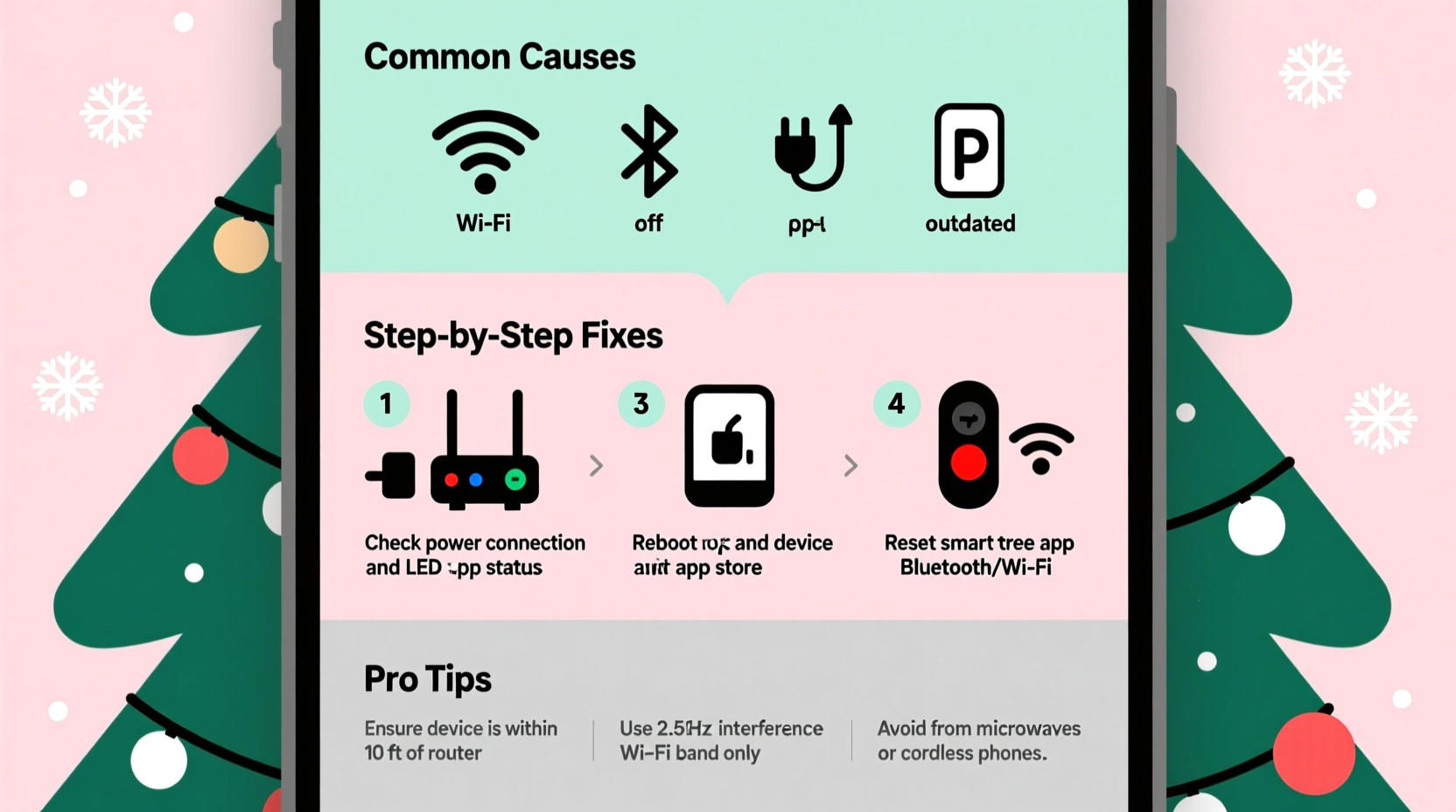
The most frequent cause of app unresponsiveness isn’t the tree or the app—it’s your home Wi-Fi. Smart trees rely on stable internet connections to receive commands. If your network is weak, congested, or misconfigured, communication breaks down.
Start by verifying that your phone is connected to the same Wi-Fi network as the tree. Many users unknowingly switch to cellular data or a guest network, which prevents local device discovery. Ensure both devices are on the 2.4 GHz band if your router broadcasts dual-band (2.4 GHz and 5 GHz). Most smart trees don’t support 5 GHz networks due to range and compatibility limitations.
Next, test signal strength near the tree. Thick walls, metal furniture, or distance from the router can degrade connectivity. Use a Wi-Fi analyzer app to measure signal quality. A reading below -70 dBm typically indicates poor reception.
“Over 60% of smart home device issues reported to us stem from network configuration errors, not hardware failure.” — Jordan Lee, IoT Support Lead at HomeSync Technologies
Restart All Devices: The Universal Reset
Sometimes the simplest solution works best. Power cycling clears temporary glitches in your router, smart tree, and phone. This step resolves cached errors, IP conflicts, and failed handshake attempts between devices.
Follow this sequence:
- Unplug the smart tree and wait 30 seconds.
- Restart your Wi-Fi router by unplugging it for 10 seconds, then plugging it back in.
- Wait until all router lights stabilize (usually 1–2 minutes).
- Reconnect your smartphone to the Wi-Fi network.
- Plug the tree back in and allow it 60–90 seconds to boot and reconnect.
- Open the companion app and attempt a command (e.g., change light color).
This process resets network handshakes and forces re-authentication. In many cases, especially after a power surge or router update, it restores functionality immediately.
Verify App and Firmware Compatibility
An outdated app or missing firmware update can prevent proper communication. Manufacturers regularly release patches to fix bugs, improve stability, and add features. If your app hasn't updated in months, it may no longer be compatible with current server protocols.
Visit your device’s app store (Google Play or Apple App Store) and search for the tree’s companion app. If an update is available, install it. After updating, reopen the app and log in again if prompted.
Similarly, the tree itself may need a firmware update. These updates often occur automatically when the device connects to the internet. However, if your tree has been offline, it might be running old software. Check the app’s settings menu for a “Device Info” or “System Update” section. If an update is pending, follow the on-screen instructions—usually involving keeping the tree powered and within Wi-Fi range for several minutes.
| Issue | Possible Cause | Solution |
|---|---|---|
| App shows “Device Offline” | Wi-Fi disconnect or power loss | Restart router and tree; verify network name/password |
| Commands sent but no response | Firmware outdated or corrupted | Check for firmware update in app settings |
| Can’t find tree during setup | Phone on wrong network or tree not in pairing mode | Ensure 2.4 GHz Wi-Fi; reset tree to factory settings |
| Lights flicker but ignore app | Partial sync or interference | Move tree closer to router; reduce Bluetooth/Wi-Fi congestion |
Reset the Tree to Factory Settings
If basic troubleshooting fails, a factory reset may be necessary. This erases saved Wi-Fi credentials and app pairings, returning the tree to its out-of-box state. While it sounds drastic, it often resolves deep-seated connection issues.
The reset process varies by brand, but most models use a recessed button or a specific power-cycle sequence. For example:
- Evergreen SmartHome Trees: Press and hold the base control button for 15 seconds until lights flash red and green.
- NordicGlow Pro Series: Unplug, then plug in while holding the mute button on the remote for 10 seconds.
- Generic Brands: Look for a small reset pinhole on the control box—press with a paperclip for 10+ seconds.
After resetting, open the app and go through the setup process again as if installing a new device. Re-enter your Wi-Fi password carefully—typos are a surprisingly common cause of failed connections.
Mini Case Study: The Holiday Setup That Wouldn’t Sync
Sarah from Minneapolis purchased a 7-foot smart tree in November, excited to sync lights with holiday music. After assembly, the app detected the tree but wouldn’t accept any commands. She tried restarting her phone and checking Wi-Fi—but nothing worked.
On the third night, she noticed her mesh Wi-Fi system had assigned the tree to a satellite node across the house, where signal was weak. She moved the main router closer to the living room, restarted all devices, and re-paired the tree. It connected instantly.
The root cause? Network topology. Her tree was connecting to a secondary access point with high latency. By optimizing router placement and ensuring direct signal path, Sarah restored full control—just in time for her family’s virtual holiday party.
Prevent Future Issues: Best Practices
Once your tree is working, take steps to maintain reliability throughout the season:
- Keep the router nearby: Place the tree within 15 feet of the router, avoiding large metal objects or thick walls.
- Avoid network overload: Don’t run multiple 4K streams or downloads while using interactive tree features.
- Update monthly: Check for app and firmware updates at least once a month.
- Label your network: Rename your 2.4 GHz network (e.g., “HomeWiFi_2G”) so you never connect to the wrong band.
- Use a dedicated outlet: Plug the tree into a surge protector to prevent power fluctuations.
“Treat your smart tree like any critical smart home device—consistent power and clean network access are key.” — Lena Patel, Smart Home Integration Consultant
Troubleshooting Checklist
When your smart Christmas tree won’t respond to app commands, work through this checklist in order:
- ✅ Confirm phone and tree are on the same 2.4 GHz Wi-Fi network.
- ✅ Restart the smart tree, router, and smartphone.
- ✅ Check for app updates in your device’s app store.
- ✅ Verify the tree’s firmware is up to date in the app settings.
- ✅ Test Wi-Fi signal strength near the tree (aim for -60 dBm or better).
- ✅ Reboot the router and wait 2 minutes before retrying.
- ✅ Delete and reinstall the app if interface freezes persist.
- ✅ Perform a factory reset on the tree if all else fails.
- ✅ Re-pair the tree through the app’s setup wizard.
- ✅ Contact manufacturer support with model number and error logs if unresolved.
Frequently Asked Questions
Can I control my smart tree without Wi-Fi?
Most smart trees require Wi-Fi for app-based control. However, many include IR remotes or manual buttons on the base for basic functions like turning lights on/off or changing modes. Without internet, advanced features like scheduling, voice control, and music sync will not work.
Why does my app show the tree as online but commands fail?
This usually indicates a partial connection. The tree may have obtained an IP address but can’t reach the cloud server. Try rebooting the router, checking firewall settings, or switching to a less congested Wi-Fi channel. Some ISP routers block certain ports used by IoT devices—consult your modem’s admin panel.
Will a Wi-Fi extender help if my tree is far from the router?
Yes, but choose wisely. Standard Wi-Fi extenders can create separate networks, confusing the tree. Instead, use a mesh Wi-Fi system (like Google Nest or Eero) that provides seamless coverage. Alternatively, a Wi-Fi extender set to the same SSID and 2.4 GHz band can improve signal—just ensure it’s placed midway between router and tree.
Conclusion: Restore the Holiday Magic
A smart Christmas tree that ignores app commands disrupts more than just lighting schedules—it dampens the festive spirit. But with systematic troubleshooting, nearly every issue can be resolved at home. Start with network basics, escalate to resets only when needed, and adopt preventive habits to avoid repeat problems.
Remember, these devices operate in complex wireless environments. Interference, outdated software, and simple misconfigurations are far more common than hardware defects. By applying the steps outlined here—from signal checks to factory resets—you’re not just fixing a glitch; you’re reclaiming seamless, joyful control over your holiday centerpiece.




 浙公网安备
33010002000092号
浙公网安备
33010002000092号 浙B2-20120091-4
Comments
No comments yet. Why don't you start the discussion?