
If you've ever settled in for a relaxing evening of streaming only to be met with endless spinning wheels and choppy playback, you're not alone. Many smart TV owners report persistent buffering despite having a high-speed internet connection—sometimes exceeding 100 Mbps. This contradiction can be frustrating, especially when your phone or laptop streams without issue on the same network. The truth is, internet speed is just one piece of the puzzle. Buffering on a smart TV involves a complex interplay between your device, network setup, router placement, software updates, and even how streaming services deliver content.
This guide breaks down the most common hidden causes behind smart TV buffering and provides actionable, real-world solutions. Whether you're using a Samsung, LG, Roku, or Android TV, these steps will help diagnose and resolve performance bottlenecks so you can get back to uninterrupted viewing.
Understanding Why Buffering Happens (Even With Fast Internet)
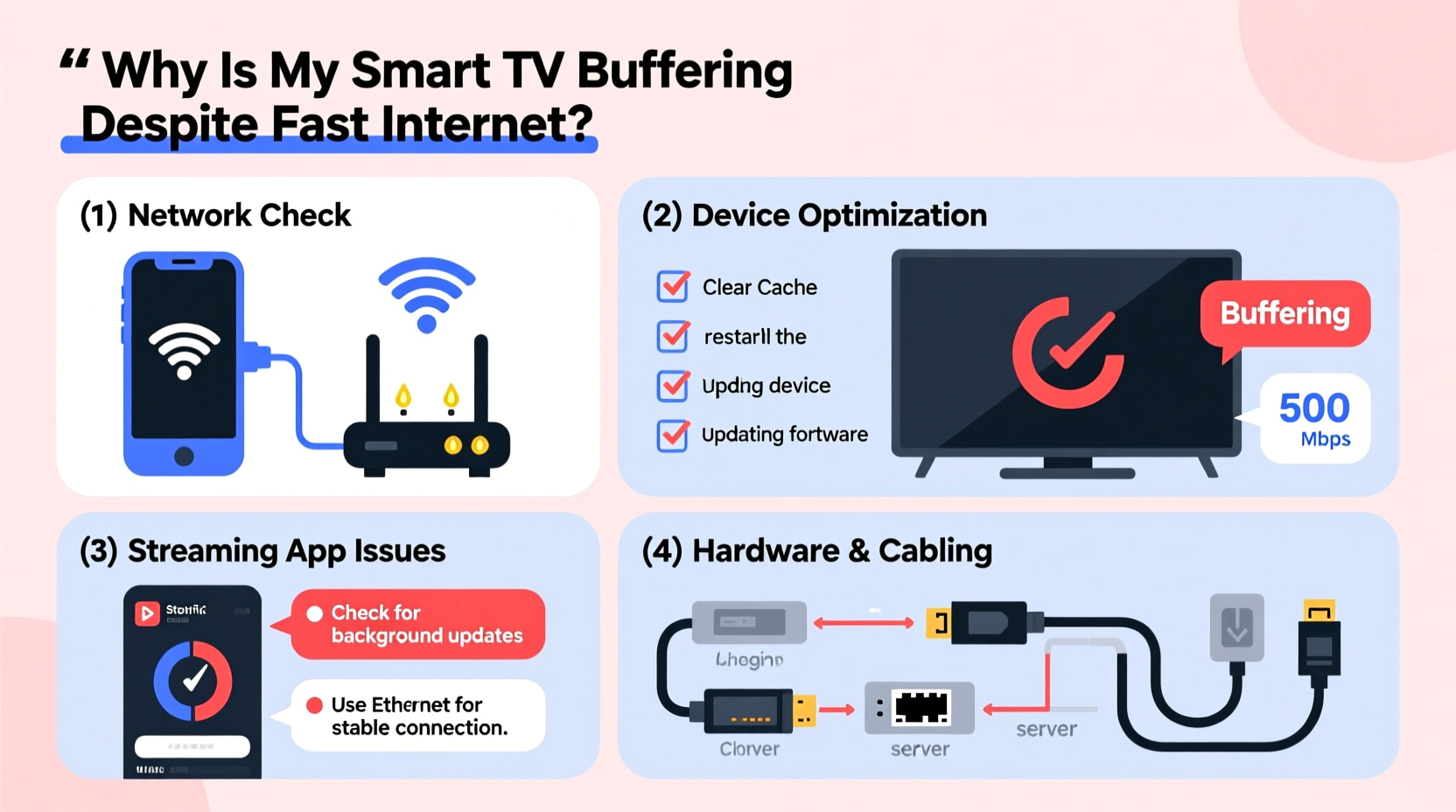
Buffering occurs when your smart TV cannot download video data quickly enough to maintain continuous playback. While slow internet is a frequent culprit, it's far from the only one. Modern smart TVs rely on consistent data flow rather than peak speeds. A connection that spikes at 300 Mbps but frequently drops or experiences latency will perform worse than a stable 50 Mbps connection.
Streaming platforms like Netflix, Disney+, and YouTube use adaptive bitrate streaming, which adjusts video quality based on available bandwidth. If your connection fluctuates—even briefly—the player may reduce resolution or pause to buffer. This explains why you might see “HD” or “4K” indicators vanish during playback.
Other contributing factors include:
- Wi-Fi signal interference from walls, appliances, or neighboring networks.
- Router congestion due to multiple connected devices.
- Outdated firmware on your TV or router.
- Hardware limitations in older smart TVs with underpowered processors or limited RAM.
- Server-side issues from the streaming service itself.
ping 8.8.8.8 -t on Windows) while streaming to detect network instability. Frequent timeouts or spikes above 100ms indicate problems.
Step-by-Step Troubleshooting Guide
Follow this systematic approach to isolate and fix the root cause of buffering. Start with the simplest fixes before moving to advanced adjustments.
- Restart all devices – Power cycle your smart TV, router, and modem. Unplug them for 30 seconds, then plug back in. This clears temporary glitches and resets network handshakes.
- Test internet speed directly on the TV – Use a built-in speed test app (if available) or install one like Fast.com or Speedtest by Ookla. Compare results with your mobile device on the same network.
- Check Wi-Fi signal strength – Navigate to your TV’s network settings and look for signal bars or RSSI value. Anything below -70 dBm indicates a weak signal.
- Move closer to the router – Temporarily bring the TV near the router to test if buffering stops. If it does, distance or obstacles are likely interfering.
- Switch from Wi-Fi to Ethernet – Connect via an Ethernet cable to eliminate wireless variables. If buffering stops, your Wi-Fi is the bottleneck.
- Forget and re-add the Wi-Fi network – On your TV, remove the current network and reconnect. This refreshes authentication and IP assignment.
- Update firmware – Check for system updates on both your TV and router. Manufacturers often release patches that improve network stability.
- Change DNS servers – Replace your ISP’s default DNS with Google (8.8.8.8 / 8.8.4.4) or Cloudflare (1.1.1.1). This can reduce lookup delays and improve streaming reliability.
- Limit background devices – Pause downloads, cloud backups, or other streaming on phones, laptops, or smart home devices during heavy TV use.
- Factory reset the TV – As a last resort, reset the TV to factory settings after backing up any login credentials.
Optimize Your Home Network for Streaming
Your router plays a central role in delivering smooth video. Even with fast internet, poor configuration can sabotage performance. Consider these optimizations:
Use a Dual-Band or Tri-Band Router
Most modern smart TVs support 5 GHz Wi-Fi, which offers faster speeds and less interference than 2.4 GHz. Ensure your TV is connected to the 5 GHz band—not the slower, crowded 2.4 GHz network. You can verify this in your router’s admin panel or through a network analyzer app.
Enable Quality of Service (QoS)
QoS prioritizes certain types of traffic. Set your smart TV as a high-priority device in your router settings. This ensures streaming gets bandwidth first, even when others are gaming or downloading.
Upgrade to a Mesh Wi-Fi System
If your living room is far from the router or separated by thick walls, consider a mesh system like Eero, Netgear Orbi, or TP-Link Deco. These extend coverage seamlessly and maintain strong signals across large homes.
| Network Setup | Average Streaming Performance | Best For |
|---|---|---|
| Wi-Fi 2.4 GHz, far from router | Poor – frequent buffering | Basic browsing only |
| Wi-Fi 5 GHz, within one room | Good – HD/4K possible | Most apartments |
| Ethernet cable | Excellent – zero lag | Dedicated media rooms |
| Multipoint mesh system | Very Good – consistent signal | Larger homes with dead zones |
Real-World Case Study: The Johnson Family’s Streaming Fix
The Johnsons had fiber internet with 200 Mbps speeds but constantly experienced buffering on their 4K LG TV. Their kids could stream on tablets without issue, making the problem seem mysterious. After running tests, they discovered the TV was connecting to the 2.4 GHz network instead of 5 GHz because the SSIDs were identical. They renamed the bands separately and manually connected the TV to the 5 GHz option. Buffering stopped immediately.
They also enabled QoS on their Asus router, assigning top priority to the TV’s MAC address. Finally, they moved the router from a closet to a central shelf, improving signal distribution. These three changes transformed their viewing experience—no hardware upgrades required.
“More than half the buffering issues we see aren’t about speed—they’re about consistency and configuration.” — Raj Patel, Senior Network Engineer at Broadband Solutions Group
Common Mistakes That Worsen Buffering
Even well-intentioned actions can make buffering worse. Avoid these common pitfalls:
- Using outdated streaming apps – Old versions may lack optimization for current network standards.
- Overloading the router with too many devices – 20+ connected gadgets can overwhelm even high-end routers.
- Placing the router behind metal objects or in enclosed spaces – This blocks Wi-Fi signals and creates dead zones.
- Ignoring heat buildup on the TV – Overheating can throttle internal processing, affecting decoding performance.
- Assuming “fast internet” means “fast everywhere” – Speed varies by device and location in the home.
Do’s and Don’ts Summary
| Do | Don't |
|---|---|
| Use wired connections when possible | Rely solely on distant Wi-Fi |
| Update TV and router firmware monthly | Ignore update notifications |
| Separate 2.4 GHz and 5 GHz networks | Use the same SSID for both bands |
| Reboot the router weekly | Leave routers running for months without restarts |
| Monitor connected devices | Allow unlimited device access |
Frequently Asked Questions
Can a VPN cause my smart TV to buffer?
Yes. Using a VPN adds encryption and reroutes traffic through remote servers, increasing latency and reducing effective bandwidth. Some smart TVs don’t handle encrypted tunnels efficiently. If you’re using a VPN for geo-unblocking, try disabling it temporarily to test if buffering improves.
Does closing apps on my smart TV help prevent buffering?
Partially. While smart TVs manage memory automatically, some older models struggle with background processes. Restarting the TV or force-closing unused apps (via settings) can free up resources and improve streaming stability, especially on budget models with limited RAM.
Is 4K streaming more prone to buffering?
Yes. 4K content requires significantly more bandwidth—typically 15–25 Mbps per stream compared to 5 Mbps for HD. If your network hovers near the threshold, 4K playback will buffer more frequently. Lower the resolution in the app settings to test if buffering stops.
Final Checklist: Eliminate Smart TV Buffering for Good
Before calling your ISP or buying new equipment, complete this checklist:
- ✅ Reboot TV, router, and modem
- ✅ Test speed directly on the TV
- ✅ Confirm connection to 5 GHz Wi-Fi (not 2.4 GHz)
- ✅ Switch to Ethernet for testing
- ✅ Update TV operating system and streaming apps
- ✅ Change DNS to 8.8.8.8 or 1.1.1.1
- ✅ Enable QoS and prioritize the TV
- ✅ Reduce number of active devices during streaming
- ✅ Reposition router for better line-of-sight
- ✅ Consider a mesh Wi-Fi system for large homes
Conclusion: Take Control of Your Streaming Experience
Smart TV buffering isn’t inevitable—even with fast internet. By understanding the underlying causes and applying targeted fixes, you can achieve smooth, high-quality playback every time. The solution often lies not in upgrading your plan, but in optimizing what you already have. From simple restarts to strategic network tuning, each step brings you closer to frustration-free streaming.
Start with the basics: reboot, test, and verify your connection type. Then move to advanced tweaks like DNS and QoS. Most importantly, don’t assume the problem is out of your hands. With the right approach, you can transform a glitchy, interrupted experience into seamless entertainment.




 浙公网安备
33010002000092号
浙公网安备
33010002000092号 浙B2-20120091-4
Comments
No comments yet. Why don't you start the discussion?