
A flickering smartwatch screen can be more than just a minor annoyance—it can disrupt notifications, interfere with fitness tracking, and even render the device unusable. If you've noticed erratic screen behavior, such as flashing pixels, intermittent blackouts, or ghost touches, it's time to investigate the root cause. While some flickering stems from temporary software glitches, others point to deeper hardware failures. Understanding both possibilities helps you decide whether a reboot will solve the issue or if professional repair is necessary.
Understanding Screen Flickering: A Sign of Deeper Issues
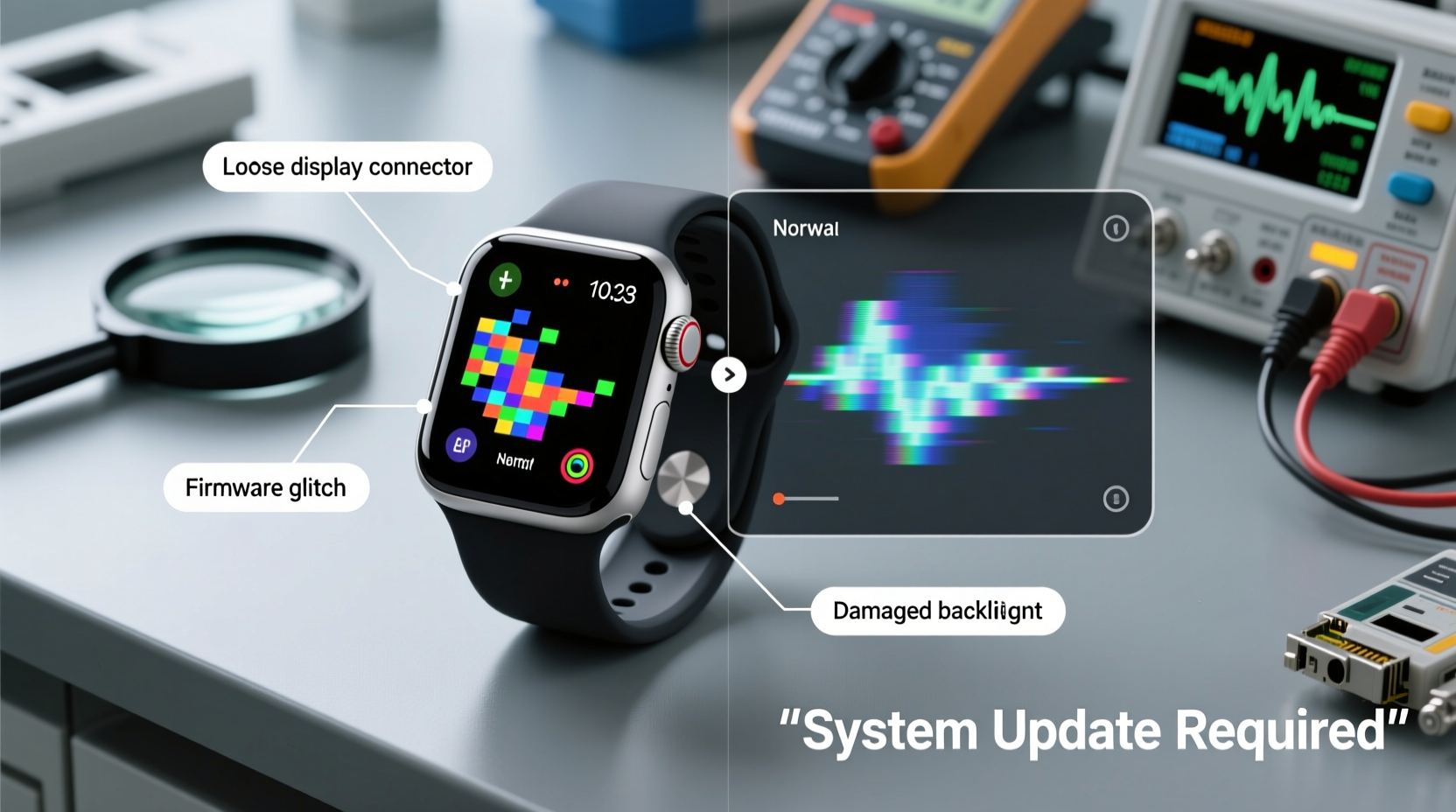
Smartwatch displays are engineered for responsiveness and durability, but they remain vulnerable to environmental stressors, software conflicts, and physical wear. Flickering typically manifests in one of several ways: rapid brightness fluctuations, horizontal or vertical lines appearing intermittently, partial screen freezing, or complete blackouts that resolve after a few seconds. These symptoms may come and go or worsen over time.
The underlying cause often depends on when the flickering began. Did it start after a recent software update? Did the watch survive a drop or water exposure? Is it limited to certain apps or modes? Pinpointing patterns helps narrow down whether the issue is rooted in firmware, settings, or physical damage.
“Screen instability in wearables is rarely random. It’s either a signal of component fatigue or a symptom of unoptimized code interacting poorly with display drivers.” — Dr. Lena Torres, Embedded Systems Engineer at WearTech Labs
Common Software Causes and Fixes
Software-related flickering is usually easier—and less expensive—to address than hardware failure. Many users report resolution after adjusting settings or updating system firmware. Below are the most frequent software culprits:
- Buggy operating system updates: Incompatible patches can conflict with display drivers, especially during rollout phases.
- Third-party app interference: Poorly coded watch faces or fitness apps may overload the GPU or cause memory leaks.
- Display timeout or brightness settings: Aggressive auto-brightness algorithms sometimes trigger rapid adjustments perceived as flicker.
- Glitches in sleep mode transitions: Errors when waking from standby can result in momentary screen stuttering.
Step-by-Step Guide to Diagnose Software Issues
- Restart the device: Hold the power button and select restart. This clears temporary memory and resets active processes.
- Boot into safe mode (if available): On many Android-based watches, this disables third-party apps. If flickering stops, an app is likely responsible.
- Uninstall recent apps or watch faces: Remove any new downloads, especially those involving animated displays or deep system access.
- Check for OS updates: Navigate to Settings > System > Updates. Install any pending patches—manufacturers often release fixes within days of widespread complaints.
- Reset all settings: This restores defaults without erasing personal data. Look under Settings > System > Reset.
- Perform a factory reset: As a last resort, erase all data and reconfigure the watch. Ensure your phone backup is current before proceeding.
Hardware Failures Behind Persistent Flickering
When software fixes fail, the problem likely lies in the physical components. Unlike phones, smartwatches endure constant motion, moisture, and temperature shifts—all of which strain internal circuitry. Key hardware causes include:
- Loose or damaged display connectors: Vibration or impact can dislodge ribbon cables linking the screen to the motherboard.
- Water or moisture ingress: Even water-resistant models can develop micro-leaks, leading to corrosion on display circuits.
- Cracked or delaminated OLED panels: Internal screen layers separating due to pressure or age cause shimmering or dead zones.
- Failing battery swelling: An expanding battery can press against the rear of the display, distorting pixel response.
- EMI (Electromagnetic Interference): Rare, but strong magnetic fields from speakers or industrial equipment may disrupt screen signals.
Hardware issues often present with additional symptoms: discoloration, touch unresponsiveness, visible lines, or flickering that worsens with wrist movement. If the screen behaves normally only when held at a certain angle, a loose connection is highly probable.
Mini Case Study: Recovering a Water-Exposed Fitness Tracker
Jamal, a triathlete, noticed his smartwatch screen flickering during swim sessions. Initially sporadic, the flickering became constant after three weeks of daily pool use. He tried restarting and resetting—no improvement. Upon inspection, a technician found mineral deposits inside the charging port, indicating chlorine penetration past the seals. The display flex cable showed early corrosion. After cleaning internal contacts and replacing the seal gasket, the flickering stopped. The lesson: water resistance has limits, and post-exposure drying is critical.
Diagnostic Checklist: Is It Hardware or Software?
Use this checklist to systematically isolate the cause:
| Symptom | Likely Cause | Action |
|---|---|---|
| Flickering starts after update | Software bug | Wait for patch; uninstall recent apps |
| Only occurs with specific watch face | App conflict | Delete and test with default face |
| Worse when bending or twisting band | Loose connector | Stop use; seek repair |
| Visible cracks or cloudiness under screen | Physical damage | Professional assessment needed |
| Device recently exposed to water | Moisture damage | Power off; dry; consult technician |
| Flickering persists after factory reset | Hardware failure | Contact manufacturer or repair service |
Preventive Measures to Avoid Future Flickering
Proactive care significantly reduces the risk of both software and hardware malfunctions. Consider these long-term strategies:
- Update regularly—but cautiously: Install OS updates soon after release, but monitor forums for known bugs before upgrading.
- Avoid extreme temperatures: Don’t leave your watch in a hot car or expose it to freezing conditions for extended periods.
- Dry thoroughly after water exposure: Even if rated water-resistant, wipe and air-dry after swimming or heavy sweating.
- Use trusted apps: Download only from official stores. Read reviews for mentions of display issues.
- Inspect for physical damage monthly: Check for tiny cracks, gaps in casing, or misaligned bezels that could compromise seals.
When to Seek Professional Help
While DIY fixes work for software glitches, hardware repairs require precision tools and expertise. Attempting to open the case yourself often voids warranties and risks further damage. Authorized service centers have calibrated equipment to test display integrity, reseat connectors, and replace components without compromising water resistance.
If your smartwatch is under warranty and exhibiting flickering, contact the manufacturer first. Companies like Apple, Samsung, and Garmin typically cover display defects within the first year. For out-of-warranty devices, compare repair costs versus replacement value—some high-end models justify professional servicing, while budget watches may not.
“Opening a smartwatch without proper ESD protection can fry sensitive ICs. We see more damage from amateur repairs than from original faults.” — Marcus Lin, Senior Technician at WatchFix Pro
FAQ
Can a screen protector cause flickering?
No, a properly installed screen protector does not interfere with display function. However, low-quality or improperly aligned protectors may create optical illusions resembling flicker due to light refraction. Remove it temporarily to test.
Does battery health affect screen performance?
Yes. A degraded battery may deliver inconsistent voltage, causing the display driver to malfunction. Swelling batteries can also physically press against the screen. Replace batteries showing signs of bulging or rapid drain.
Why does my screen flicker only in sunlight?
This is often due to the auto-brightness sensor overcompensating. In bright environments, the screen rapidly adjusts between maximum and adaptive brightness, creating a strobing effect. Disable auto-brightness temporarily to confirm. If flickering stops, recalibrate ambient light settings or clean the sensor window near the speaker.
Conclusion
A flickering smartwatch screen doesn't automatically mean your device is doomed. In many cases, a simple restart or app removal resolves the issue. But when flickering persists despite software troubleshooting, it's time to consider hardware vulnerabilities—especially if your watch has endured drops, moisture, or prolonged stress. By methodically testing each possibility and knowing when to escalate to professional support, you protect your investment and extend the usability of your wearable.




 浙公网安备
33010002000092号
浙公网安备
33010002000092号 浙B2-20120091-4
Comments
No comments yet. Why don't you start the discussion?