
If your internet speeds are fast in the morning but crawl by evening, you're not imagining things. Millions of users experience sluggish Wi-Fi during specific hours—especially between 6 PM and 10 PM. This isn’t random; it’s typically due to network congestion, either on your home network or your Internet Service Provider’s (ISP) infrastructure. Understanding the root causes and knowing how to respond can restore smooth browsing, streaming, and working from home.
Understanding Peak-Time Network Congestion
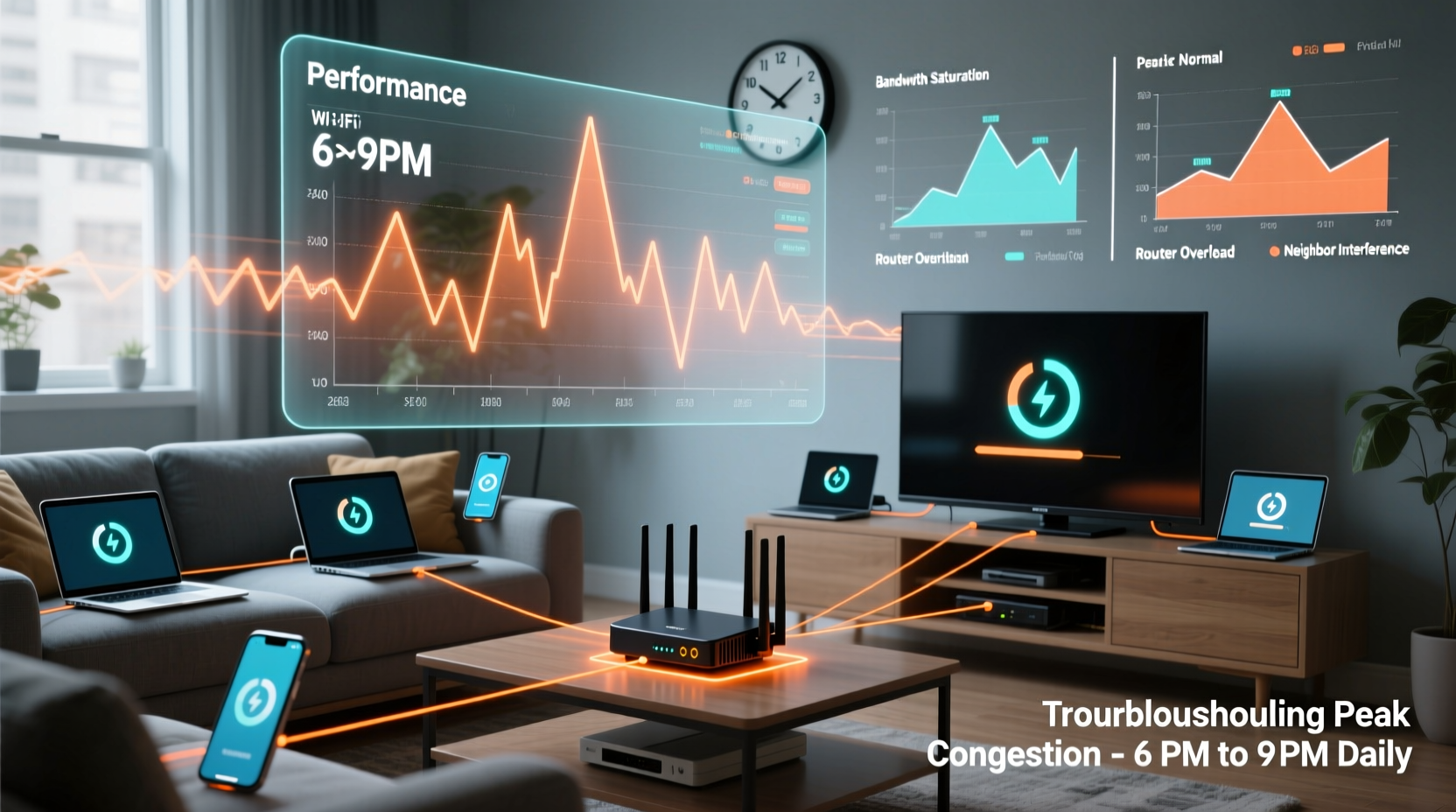
Network congestion occurs when too many devices or users attempt to access bandwidth simultaneously. During off-peak hours—like early mornings or mid-afternoon—fewer people are online, so your connection feels snappy. But as people return home, log onto video calls, stream movies, and connect smart devices, demand spikes. This surge affects both your local network and the broader ISP backbone.
The issue manifests in several ways: buffering videos, laggy Zoom meetings, delayed web page loads, and dropped connections. While it may seem like your router is failing, the real culprit is often timing and usage patterns—not hardware failure.
“Peak congestion is one of the most common yet misunderstood issues in residential broadband. It's not always about speed tiers—it's about shared capacity.” — Dr. Lena Patel, Network Performance Analyst at Broadband Insights Group
Common Causes of Time-Based Wi-Fi Slowdowns
Several interrelated factors contribute to slowdowns at specific times. Identifying which apply to your situation is key to effective troubleshooting.
1. Neighborhood Network Saturation
Your ISP divides service areas into “nodes” or segments. If dozens of households on your node go online simultaneously, the available bandwidth is split among them. Even if you pay for a 300 Mbps plan, actual throughput can drop to 50–75 Mbps during peak hours due to oversubscription.
2. Home Network Overload
In the evenings, multiple family members may be using high-bandwidth applications: one person gaming, another streaming 4K video, a third in a cloud meeting, and smart devices constantly syncing. Routers have limited processing power and radio bandwidth, especially older models using 2.4 GHz bands.
3. Interference from Neighboring Wi-Fi Networks
Wi-Fi channels are finite. In densely populated areas—apartments, townhouses, suburban neighborhoods—many routers broadcast on overlapping channels. When activity increases in the evening, interference worsens, leading to packet loss and reduced signal quality.
4. ISP Throttling or Traffic Shaping
Some ISPs implement traffic management policies during high-demand periods. Though less common now due to net neutrality regulations, certain providers may deprioritize heavy data users (e.g., those streaming or downloading large files) after a threshold is reached.
5. Background Device Activity
Many devices perform automatic updates or backups during idle hours. Smartphones, laptops, security cameras, and cloud storage apps often sync overnight or in the evening. These background tasks consume bandwidth without user awareness.
Step-by-Step Guide to Diagnose and Fix Peak-Time Wi-Fi Issues
Follow this systematic approach to identify and resolve slowdowns tied to time-of-day usage.
- Confirm the pattern with speed tests
Run speed tests at different times over 3–5 days using tools like Speedtest.net or Fast.com. Record download/upload speeds and latency. Look for consistent drops between 6–10 PM. - Isolate the problem: local vs. external
Connect a laptop directly to your modem via Ethernet. Run a speed test. If speeds remain stable, the issue is likely within your Wi-Fi network. If speeds still drop, the bottleneck is with your ISP or neighborhood node. - Check connected devices
Log into your router’s admin interface (usually via 192.168.1.1 or similar). Review active devices. Are unknown devices connected? Are multiple devices streaming or downloading? - Switch to the 5 GHz band
If your router supports dual-band, ensure devices capable of 5 GHz are using it. The 5 GHz band offers faster speeds and less interference than 2.4 GHz, though with shorter range. - Change your Wi-Fi channel
Use a free tool like WiFi Analyzer (Android) or NetSpot (Windows/Mac) to scan nearby networks. Choose a less crowded channel (e.g., 1, 6, or 11 on 2.4 GHz; non-overlapping channels on 5 GHz). - Update router firmware
Manufacturers release updates to improve stability and performance. Check your router’s settings for firmware updates under \"Administration\" or \"Maintenance.\" - Contact your ISP
If all else fails, call your provider. Ask: Is there known congestion on your node? Are there planned upgrades? Could you be moved to a less saturated segment?
Tips to Reduce Evening Wi-Fi Congestion at Home
Even if you can't control your ISP’s network, you can optimize your own setup to minimize disruption during peak hours.
- Prioritize critical devices with QoS: Enable Quality of Service (QoS) in your router settings. Assign higher priority to work laptops, video conferencing devices, or gaming consoles.
- Limit bandwidth-heavy activities: Encourage family members to avoid 4K streaming or large downloads during peak use unless necessary.
- Upgrade your router: Consider switching to a Wi-Fi 6 (802.11ax) router, which handles multiple devices more efficiently and reduces latency under load.
- Add a mesh system: For larger homes, mesh networks eliminate dead zones and balance device load across nodes, improving overall responsiveness.
- Set usage schedules: Use parental controls or scheduling features to restrict non-essential devices (e.g., kids’ tablets) during family internet hours.
Do’s and Don’ts: Managing Peak-Time Wi-Fi
| Do | Don’t |
|---|---|
| Run regular speed tests at peak and off-peak times | Assume slow speeds mean you need a faster plan |
| Use wired connections for stationary devices (PCs, TVs) | Place your router near microwaves or thick walls |
| Enable QoS to prioritize important traffic | Leave outdated firmware unpatched |
| Monitor device usage with your router’s app | Ignore signs of interference (e.g., frequent disconnections) |
| Contact your ISP with data from speed tests | Blame the router immediately without testing other factors |
Real-World Example: The Martinez Family’s Evening Lag
The Martinez household in Austin, Texas, struggled with nightly Wi-Fi issues. Every evening, their Netflix streams would buffer, Zoom calls froze, and online homework stalled. They had a 200 Mbps plan and a three-year-old AC1900 router.
After logging into their router, they discovered seven devices connected during dinner hours—including two smartphones updating apps, a smart TV downloading a system patch, and a security camera uploading footage. Speed tests showed 180 Mbps in the morning but just 45 Mbps at 8 PM.
They took action: updated their router firmware, switched streaming devices to 5 GHz, enabled QoS for the home office laptop, and scheduled phone updates for 2 AM. They also contacted their ISP and learned their node was oversubscribed. After switching to a newer fiber-optic plan, speeds stabilized at 150+ Mbps even at peak times.
Within a week, their evening internet experience improved dramatically—all without replacing equipment prematurely.
FAQ: Common Questions About Time-Based Wi-Fi Slowdowns
Why is my Wi-Fi slow only at night but fine during the day?
This pattern strongly suggests network congestion. During the day, fewer people in your home and neighborhood are using the internet. At night, increased usage locally and regionally strains available bandwidth, causing slowdowns.
Can my neighbors really affect my Wi-Fi speed?
Yes. In dense areas, overlapping Wi-Fi signals cause interference, especially on the 2.4 GHz band. Additionally, if you share an ISP node, high usage by neighbors can reduce your available bandwidth—even if your home network is lightly used.
Will upgrading my internet plan fix evening slowdowns?
Not always. If the bottleneck is network-wide congestion (on your ISP’s side), a higher-speed tier may not help during peak hours. First, rule out local issues like outdated hardware, interference, or excessive device load before upgrading.
Conclusion: Take Control of Your Connection
Slow Wi-Fi at certain times of day is frustrating but rarely unsolvable. By understanding the interplay between home networks, neighborhood usage, and ISP infrastructure, you gain the power to diagnose and address the real cause. Simple changes—like switching Wi-Fi bands, updating firmware, or adjusting usage habits—can yield dramatic improvements. When local fixes aren’t enough, armed with speed test data and knowledge, you can advocate effectively with your ISP.




 浙公网安备
33010002000092号
浙公网安备
33010002000092号 浙B2-20120091-4
Comments
No comments yet. Why don't you start the discussion?