
If your internet crawls every evening while the rest of the day runs smoothly, you're not alone. Millions of households experience a nightly drop in Wi-Fi performance—buffering videos, lagging video calls, and interrupted gaming sessions become routine after sunset. The good news: this isn't random or inevitable. There’s a logical explanation behind evening slowdowns, and more importantly, there are immediate, practical solutions you can apply tonight.
The root causes range from network congestion and device overload to outdated hardware and interference patterns that spike during peak usage hours. Understanding these factors empowers you to take control of your home network and reclaim fast, reliable speeds when you need them most.
Why Your Wi-Fi Slows Down at Night: The Hidden Culprits
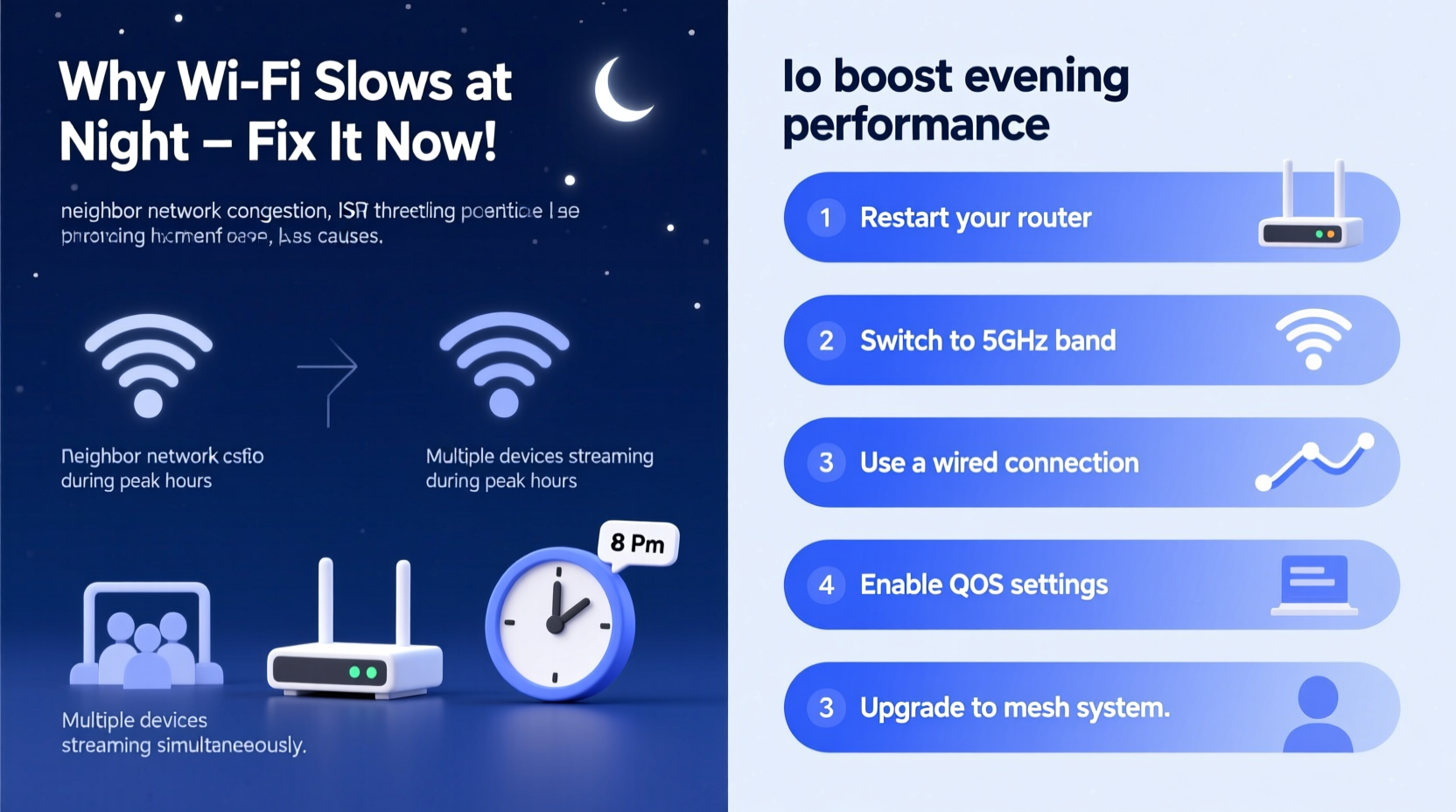
Nighttime Wi-Fi degradation is rarely due to a single issue. Instead, it's usually the result of multiple overlapping factors that intensify as the sun goes down. Here’s what typically happens:
- Peak Network Congestion: Between 7 PM and 11 PM, most people return home and begin streaming, gaming, browsing, and downloading. This surge in demand affects both your local network and your Internet Service Provider’s (ISP) infrastructure.
- Neighborhood Interference: In densely populated areas, especially apartments or townhomes, nearby routers operating on the same Wi-Fi channel create signal interference. More neighbors go online at night, increasing \"Wi-Fi noise.\"
- Bandwidth-Hungry Devices: Smart TVs, gaming consoles, phones, tablets, and background updates all compete for bandwidth. If your router wasn’t designed for heavy multi-device loads, it buckles under pressure.
- Router Overheating or Aging Hardware: Older routers struggle with modern data demands. Continuous use throughout the day can also cause overheating by evening, leading to throttled performance.
- Scheduled ISP Maintenance: Some ISPs perform system-wide maintenance or traffic shaping during off-peak hours, which may inadvertently affect speed consistency.
“Evening slowdowns are often a perfect storm of high demand, poor network design, and outdated equipment.” — Raj Patel, Senior Network Engineer at NetSignal Labs
How to Diagnose the Real Cause of Your Slow Nightly Wi-Fi
Before applying fixes, pinpoint the actual source of the slowdown. Misdiagnosis leads to wasted effort. Follow this quick diagnostic workflow:
- Test Speeds Wired vs. Wireless: Connect a laptop directly to your modem/router via Ethernet. If wired speeds are still slow at night, the problem lies with your ISP or plan—not your Wi-Fi.
- Check Device Count: Log into your router’s admin panel (usually via 192.168.1.1 or 192.168.0.1) and see how many devices are connected. Over 15 active devices can overwhelm older routers.
- Scan Wi-Fi Channels: Use free tools like WiFi Analyzer (Android) or NetSpot (Windows/Mac) to check if your 2.4 GHz band is crowded. Switching to a less congested channel helps significantly.
- Monitor Data Usage Caps: Some ISPs throttle speeds after a certain monthly threshold. Check your account portal to see if you’ve hit a cap.
- Restart Equipment: Power cycle your modem and router. If speeds improve temporarily, it suggests heat buildup or memory leaks in the hardware.
Real Example: The Johnson Family Fix
The Johnsons in suburban Denver struggled with constant Netflix buffering every night. Their kids couldn’t join Zoom classes without freezing, and online gaming was impossible. After testing, they found their 2015 router supported only 802.11n and operated on a crowded Wi-Fi channel. They were also sharing a cable line with six other homes in their node.
By upgrading to a dual-band Wi-Fi 6 router, switching to the 5 GHz band for streaming, and enabling Quality of Service (QoS), their evening speeds increased from 8 Mbps to 62 Mbps—without changing their ISP plan.
Instant Fixes to Boost Evening Wi-Fi Speeds Tonight
You don’t always need new gear to fix slow nighttime internet. Try these immediate, no-cost or low-cost actions first:
1. Switch to the 5 GHz Band
If your router supports dual bands, connect laptops, smart TVs, and gaming consoles to the 5 GHz network instead of 2.4 GHz. It has higher speed and less interference, though shorter range. Reserve 2.4 GHz for smart lights, thermostats, and other distant low-bandwidth devices.
2. Change Your Wi-Fi Channel
On the 2.4 GHz band, channels 1, 6, and 11 are non-overlapping. Use a Wi-Fi scanner app to find the least crowded one. In router settings, manually set your channel instead of relying on auto-selection, which isn’t always optimal.
3. Enable Quality of Service (QoS)
QoS lets you prioritize critical devices or activities. For example, assign highest priority to your work laptop or main TV. Most modern routers have this under “Advanced Settings” > “Traffic Control” or “Bandwidth Control.”
4. Reboot Your Router Daily
Build a habit of restarting your router before prime time—say, at 6 PM. This clears cached data, resets connections, and prevents thermal throttling. Consider a smart plug to automate daily reboots.
5. Reduce Background Activity
Pause automatic updates on computers, game consoles, and cloud backups during evening hours. Schedule them for early morning instead.
Long-Term Upgrades That Deliver Consistent Speeds
If quick fixes help but don’t solve the problem completely, consider strategic upgrades:
| Upgrade | Benefit | Estimated Cost |
|---|---|---|
| Wi-Fi 6 Router | Better handling of multiple devices, improved efficiency, faster speeds | $100–$250 |
| Mesh Wi-Fi System | Eliminates dead zones, balances load across nodes | $200–$600 |
| ISP Plan Upgrade | Higher base speeds, more headroom during congestion | $10–$30/month extra |
| Ethernet Backhaul | Connects mesh nodes via cable for maximum stability | $30–$80 (cables + switches) |
| DOCSIS 3.1 Modem | Faster throughput, better compatibility with gigabit plans | $80–$150 |
“Investing in a mesh system with QoS and regular firmware updates pays off in consistent performance, especially in homes with 10+ devices.” — Lila Chen, Home Networking Consultant
Also, evaluate whether you’re renting outdated equipment from your ISP. Many providers charge $10–$15 monthly for a modem-router combo that underperforms compared to consumer-grade models. Buying your own high-performance setup often pays for itself within a year.
Step-by-Step Guide: Optimize Your Wi-Fi in 30 Minutes
Follow this timeline to implement key improvements before dinner:
- Minute 0–5: Restart your modem and router. Unplug both, wait 30 seconds, then power the modem first, followed by the router after it fully boots.
- Minute 5–10: Connect your phone or laptop to Wi-Fi and run a speed test using speedtest.net. Record download/upload speeds and ping.
- Minute 10–15: Access your router’s admin page (check the label on the back for login details). Look for “Wireless Settings” and switch the 2.4 GHz channel to 1, 6, or 11—the least used in your area.
- Minute 15–20: Enable the 5 GHz network if disabled. Set a unique SSID (e.g., “Home-5G”) so you can easily choose it on devices.
- Minute 20–25: Navigate to “QoS” or “Bandwidth Control” and prioritize your main devices (e.g., living room TV, home office PC).
- Minute 25–30: Re-run the speed test. Compare results. You should see improved stability and higher throughput, especially on streaming or gaming devices.
FAQ: Common Questions About Nighttime Wi-Fi Issues
Does my neighbor really affect my Wi-Fi speed?
Yes, especially in apartments or dense neighborhoods. Multiple routers on the same channel interfere with each other, like voices in a crowded room. Using the 5 GHz band or switching to a less congested 2.4 GHz channel reduces this impact.
Can I fix slow Wi-Fi without buying new equipment?
Absolutely. Many slowdowns stem from misconfiguration, background activity, or interference—all fixable through router settings, device management, and simple habits like rebooting. Start with software and behavioral changes before investing in hardware.
Is it worth upgrading to fiber or gigabit internet?
If you have four or more heavy users, smart home systems, or work from home, yes. Higher-tier plans provide more bandwidth headroom, making congestion less likely. Even if speeds don’t double, consistency improves dramatically during peak hours.
Conclusion: Take Control of Your Evening Internet Experience
Slow Wi-Fi at night doesn’t have to be your new normal. With a clear understanding of congestion, interference, and router limitations, you can make targeted changes that deliver real results—often within minutes. Whether it’s switching bands, adjusting settings, or planning a strategic upgrade, the power to improve your connection is in your hands.




 浙公网安备
33010002000092号
浙公网安备
33010002000092号 浙B2-20120091-4
Comments
No comments yet. Why don't you start the discussion?