
If your internet speeds are strong during the day but crawl to a halt every evening, you're not imagining things. This pattern—fast connection in daylight hours, sluggish performance after dinner—is one of the most common home network complaints. The culprit? Peak hour congestion. As households return from work and school, dozens of devices reconnect, streaming services fire up, video calls begin, and bandwidth demand spikes. But while this phenomenon is widespread, it's not inevitable. Understanding the causes and applying targeted fixes can restore smooth, reliable performance—even during the busiest times.
Understanding Peak Hour Network Congestion
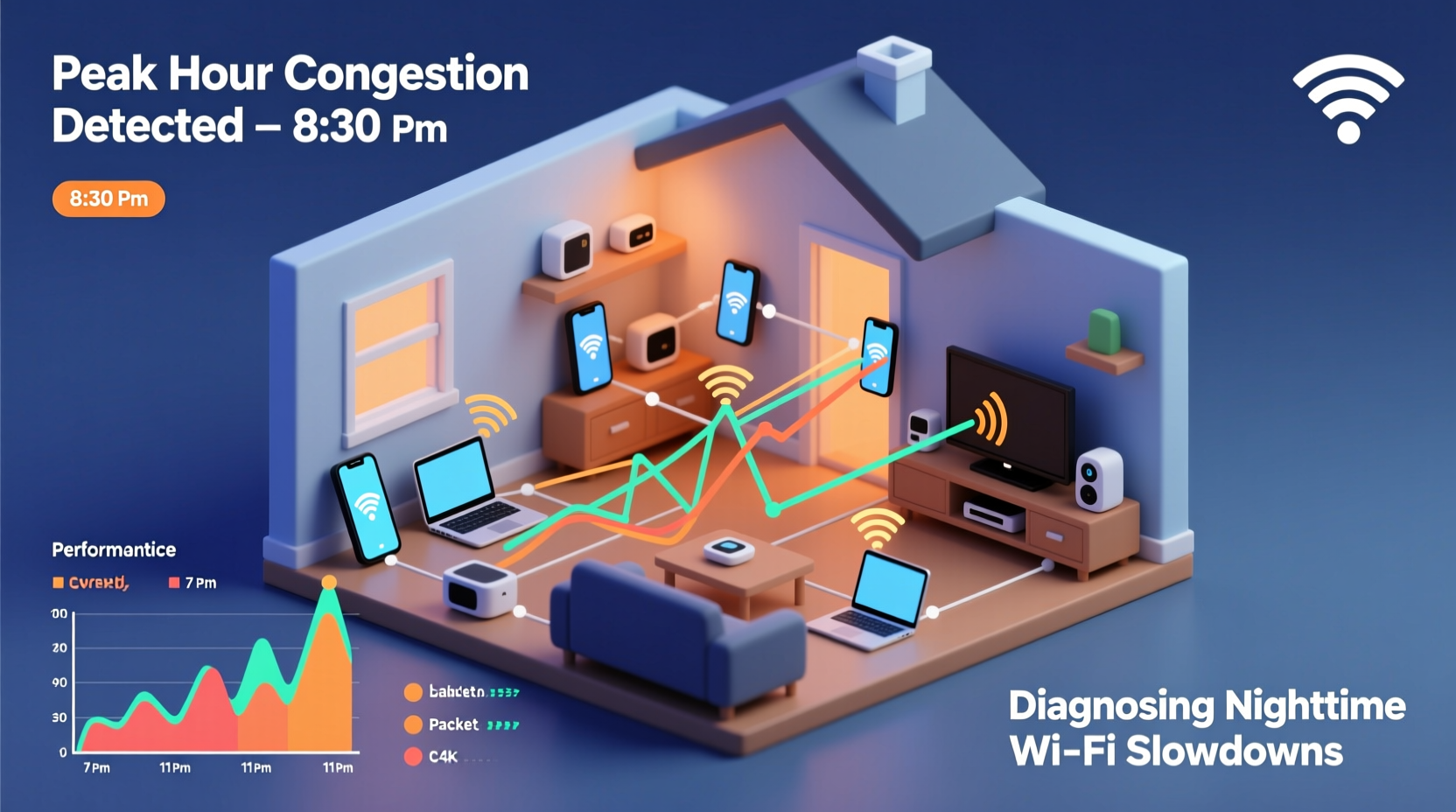
Network congestion occurs when too many devices or users attempt to access limited bandwidth simultaneously. Internet Service Providers (ISPs) allocate shared bandwidth across neighborhoods, meaning your connection doesn't operate in isolation. During peak usage hours—typically between 7 PM and 10 PM—neighbors stream 4K videos, gamers launch online matches, and smart home devices sync data. This collective demand strains local infrastructure, reducing available bandwidth for everyone on the same node.
Think of your neighborhood’s internet like a highway: during off-peak hours, traffic flows smoothly. But when rush hour hits, bottlenecks form. Your router may be functioning perfectly, yet still deliver poor performance because the upstream connection is overloaded.
“Even with high-speed plans, users experience slowdowns if their ISP oversubscribes network capacity. It’s a supply-and-demand issue at the infrastructure level.” — Dr. Lena Patel, Network Infrastructure Analyst, Broadband Research Group
Common Causes of Nighttime WiFi Slowdowns
While peak usage is the primary driver, several contributing factors can amplify the problem:
- ISP Throttling: Some providers reduce speeds during high-demand periods to manage network load.
- Home Network Overload: Multiple family members using streaming, gaming, or video conferencing apps at once can overwhelm your router.
- Wi-Fi Interference: Neighboring networks operating on the same channel create signal interference, especially in apartments or dense housing.
- Outdated Equipment: Older routers may lack Quality of Service (QoS) features or support modern standards like Wi-Fi 6, limiting efficiency.
- Bandwidth-Hungry Devices: Smart TVs, security cameras, and background updates often consume large amounts of data without user awareness.
Step-by-Step Guide to Diagnose and Fix Nighttime WiFi Issues
Follow this structured approach to identify whether the slowdown stems from your home network, your ISP, or external congestion.
- Run Speed Tests at Different Times
Use tools like Speedtest.net or Fast.com to measure download/upload speeds and latency. Test during the day (e.g., noon) and again at peak time (e.g., 8 PM). A significant drop indicates congestion. - Isolate the Source: Bypass the Router
Connect a laptop directly to your modem via Ethernet. Run another speed test. If speeds remain slow, the issue lies with your ISP. If speeds improve, the bottleneck is within your Wi-Fi network. - Check Connected Devices
Log into your router’s admin interface (usually via192.168.1.1or similar). Review active devices. Unrecognized entries could indicate unauthorized use. High device counts suggest network overload. - Analyze Wi-Fi Channel Usage
Use free tools like WiFi Analyzer (Android) or NetSpot (Windows/Mac) to scan nearby networks. If your router uses a crowded channel (e.g., Channel 6 on 2.4 GHz), switch to a less congested one. - Update Firmware and Settings
Ensure your router runs the latest firmware. Enable QoS settings to prioritize critical applications like video calls over background tasks.
Real Example: The Martinez Family’s Streaming Struggles
The Martinez household in suburban Chicago had consistent buffering every evening despite having a 200 Mbps plan. After testing, they found daytime speeds averaged 180 Mbps, but dropped to 35 Mbps at 8 PM. Connecting via Ethernet showed similar drops—pointing to ISP-level congestion. They contacted their provider, who confirmed network strain in their area. Upgrading to a higher-tier plan didn’t help, but switching to a DOCSIS 3.1-compatible modem and enabling beamforming on their Wi-Fi 6 router improved stability by reducing retransmissions and optimizing signal focus. Additionally, setting parental controls to limit non-essential device usage after 7 PM freed up bandwidth for streaming.
Solutions to Reduce or Avoid Peak Hour Impact
You can't control your neighbors’ internet habits, but you *can* optimize your setup to minimize disruption.
Upgrade Your Equipment Strategically
Investing in modern hardware makes a measurable difference:
- Wi-Fi 6 Routers: Support OFDMA and MU-MIMO, allowing simultaneous communication with multiple devices more efficiently.
- Mesh Systems: Distribute coverage evenly, eliminating dead zones that force devices to strain for signal.
- DOCSIS 3.1 Modems: Deliver higher throughput and better noise resistance on cable networks.
Optimize Router Placement and Settings
Physical environment plays a key role. Place your router centrally, elevated, and away from appliances like microwaves or cordless phones that emit interference. Use the 5 GHz band for high-bandwidth activities—it’s faster and less crowded than 2.4 GHz, though with shorter range.
Negotiate with or Switch ISPs
If congestion persists, consider alternatives. Fiber providers typically offer lower latency and dedicated bandwidth per customer, making them less prone to peak-hour slowdowns. Even within the same technology (e.g., cable), some ISPs oversubscribe less aggressively than others. Check independent reviews or community forums for feedback on local service quality.
“Fiber-to-the-home networks don’t share bandwidth beyond the central office, making them inherently more resilient to neighborhood congestion.” — Mark Tran, Senior Engineer at NetVision Labs
Troubleshooting Checklist: Regain Control of Your Nighttime WiFi
Use this checklist weekly until performance stabilizes:
- ✅ Run speed tests before and during peak hours
- ✅ Connect via Ethernet to isolate ISP vs. Wi-Fi issues
- ✅ Log into router and review connected devices
- ✅ Change Wi-Fi channel to avoid interference
- ✅ Enable Quality of Service (QoS) and prioritize key devices
- ✅ Update router firmware and reboot monthly
- ✅ Limit bandwidth-heavy background tasks at night
- ✅ Contact ISP with test results to request investigation
- ✅ Consider upgrading to fiber or a less congested provider
- ✅ Install a mesh system if coverage is uneven
Comparison Table: ISP Technologies and Peak Hour Performance
| Technology | Shared Bandwidth? | Average Peak Hour Drop | Recommended Fix |
|---|---|---|---|
| Cable (DOCSIS 3.0) | Yes – neighborhood node | 40–60% | Upgrade modem, use QoS, shift usage |
| Cable (DOCSIS 3.1) | Yes, but more efficient | 20–40% | Pair with Wi-Fi 6 router |
| Fiber (FTTH) | No – dedicated line | 5–10% | Ensure ONT and router are updated |
| DSL | Limited sharing | 30–50% | Shorten phone line, use filters |
| 5G Home Internet | Yes – cell tower shared | Varies widely | Improve signal with external antenna |
Frequently Asked Questions
Why does my internet slow down only at night even with a fast plan?
Your plan speed reflects maximum potential under ideal conditions. At night, increased demand from your household and neighborhood overwhelms shared infrastructure, especially on cable networks. Even gigabit plans can suffer if the local node is saturated.
Can I prevent my kids from slowing down the network with gaming and streaming?
Yes. Use parental controls or device scheduling in your router settings to limit bandwidth or disconnect non-essential devices during peak hours. Alternatively, set up QoS rules to deprioritize gaming consoles during family movie time.
Does restarting my router help with nighttime slowdowns?
Temporarily, yes. Rebooting clears memory leaks, resets connections, and may force the router to select a better Wi-Fi channel. However, it’s not a long-term fix. Combine restarts with deeper optimizations like firmware updates and channel selection.
Final Steps: Take Action Tonight
Don’t accept poor nighttime performance as unavoidable. Start with a simple speed test comparison between day and night. If there’s a significant drop, methodically rule out internal and external causes. Upgrade equipment where needed, optimize settings, and engage your ISP with evidence. In many cases, modest changes yield dramatic improvements. The goal isn’t just faster video loading—it’s reclaiming seamless connectivity when you need it most.




 浙公网安备
33010002000092号
浙公网安备
33010002000092号 浙B2-20120091-4
Comments
No comments yet. Why don't you start the discussion?