
If you've ever noticed that your laptop streams videos smoothly while your phone buffers on the same Wi-Fi network, you're not imagining things. It’s a common frustration: despite being connected to the same router, your phone often feels sluggish compared to your laptop. This discrepancy isn't random—it stems from real technical differences in hardware, software, and usage patterns. The good news? Most of these issues are fixable with simple, immediate actions.
Wi-Fi performance varies across devices due to antenna design, supported standards, background processes, and even how you hold your phone. Understanding why this happens—and knowing what to do about it—can transform your mobile browsing, streaming, and gaming experience without requiring new equipment or technical expertise.
Why Phones Often Get Slower Wi-Fi Than Laptops
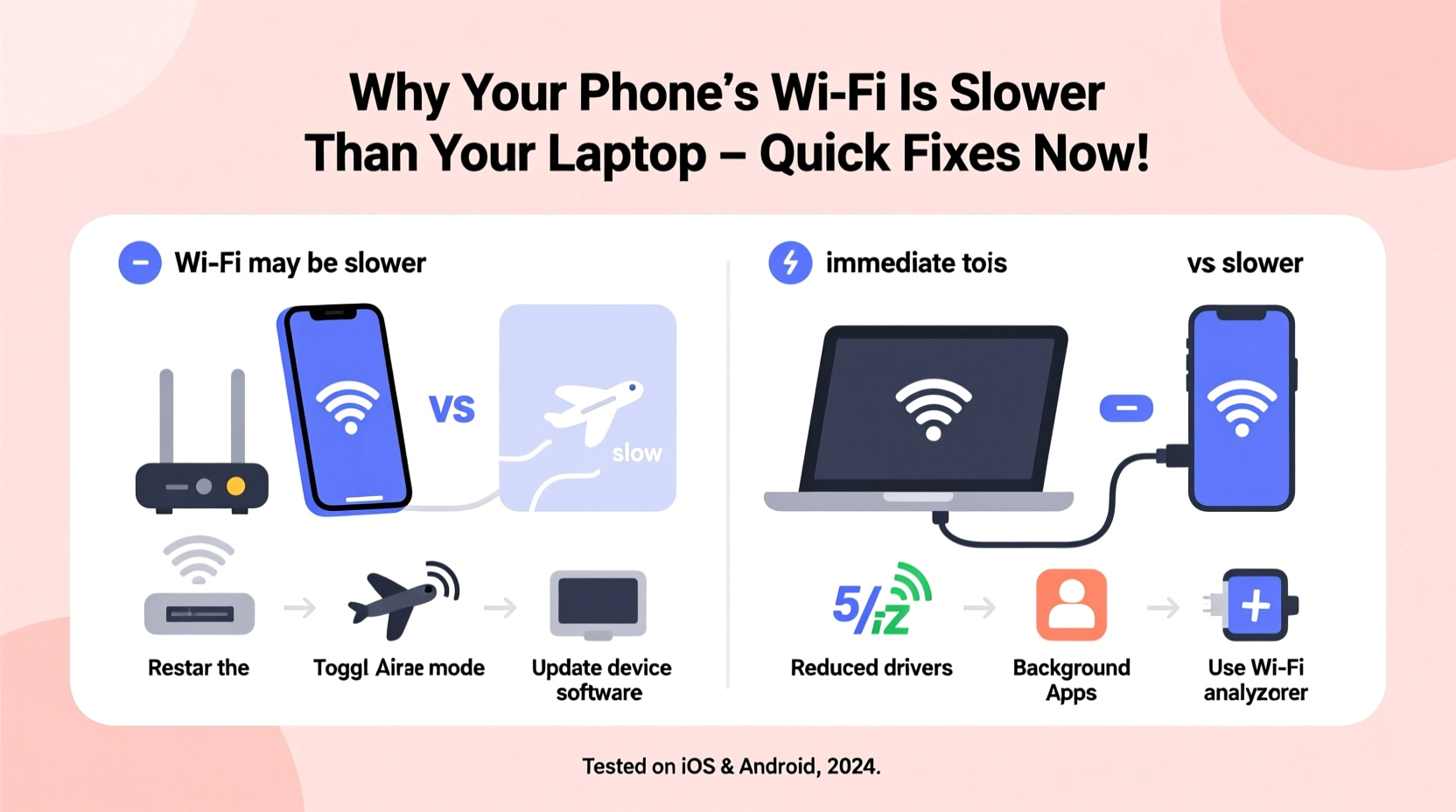
Laptops typically outperform smartphones on Wi-Fi for several key reasons:
- Better antennas: Laptops have larger internal space, allowing for more powerful Wi-Fi antennas and better signal reception.
- Newer Wi-Fi standards: Many laptops support Wi-Fi 6 (802.11ax), while older or budget phones may only support Wi-Fi 5 (802.11ac) or earlier.
- Multiple spatial streams: Laptops often use MIMO (Multiple Input, Multiple Output) technology with two or three antennas, increasing throughput. Phones may only use single or dual streams.
- Background app activity: Smartphones constantly sync email, social media, location data, and notifications, consuming bandwidth silently.
- Physical handling: How you hold your phone can block its internal antenna, especially in metal-framed models.
These factors don’t mean your phone is broken—they just mean it's working under different constraints. But that doesn’t excuse buffering during a crucial video call or slow downloads when you’re in a hurry.
Step-by-Step Guide: Fix Slow Phone Wi-Fi in 7 Actions
You don’t need to replace your phone or upgrade your internet plan to see improvement. Try these seven practical steps in order—they’re fast, free, and effective.
- Forget and rejoin the Wi-Fi network
Go to Settings > Wi-Fi, tap the network name, and select “Forget.” Then reconnect by entering the password again. This clears outdated connection settings that might be causing conflicts. - Check which Wi-Fi band you're using
Modern routers broadcast on both 2.4 GHz and 5 GHz bands. While 5 GHz is faster, it has shorter range. If your phone defaults to 2.4 GHz (common in older models), performance will suffer. Ensure your phone supports 5 GHz and is connecting to it. Look for “5G” or “5GHz” in the network name (SSID). - Disable battery-saving modes temporarily
Power-saving features can throttle Wi-Fi performance to conserve energy. Turn off battery saver mode and test your speed again. If performance improves, consider adjusting the mode’s settings instead of disabling it entirely. - Update your phone’s operating system
Software updates often include Wi-Fi driver improvements and security patches that affect connectivity. Check for updates under Settings > System > Software Update (Android) or Settings > General > Software Update (iOS). - Limit background app refresh
Apps like Facebook, Instagram, and email clients constantly pull data in the background. On iPhone: Settings > General > Background App Refresh. On Android: Settings > Apps > Special Access > Background Restrictions. Disable unnecessary apps. - Reset network settings
This wipes saved Wi-Fi passwords, Bluetooth pairings, and cellular settings—but it also removes corrupted configurations. On iPhone: Settings > General > Transfer or Reset iPhone > Reset > Reset Network Settings. On Android: Settings > System > Reset Options > Reset Wi-Fi, Mobile & Bluetooth. - Test speed on both devices simultaneously
Use a speed test app (like Speedtest by Ookla) on both your phone and laptop at the same time. If the phone still lags significantly, proceed to advanced troubleshooting.
Do’s and Don’ts: Wi-Fi Optimization Table
| Do | Don’t |
|---|---|
| Position your router centrally, elevated, and away from walls | Place the router in a cabinet or basement |
| Use 5 GHz band for high-speed tasks (streaming, gaming) | Expect long-range performance from 5 GHz in large homes |
| Keep your phone updated and free of bloatware | Install unknown apps that run background services |
| Restart your router weekly | Ignore firmware updates for your router |
| Hold your phone horizontally when possible (avoids antenna blockage) | Grip the bottom of metal-frame phones tightly during downloads |
Real Example: Sarah’s Streaming Struggles
Sarah, a remote worker and avid Netflix viewer, noticed her iPad streamed flawlessly while her Android phone kept buffering—both connected to the same home Wi-Fi. Frustrated, she assumed her phone was too old. But after testing the connection side by side, she discovered something surprising: her phone was stuck on the 2.4 GHz band, while her iPad automatically switched to 5 GHz.
She renamed her router’s 5 GHz network to “Home-5G” and manually connected her phone to it. She also disabled battery saver mode, which had been limiting Wi-Fi speed. After these two changes, her download speeds jumped from 8 Mbps to 45 Mbps—more than enough for HD streaming. No new hardware, no cost. Just awareness and action.
“Many users assume their phone is slow when it’s actually misconfigured. A quick band switch or reset can restore full performance.” — Raj Patel, Network Engineer at NetSecure Solutions
Advanced Fixes When Basic Steps Aren’t Enough
If your phone still underperforms after trying the basics, dig deeper with these advanced strategies.
Check Your Router’s Device Prioritization
Some routers allow Quality of Service (QoS) settings that prioritize certain devices. If your laptop is marked as “high priority,” your phone may be throttled. Log into your router’s admin panel (usually via 192.168.1.1 or 192.168.0.1) and look for QoS or Bandwidth Control settings. Ensure no device is unfairly limited.
Test with Another Phone
Borrow a friend’s modern smartphone and connect it to your Wi-Fi. If it performs well, the issue lies with your device—not the network. If it’s also slow, the problem is likely your router or internet service.
Switch DNS Servers on Your Phone
Your default DNS (Domain Name System) server may be slow or unreliable. Changing it can speed up web loading times. On Android, go to Wi-Fi settings, long-press your network, modify network, show advanced options, and set DNS to 8.8.8.8 (Google) or 1.1.1.1 (Cloudflare). On iPhone, go to Settings > Wi-Fi > (i) next to network > Configure DNS > Manual, then add a server.
Consider Router Age and Capabilities
If your router is more than four years old, it may not support modern Wi-Fi standards efficiently. Older routers often struggle with multiple devices and lack beamforming or MU-MIMO—technologies that improve signal delivery to smartphones. Upgrading to a Wi-Fi 6 router can make a dramatic difference, especially in homes with many connected devices.
Quick Checklist: Regain Fast Wi-Fi on Your Phone
Follow this checklist to systematically eliminate causes of slow Wi-Fi:
- ✅ Reboot your phone and router
- ✅ Forget and rejoin the Wi-Fi network
- ✅ Confirm you're connected to the 5 GHz band
- ✅ Disable battery saver or power-saving modes
- ✅ Update your phone’s OS and apps
- ✅ Limit background app refresh and sync
- ✅ Reset network settings if problems persist
- ✅ Test speed on another phone or tablet
- ✅ Change DNS to 8.8.8.8 or 1.1.1.1
- ✅ Evaluate upgrading your router if over 4 years old
Frequently Asked Questions
Can a case really slow down my phone’s Wi-Fi?
Yes. Thick metal cases or those with magnetic closures (especially MagSafe-style accessories) can interfere with antenna performance. Try removing the case and testing speed again. If it improves, consider switching to a non-metallic, slim design.
Why does my phone show full bars but still load slowly?
Signal strength (bars) measures how well your phone receives data from the router, but not how fast data is delivered. Congestion, outdated protocols, or background usage can cause slow speeds even with strong signal. Always run a speed test to measure actual performance.
Will turning off Bluetooth help my Wi-Fi speed?
Not directly, but Bluetooth and Wi-Fi both operate in the 2.4 GHz band and can interfere with each other. If you’re experiencing lag and have multiple Bluetooth devices connected, turning them off may slightly improve Wi-Fi stability, especially on older phones.
Final Thoughts: Take Control of Your Connection
Slow Wi-Fi on your phone doesn’t have to be permanent. Differences in hardware and software explain why laptops often win the speed race, but they don’t justify poor performance. With a few targeted adjustments—reconnecting to the right band, managing background apps, updating software, and optimizing placement—you can close the gap significantly.
Start with the simplest fixes: restart, reconnect, and retest. Then move through the checklist methodically. Most people see noticeable improvements within minutes. And if your router is outdated, consider an upgrade not as an expense, but as an investment in seamless daily connectivity.




 浙公网安备
33010002000092号
浙公网安备
33010002000092号 浙B2-20120091-4
Comments
No comments yet. Why don't you start the discussion?