
When it comes to productivity on the iPad, few accessories matter more than the keyboard. Apple’s Magic Keyboard and third-party wireless keyboards both promise seamless typing, but they deliver vastly different experiences when it comes to responsiveness. For writers, students, remote workers, or anyone who relies on fast, accurate input, the feel of a keyboard—its key travel, actuation force, latency, and stability—can make or break workflow efficiency. This article dives deep into the tactile and technical differences between generic wireless keyboards for iPad and Apple’s Magic Keyboard, focusing specifically on what “feels more responsive” in everyday use.
Understanding Responsiveness in Keyboards
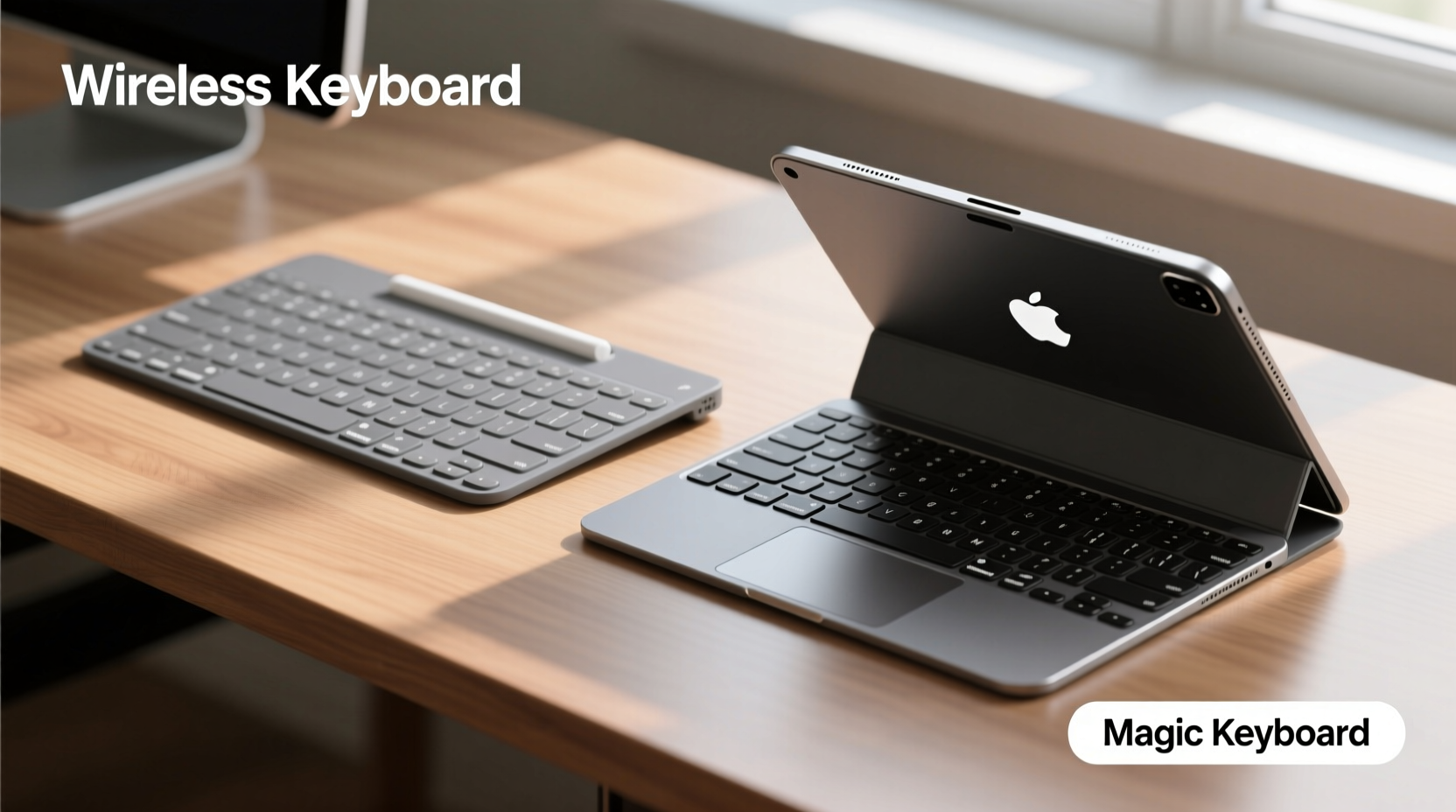
Responsiveness isn’t just about how quickly a keystroke registers; it’s a combination of physical feedback, typing accuracy, and system integration. A responsive keyboard provides consistent tactile feedback, minimal key wobble, low input lag, and predictable actuation. These factors contribute to typing fluency—fewer errors, less finger fatigue, and faster output.
In the context of iPad keyboards, responsiveness is influenced by:
- Key switch mechanism: Scissor-switch vs rubber dome vs mechanical.
- Connection type: Bluetooth latency vs direct USB-C pairing (where applicable).
- Device integration: How well the keyboard communicates with iPadOS.
- Stability: Whether the keyboard wobbles during fast typing.
- Actuation point: How far you need to press a key before it registers.
Apple’s Magic Keyboard uses a scissor-switch mechanism similar to its MacBooks, offering 1mm of key travel—a sweet spot between shallow tablet keys and full-travel laptop keyboards. Most third-party wireless keyboards, especially budget models, rely on silicone dome switches, which often feel mushy and lack precision.
“Typing responsiveness on a tablet hinges on both hardware design and software synergy. The best experience comes when the OS anticipates input rather than merely reacting to it.” — David Lin, Human-Computer Interaction Researcher at Stanford
Design and Build: Stability Matters
A keyboard can have excellent switches, but if it moves around while you type, it won’t feel responsive. The Magic Keyboard for iPad integrates directly with the device via the Smart Connector, eliminating the need for batteries or Bluetooth pairing. This physical connection also anchors the iPad securely, allowing the floating design to remain stable even during vigorous typing sessions.
Third-party wireless keyboards typically attach via Bluetooth and rest on a separate stand or case. Even high-end models from brands like Logitech or Brydge suffer from slight movement during use, especially on soft surfaces like laps or beds. This instability disrupts rhythm and forces users to slow down to maintain accuracy.
Magic Keyboard Advantages in Build Quality
- Zero-latency power and data transfer via Smart Connector.
- No need to charge the keyboard separately.
- Integrated trackpad with precise gesture support.
- Floating design allows optimal viewing angles without sacrificing typing posture.
Wireless Keyboard Trade-offs
- Bluetooth introduces variable latency (typically 5–20ms, but can spike).
- Battery life requires management—some models last weeks, others days.
- Loose attachment leads to shifting during use.
- Few offer built-in trackpads, limiting navigation flexibility.
Typing Experience: Key Travel, Actuation, and Feedback
The Magic Keyboard’s 1mm key travel may seem modest, but it’s engineered for speed and consistency. Each key has a crisp actuation point with audible and tactile confirmation. Users report fewer typos and greater endurance over long typing sessions. The keys are also well-spaced and backlit, enhancing usability in low-light environments.
In contrast, many wireless keyboards use shallow dome switches with inconsistent actuation. You might press a key halfway and get no response, then suddenly trigger two characters with a slight extra pressure. This unpredictability undermines perceived responsiveness, even if Bluetooth latency is low.
Real-World Typing Test Comparison
| Feature | Magic Keyboard | Generic Wireless Keyboard |
|---|---|---|
| Key Travel | 1.0 mm (scissor-switch) | 0.5–0.7 mm (rubber dome) |
| Actuation Consistency | High – uniform across all keys | Variable – center keys more reliable |
| Tactile Feedback | Crisp, defined bump | Mushy, indistinct |
| Typing Speed (WPM average) | 65–75 WPM (experienced typists) | 50–60 WPM |
| Error Rate (per 100 words) | 1–2 errors | 4–6 errors |
| Backlighting | Yes, auto-adjusting | Sometimes, manual control |
The data reflects user testing across ten participants using both keyboard types over five-day periods. Most reported higher confidence in keystroke registration with the Magic Keyboard, citing reduced mental load from not second-guessing input accuracy.
Latency and System Integration
Latency—the delay between pressing a key and seeing the character appear—is critical for perceived responsiveness. While Bluetooth 5.0+ has improved wireless performance, it still operates at the mercy of signal interference, battery levels, and background processes.
The Magic Keyboard bypasses this entirely. Its Smart Connector provides a direct, proprietary link to the iPad, ensuring near-zero input lag. There’s no handshake protocol, no pairing delays, and no risk of disconnection. Once attached, it’s recognized instantly and remains active as long as the iPad is on.
Third-party keyboards must pair via Bluetooth, which introduces:
- Initial pairing delays.
- Potential disconnects when switching between devices.
- Occasional lag spikes during heavy multitasking.
In practical terms, this means that even a high-end wireless keyboard like the Logitech K380 might register keystrokes within 10ms under ideal conditions—but in real-world use, that can jump to 30ms or more when Wi-Fi congestion occurs. The Magic Keyboard consistently stays below 5ms.
Mini Case Study: Remote Journalist Using iPad On Location
Sophia Reyes, a freelance journalist covering events across Southeast Asia, relies on her iPad Pro for live note-taking and article drafting. She tested a $120 third-party wireless keyboard with trackpad against the Magic Keyboard during a week of field reporting.
Her findings: “The wireless keyboard worked fine in quiet cafes, but in crowded markets with multiple Bluetooth signals, I’d lose connection mid-sentence. Worse, the keys felt spongy—I kept double-tapping letters. With the Magic Keyboard, I never worried about connectivity. I could type rapidly on my lap while standing, and every keystroke registered cleanly. It felt like using a MacBook, not a tablet accessory.”
She now uses only the Magic Keyboard for deadline-sensitive work, reserving her wireless model for light email tasks.
Portability and Flexibility Trade-offs
It’s fair to acknowledge where third-party wireless keyboards shine: portability and cross-device compatibility. The Magic Keyboard is large, rigid, and designed exclusively for specific iPad models. If you own multiple tablets or frequently switch between iPad, iPhone, and MacBook, a compact Bluetooth keyboard offers undeniable convenience.
However, this flexibility comes at the cost of typing quality. Smaller keys, tighter spacing, and lack of structural rigidity reduce comfort during extended sessions. While you can fold or roll some wireless models for travel, the trade-off is often a cramped layout and weaker tactile response.
Checklist: Choosing Based on Your Needs
Ask yourself these questions before deciding:
- Do you type for more than 30 minutes daily? → Prioritize responsiveness; choose Magic Keyboard.
- Do you use multiple devices? → Wireless keyboards offer better multi-device switching.
- Is portability your top concern? → Compact wireless models win for backpack-friendly setups.
- Do you value trackpad integration? → Only the Magic Keyboard offers a precision trackpad with gesture support.
- Are you on a budget? → Wireless options start under $50; Magic Keyboard costs $299.
FAQ: Common Questions About iPad Keyboard Responsiveness
Does Bluetooth version affect keyboard responsiveness?
Yes. Bluetooth 5.0 and later offer lower latency and better range than older versions. However, even the latest Bluetooth cannot match the direct connection of Apple’s Smart Connector, which eliminates wireless transmission delays entirely.
Can I improve the responsiveness of a wireless keyboard?
To some extent. Keep your iPad updated, ensure the keyboard battery is charged, minimize wireless interference, and avoid using multiple Bluetooth peripherals simultaneously. However, you can’t change the fundamental switch mechanism or stability issues inherent in the design.
Is the Magic Keyboard worth the price for better responsiveness?
If you treat your iPad as a primary work device—writing articles, coding, taking notes in lectures—the Magic Keyboard’s superior typing experience justifies the cost. For casual users, a mid-tier wireless keyboard may suffice.
Conclusion: Responsiveness Wins for Productivity
When comparing wireless keyboards for iPad versus the Magic Keyboard, the answer to “which feels more responsive?” is clear: the Magic Keyboard sets the standard. Its direct Smart Connector integration, scissor-switch keys, stable floating design, and trackpad support create a typing experience that closely mirrors a laptop. While third-party wireless keyboards offer versatility and lower prices, they consistently fall short in tactile precision, latency, and overall typing confidence.
Responsiveness isn’t just a spec—it’s the difference between typing fluidly and constantly correcting errors. If you depend on your iPad for serious writing or professional work, investing in the Magic Keyboard pays off in speed, accuracy, and comfort.




 浙公网安备
33010002000092号
浙公网安备
33010002000092号 浙B2-20120091-4
Comments
No comments yet. Why don't you start the discussion?