
Integrating data from Excel into a Word document is a common task in business reports, academic papers, and project summaries. When done correctly, it enhances clarity and professionalism. Yet many users struggle with formatting issues, broken links, or poor layout integration. The key lies not just in insertion—but in doing so with precision, control, and long-term usability in mind.
Whether you're embedding financial tables, statistical charts, or dynamic schedules, knowing the right method ensures your final document remains accurate, editable, and visually coherent. This guide walks through proven techniques for inserting Excel content into Word—preserving functionality while maintaining design integrity.
Understanding Your Insertion Options
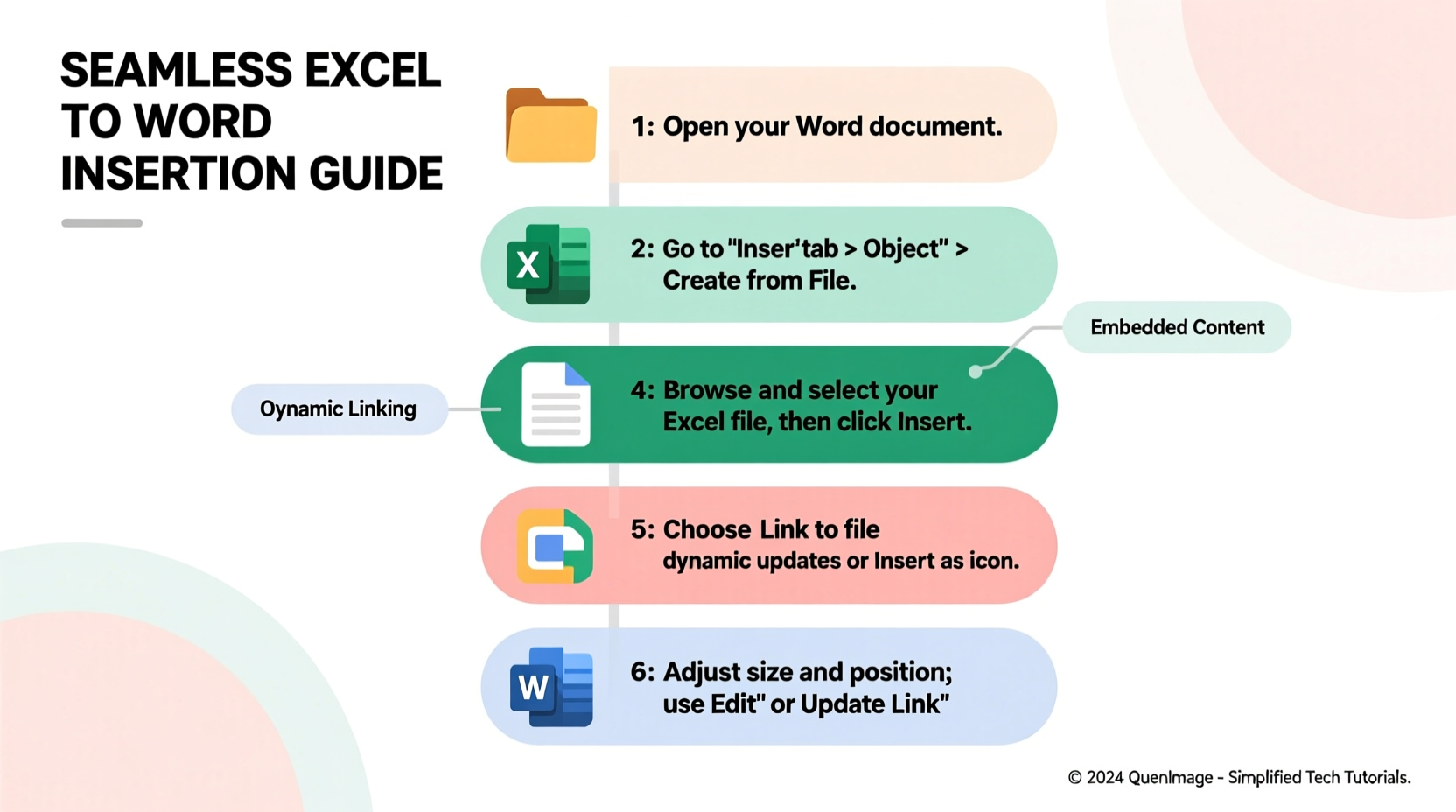
Word offers multiple ways to bring Excel data into a document, each suited to different needs:
- Paste as a formatted table – Ideal for static data that doesn’t require updates.
- Paste with linking – Keeps the connection to the original Excel file; changes reflect automatically in Word.
- Embed as an object – Allows double-click editing within Word using Excel’s interface.
- Insert as an icon – Displays a clickable icon instead of visible data, saving space.
The choice depends on how often the data changes, who will access the document, and whether interactivity is needed.
Step-by-Step: Inserting Excel Data into Word
Follow this structured process to insert Excel content accurately and efficiently.
- Open both Excel and Word files. Have your source spreadsheet ready alongside the target Word document.
- Select the data in Excel. Highlight the cells, chart, or range you want to transfer. Avoid selecting entire columns unless necessary.
- Copy the selection. Press Ctrl + C (or right-click > Copy).
- Navigate to your Word document. Click where you’d like the data to appear.
- Use Paste Special for full control. Go to the Home tab, click the small arrow under “Paste,” then choose “Paste Special.”
- Select the appropriate format:
- Microsoft Excel Worksheet Object – Embeds editable Excel content.
- Unformatted Text – Strips all formatting; useful for re-styling in Word.
- Picture (Enhanced Metafile) – Good for read-only visuals.
- HTML Format – Preserves basic table styling.
- Check “Paste link” if applicable. This creates a live connection. Any change in the Excel file updates when the Word doc is reopened (if linked).
- Click OK. The data appears in your document.
To edit embedded data later, double-click the object. Excel’s ribbon tools will appear inside Word, allowing modifications without switching applications.
Best Practices for Clean Integration
Even with correct insertion, poor formatting can undermine your work. Apply these standards to maintain document quality.
| Do | Don't |
|---|---|
| Resize tables proportionally to fit page margins | Stretch objects unevenly, causing distortion |
| Use consistent fonts and alignment with surrounding text | Mix font sizes or colors that clash with the document theme |
| Add captions above or below inserted tables (e.g., “Table 1: Sales Summary”) | Leave tables unlabeled in formal reports |
| Test linked files on another machine if sharing externally | Assume linked paths will resolve automatically on other devices |
“Dynamic reporting relies on seamless data flow. A well-linked Excel object in Word saves hours during quarterly reviews.” — Daniel Reeves, Senior Financial Analyst at StratCom Solutions
Real-World Example: Quarterly Department Report
Sarah, a marketing manager, prepares a monthly performance summary for leadership. Her report includes campaign budgets, conversion metrics, and ROI calculations—all maintained in Excel.
Instead of retyping numbers into Word, she copies the summary table and uses “Paste Special” > “Paste Link” > “Microsoft Excel Worksheet Object.” Now, whenever finance updates the budget tracker, Sarah simply opens her Word document, allows updates, and the new figures appear instantly.
This method reduces manual errors, maintains consistency, and gives stakeholders confidence in the accuracy of presented data. She also inserts charts as pictures to avoid clutter, reserving interactive objects only for critical tables requiring scrutiny.
Troubleshooting Common Issues
Despite careful setup, problems may arise. Here’s how to resolve them quickly.
- Linked data isn’t updating? Right-click the object, select “Update Link,” or go to File > Info > Edit Links to check status.
- File too large after embedding? Use “Paste as Picture” or link instead of embedding full worksheets.
- Double-clicking doesn’t open Excel tools? Ensure you’re using the desktop version of Word (not web app), and that Excel is installed.
- Formatting looks off? Adjust column widths in the embedded editor or pre-format the Excel selection before copying.
Checklist: Before Sharing Your Document
Ensure reliability and professionalism before distributing your file.
- ✅ Verify all linked data is up to date
- ✅ Confirm embedded objects open and function correctly
- ✅ Remove unnecessary gridlines or excess rows/columns
- ✅ Test on a different computer (especially for shared drives)
- ✅ Save a PDF version for archival or print distribution
- ✅ Include a note if external links are required (“Data sourced from Q3_Sales.xlsx”)
Frequently Asked Questions
Can I insert an entire Excel worksheet into Word?
Yes. In Excel, press Ctrl + A to select all cells, copy, then paste into Word using “Paste Special” as an Excel object. Note: Large sheets may affect document performance.
Will the recipient see updates if I send a linked document?
Only if they have access to the original Excel file in the exact location. For universal compatibility, embed the data or include both files together when sharing.
Is there a way to make the Excel content smaller?
You can resize the object by dragging corners (hold Shift to maintain proportions). Alternatively, paste as a picture and compress via Format > Compress Pictures in Word.
Final Thoughts and Action Steps
Seamlessly integrating Excel files into Word isn’t just about technical execution—it’s about designing documents that communicate clearly, update efficiently, and stand up to professional scrutiny. Whether you're preparing a client proposal, internal audit, or research paper, mastering this skill eliminates redundancy and strengthens credibility.
Start by auditing your current workflow. Are you manually retyping data? Are your reports prone to version mismatches? Implement one of the methods outlined here—preferably linked embedding—and test it on your next project. Refine based on feedback and usage patterns.




 浙公网安备
33010002000092号
浙公网安备
33010002000092号 浙B2-20120091-4
Comments
No comments yet. Why don't you start the discussion?