
If your Arlo camera isn’t recording, it can undermine the entire purpose of having a smart security system. Whether you’re missing motion-triggered clips, scheduled recordings aren’t saving, or the app shows “No Activity,” the root cause could be as simple as a weak Wi-Fi signal or as complex as incorrect cloud settings. This guide walks through real-world diagnostics and solutions to restore reliable recording on your Arlo system—no guesswork needed.
Common Reasons Why Arlo Cameras Stop Recording
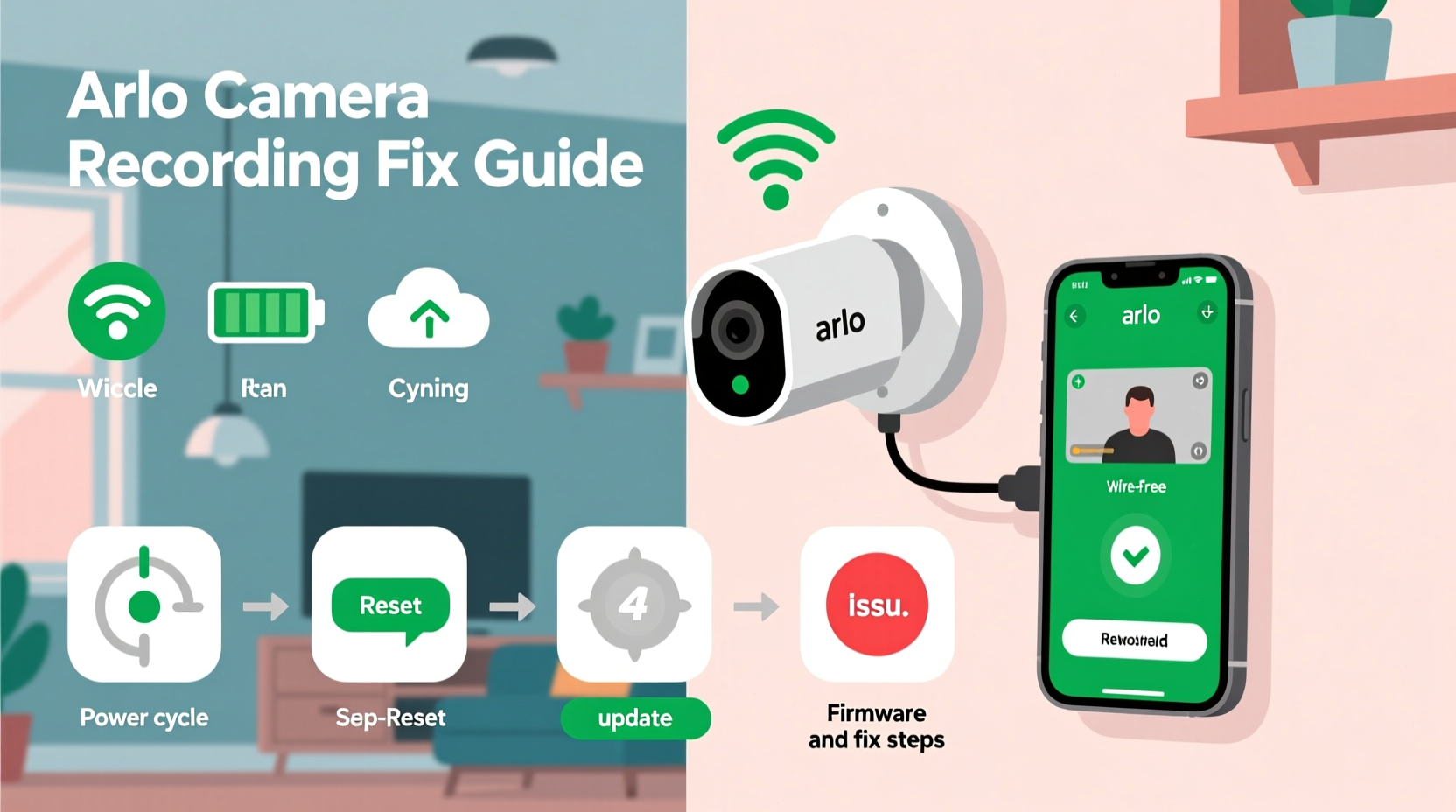
Arlo cameras rely on a combination of hardware, network stability, firmware, and subscription services to record and store footage. When recording fails, one or more of these components may be compromised. The most frequent culprits include:
- Weak or unstable Wi-Fi connection
- Incorrect motion detection or schedule settings
- Outdated firmware on camera or base station
- Lapsed or misconfigured Arlo Smart subscription
- Camera offline or disconnected from the base station
- Full local storage (for models using microSD cards)
- Improper mounting or obstructions triggering false motion events
Understanding where the failure occurs is key to applying the right fix. Start by checking the Arlo app’s activity log. If no events appear despite visible movement, the issue likely lies in detection or connectivity. If clips exist but are blank or cut off, storage or buffering may be at fault.
Step-by-Step Troubleshooting Guide
Follow this systematic process to identify and resolve recording issues. Each step isolates a potential cause and applies a targeted correction.
- Verify Camera Status: Open the Arlo app and confirm the camera is online. An offline device won’t record. Tap the camera tile—if it shows “Offline” or a red dot, proceed to network checks.
- Check Recording Mode: Navigate to Mode Settings. Ensure your active mode (e.g., “Armed”) has recording enabled. Some custom modes disable recording intentionally.
- Review Motion Sensitivity and Zones: Low sensitivity or narrow motion zones may prevent trigger events. Increase sensitivity temporarily and expand detection areas for testing.
- Inspect Schedule Settings: If using scheduled recording, verify the time window aligns with current time and time zone. A mismatch due to daylight saving or manual error stops recordings.
- Restart the Camera and Base Station: Power cycle both devices. Unplug the base station for 15 seconds, then reconnect. Wait for full reboot (up to 2 minutes), then test again.
- Update Firmware: Outdated firmware can introduce bugs. In the app, go to Settings > My Devices > select camera > Firmware Update. Install any pending updates.
- Test with Another Device: Temporarily swap camera positions or connect to a different base station (if available) to isolate hardware faults.
Real Example: The Case of the Silent Porch Camera
A homeowner noticed their front porch Arlo Pro 4 wasn’t capturing nightly package deliveries. The camera appeared online, but no motion events were logged. After checking settings, they discovered that a recent firmware update had reset motion zones to “Minimal.” Expanding the zone to cover the entire walkway immediately restored event recording. Additionally, they found the Wi-Fi signal was borderline (-73 dBm), so relocating the base station closer to the router improved reliability.
Subscription & Cloud Storage Dependencies
Arlo’s recording functionality is tightly linked to its cloud service. Without an active Arlo Smart plan, many features—including continuous video recording, intelligent alerts, and extended cloud storage—are disabled. Even if motion detection works locally, clips may not save without a valid subscription.
For users relying on local storage via microSD card (available on select models like Arlo Ultra and Pro 4), ensure the card is properly inserted, formatted, and not full. The camera will stop recording when storage is exhausted unless overwrite is enabled.
| Recording Type | Requires Subscription? | Storage Location |
|---|---|---|
| Motion-triggered clips | Yes (for cloud) | Cloud or SD card |
| Scheduled recordings | Yes (Arlo Smart or higher) | Cloud only |
| Continuous video recording (CVR) | Yes (CVR-enabled plan) | Cloud only |
| Local SD card recording | No | microSD card |
“Many ‘non-recording’ issues stem from misunderstood subscription requirements. Always confirm your plan supports the feature you’re trying to use.” — Arlo Support Team, Netgear Inc.
Network Optimization for Reliable Recording
Wi-Fi performance directly impacts Arlo camera operation. A dropped connection during motion detection means lost footage. Consider these network best practices:
- Use 2.4 GHz band for better range (required for most Arlo models).
- Ensure minimum bandwidth of 2 Mbps per camera for HD streaming.
- Place the base station within 3 feet of the router during initial setup, then adjust as needed.
- Use Wi-Fi extenders or mesh networks to boost coverage in dead zones.
- Assign static IP addresses to Arlo devices to prevent DHCP conflicts.
Essential Checklist: Fix Arlo Recording Issues Fast
Use this checklist to quickly diagnose and resolve common recording failures:
- ✅ Confirm camera is online in the Arlo app
- ✅ Check that recording is enabled in the current mode
- ✅ Verify motion detection settings (sensitivity, zones, schedule)
- ✅ Ensure Arlo Smart subscription is active and covers your needs
- ✅ Restart base station and camera
- ✅ Update firmware on all devices
- ✅ Test Wi-Fi signal strength (aim for -60 dBm or better)
- ✅ For SD card users: format the card via the app and enable overwrite
- ✅ Review cloud storage usage; delete old clips if full
- ✅ Perform a factory reset if issues persist (re-add device afterward)
Frequently Asked Questions
Why does my Arlo camera show motion but not record?
This usually points to a subscription gap or incorrect mode settings. Even if motion is detected, recording requires an active Arlo Smart plan for cloud saves. Also, check that your current mode allows recording—custom modes can disable it silently.
Can I record without an Arlo subscription?
Yes, but only locally. Models with microSD card support can record motion clips to the card without a subscription. However, cloud features, intelligent alerts, and remote playback beyond live view require a paid plan.
How do I know if my SD card is causing recording issues?
In the Arlo app, go to Device Settings > Local Storage. If the card shows “Not Detected,” “Corrupted,” or “Full,” those are clear indicators. Format the card through the app (this erases all data) or replace it with a high-endurance, UHS-I rated card.
Conclusion: Restore Confidence in Your Security System
An Arlo camera that isn’t recording defeats its core purpose. But in most cases, the fix lies in straightforward adjustments—checking subscriptions, optimizing Wi-Fi, or correcting overlooked settings. By methodically working through each potential cause, you can restore reliable recording and regain peace of mind. Don’t accept intermittent performance as normal. Take control today, apply these fixes, and ensure your home remains under constant, documented protection.




 浙公网安备
33010002000092号
浙公网安备
33010002000092号 浙B2-20120091-4
Comments
No comments yet. Why don't you start the discussion?