
Bluetooth headphones have become essential for daily commutes, workouts, and remote work. But when they refuse to connect, the frustration is real. Whether you're using premium wireless earbuds or over-ear noise-canceling models, connection failures can stem from a variety of sources — from simple user errors to deeper technical glitches. The good news: most issues are fixable without professional help. This guide walks through actionable steps to diagnose and resolve connectivity problems across smartphones, laptops, tablets, and other devices.
Understanding Common Causes of Connection Failure
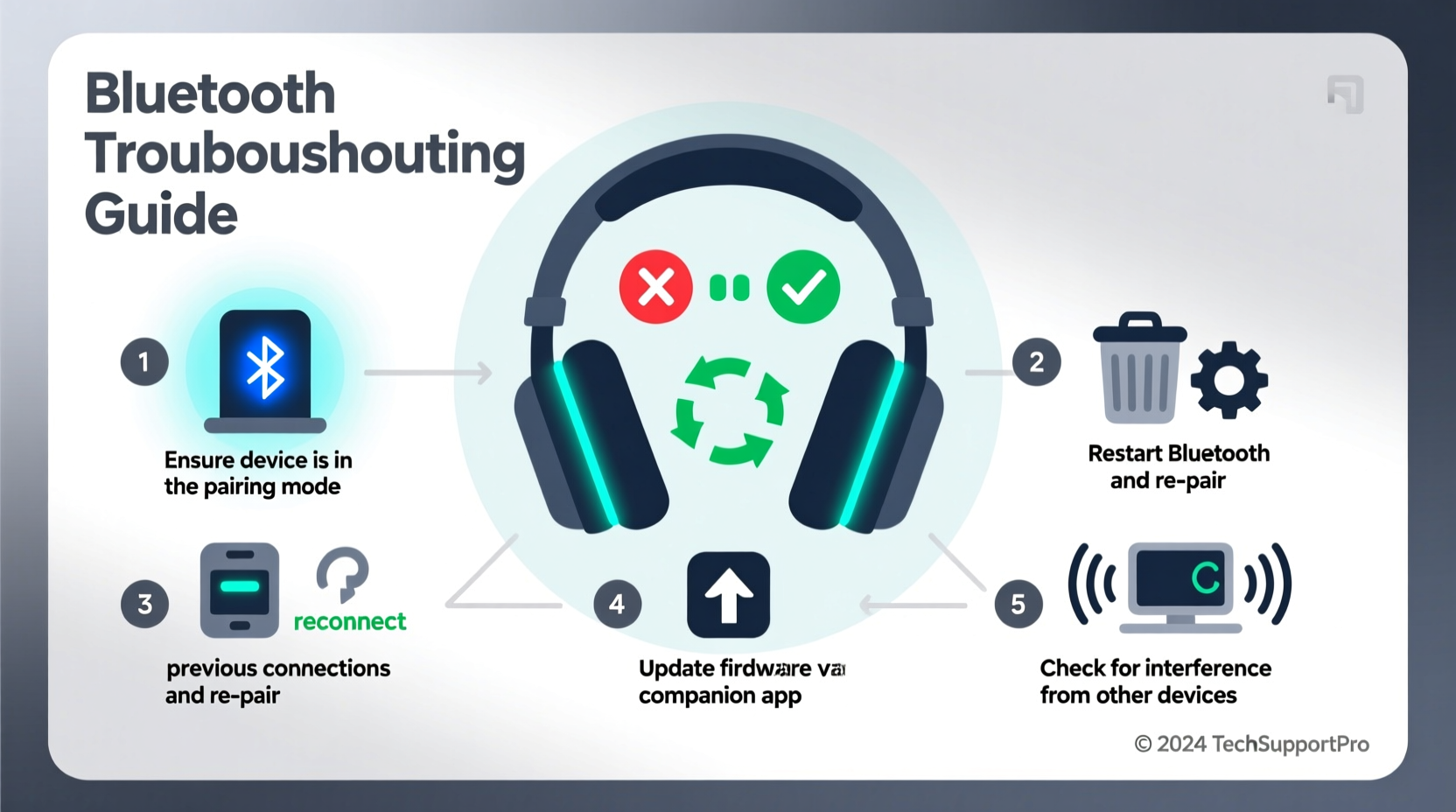
Before diving into fixes, it’s important to recognize what might be causing the disconnect. Bluetooth technology relies on short-range wireless communication between two devices. Interference, outdated firmware, incorrect settings, or hardware faults can all disrupt this link.
Common culprits include:
- Low battery in the headphones or source device
- Devices out of range or obstructed by walls or metal
- Bluetooth being disabled or malfunctioning on the host device
- Headphones already paired to another device
- Software bugs or OS updates that affect Bluetooth stack
- Damaged internal components due to moisture or impact
Identifying the root cause streamlines your troubleshooting process. Start broad, then narrow down based on symptoms like flashing lights, error messages, or inconsistent behavior across multiple devices.
Step-by-Step Troubleshooting Process
Follow this logical sequence to restore functionality. Each step builds on the previous one, eliminating common issues before moving to advanced solutions.
- Check Power and Charge Level
Ensure both the headphones and the device you're trying to pair with have sufficient battery. A low charge can prevent stable connections or block pairing entirely. - Enable Bluetooth on Your Device
Go to Settings > Bluetooth and confirm it’s turned on. Some phones disable Bluetooth automatically after periods of inactivity. - Place Devices Within Range
Bring the headphones within 3 feet (1 meter) of the source device. Remove physical barriers like bags, pockets, or furniture that may interfere with the signal. - Put Headphones in Pairing Mode
Refer to your model’s instructions. Most require holding the power or multifunction button for 5–7 seconds until an indicator light blinks rapidly. This makes them visible to nearby devices. - Forget and Re-Pair the Device
On your phone or computer, go to Bluetooth settings, find your headphones in the list (even if disconnected), tap the gear icon or “i” symbol, and select “Forget This Device.” Then restart pairing from scratch. - Restart Both Devices
Power cycle your smartphone, tablet, or laptop. Also turn your headphones off and on again. This clears temporary software hiccups affecting Bluetooth services. - Update Firmware and Operating System
Manufacturers release firmware updates to improve stability. Check the companion app (like Sony Headphones Connect, Bose Connect, or Apple AirPods firmware) or the manufacturer’s website for updates. Also ensure your phone or PC has the latest OS version.
If none of these steps work, proceed to deeper diagnostics.
Advanced Fixes for Persistent Issues
Sometimes basic resets aren’t enough. These advanced methods target stubborn problems rooted in system-level conflicts or corrupted data.
Reset Bluetooth Settings on Mobile Devices
On Android, go to Settings > System > Reset Options > Reset Wi-Fi, Mobile & Bluetooth. On iOS, navigate to Settings > General > Transfer or Reset iPhone > Reset > Reset Network Settings. This wipes saved networks and Bluetooth pairings, giving you a clean slate.
Clear Bluetooth Cache (Android Only)
Navigate to Settings > Apps > Show System Apps > Bluetooth > Storage & Cache > Clear Cache. Do not clear data unless necessary, as it removes all paired devices.
Use Safe Mode to Detect App Conflicts
Boot your Android phone in Safe Mode (press and hold power button, then long-press “Power Off” and tap “OK” on Safe Mode prompt). In this mode, third-party apps are disabled. Try pairing your headphones. If it works, a downloaded app is interfering — uninstall recently added apps one by one to identify the culprit.
Test on Another Device
Attempt to pair your headphones with a different phone, tablet, or laptop. If they connect successfully, the issue lies with your original device. If they fail everywhere, the problem is likely with the headphones themselves.
“Over 60% of reported Bluetooth pairing issues are resolved simply by forgetting the device and re-pairing — a testament to how sensitive Bluetooth profiles can be to cached data.” — Raj Mehta, Senior Wireless Engineer at Nordic Semiconductor
Troubleshooting Table: Quick Reference Guide
| Symptom | Possible Cause | Solution |
|---|---|---|
| Headphones won’t appear in device list | Not in pairing mode, dead battery, or out of range | Charge fully, place close, activate pairing mode |
| Shows “Connected” but no audio | Wrong output selected or app-specific mute | Check media volume, switch audio output in quick settings |
| Connects briefly then drops | Interference, low battery, or outdated firmware | Move away from routers/microwaves, update firmware |
| Only one earbud connects | Internal sync failure between earbuds | Reset both earbuds (place in case, hold button 15+ sec) |
| No sound despite correct settings | Codec mismatch or driver issue (PCs) | Update audio drivers; try A2DP profile on Windows |
Mini Case Study: Resolving Intermittent Connectivity on a Laptop
Jamal, a freelance editor, relied on his wireless headphones for video calls. One morning, they connected but cut out every few minutes. He tested them with his phone — perfect performance. Back on his Windows 11 laptop, the issue persisted.
He followed these steps:
- Checked for Windows updates → none pending.
- Updated Realtek and Intel wireless drivers via Device Manager.
- Disabled “Allow the computer to turn off this device to save power” under USB and Bluetooth adapters.
- Moved his laptop away from a nearby microwave and dual-monitor setup.
The combination of disabling power-saving features and reducing electromagnetic interference solved the problem. His headphones now maintain a stable connection throughout the day.
Essential Tips Box
Frequently Asked Questions
Why do my Bluetooth headphones connect to one device but not another?
This usually indicates a compatibility or configuration issue with the non-working device. Confirm Bluetooth is enabled, the headphones are in pairing mode, and no other active connections are blocking the link. Also, check whether the device supports the required Bluetooth profile (e.g., A2DP for stereo audio).
Can I pair Bluetooth headphones to more than one device at once?
Some modern models support multipoint pairing, allowing simultaneous connections to two devices (e.g., a phone and a laptop). However, most standard headphones can only maintain one active connection. You’ll need to manually disconnect from one device before connecting to another.
How do I know if my headphones’ Bluetooth module is broken?
If your headphones show no signs of entering pairing mode (no blinking lights), fail to charge, or don’t respond to button presses even after a full charge, the hardware may be damaged. If they also fail to pair with multiple known-working devices, contact the manufacturer for repair or replacement options.
Final Checklist: What to Do When Bluetooth Headphones Won’t Connect
- Charge both the headphones and the source device.
- Turn on Bluetooth and ensure airplane mode is off.
- Place devices within close proximity.
- Activate pairing mode on the headphones.
- Forget the device and re-pair from scratch.
- Restart both devices.
- Update firmware and operating system.
- Reset network settings if issues persist.
- Test with another device to isolate the fault.
- Contact support if all else fails.
Conclusion
Bluetooth headphone connection issues are common but rarely permanent. With systematic troubleshooting, most problems can be resolved in under 15 minutes. The key is to approach the issue methodically — ruling out simple causes first before diving into software resets or hardware concerns. By understanding how Bluetooth pairing works and maintaining your devices properly, you can minimize future disruptions and enjoy seamless audio experiences.




 浙公网安备
33010002000092号
浙公网安备
33010002000092号 浙B2-20120091-4
Comments
No comments yet. Why don't you start the discussion?