
In today’s hyper-connected world, moving files between your phone and computer should be as smooth as a tap. Yet many still struggle with tangled cables, confusing software, or failed transfers. Whether you're sharing photos, backing up messages, or transferring large video files, the right method can save time, reduce frustration, and keep your digital life in sync. The good news? You don’t need advanced technical skills. With the right tools and techniques, connecting your phone to your computer can be fast, reliable, and nearly automatic.
Wired Connections: Reliable and Fast
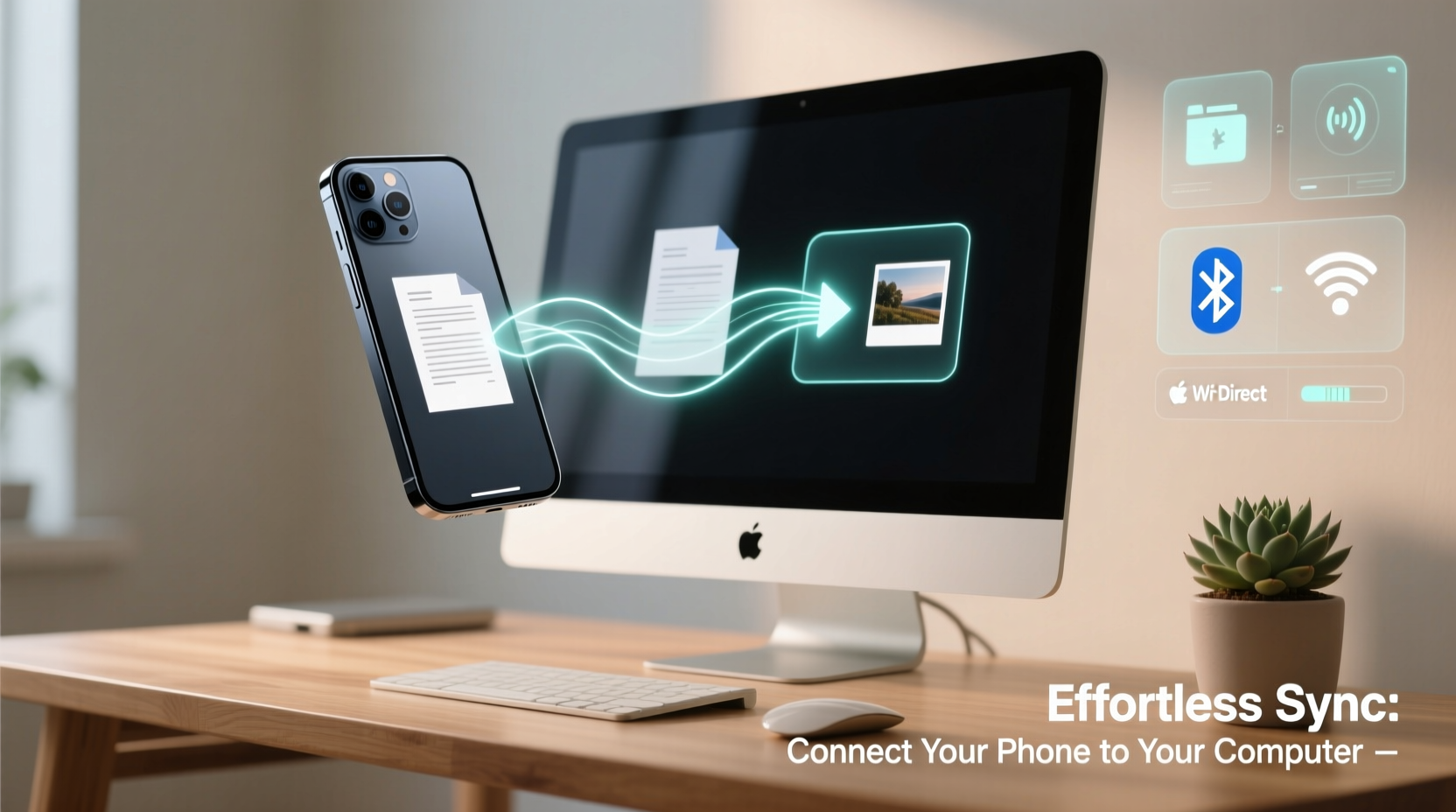
Despite the rise of wireless options, a physical USB connection remains one of the most dependable methods for transferring data. It offers faster speeds than most wireless alternatives and ensures a stable link, especially when handling large files like 4K videos or extensive photo libraries.
To use a wired connection:
- Use the original USB cable that came with your phone (or a certified replacement).
- Plug one end into your phone and the other into your computer’s USB port.
- On Android, pull down the notification shade and select “File Transfer” (MTP mode). On iPhone, trust the computer if prompted.
- Open File Explorer (Windows) or Finder (Mac), locate your device, and drag files as needed.
Wired connections are ideal when you need guaranteed delivery, high speed, or are working with limited Wi-Fi access.
Wireless File Transfer via Built-in Tools
Modern operating systems come with native features that simplify wireless syncing. These require minimal setup and work seamlessly across devices from the same ecosystem.
Apple Devices: iCloud and AirDrop
If you’re using an iPhone and Mac, iCloud automatically syncs photos, documents, and settings when enabled. Simply go to Settings > [Your Name] > iCloud and toggle on the apps you want synced. For quick file sharing, AirDrop lets you send photos, videos, or files between Apple devices in seconds.
- Ensure both devices have Wi-Fi and Bluetooth turned on.
- Open Control Center on your iPhone and long-press the network settings card to access AirDrop.
- Set visibility to “Everyone” or “Contacts Only.”
- Select a file, tap Share, and choose your Mac from the list.
Android and Windows: Continue on PC and Nearby Share
Microsoft’s “Continue on PC” feature allows Android users to open recent phone photos, links, or web pages directly on their Windows computer. Enable it via the Your Phone app on Windows or through the Microsoft Launcher on Android.
Google’s Nearby Share (formerly Chrome OS Share) works similarly to AirDrop, letting you send files between Android phones and compatible Windows PCs without third-party apps.
“Native integration between devices reduces friction and increases productivity—especially when switching between screens.” — David Lin, Senior UX Designer at a leading mobile software firm
Third-Party Apps for Cross-Platform Flexibility
When ecosystems mix—say, an iPhone with a Windows PC or an Android with a Mac—third-party tools bridge the gap. These apps often offer more features than built-in options, including remote access, clipboard sync, and even text messaging from your desktop.
| App | Best For | Cross-Platform? | Key Feature |
|---|---|---|---|
| Your Phone (Windows) | Android + Windows | Yes | Text messages, notifications, photos |
| Pushbullet | All combinations | Yes | Clipboard sync, SMS, alerts |
| Portal by Pushbullet | iPhone + any computer | Yes | Drag-and-drop file transfer via browser |
| Send Anywhere | One-time file sends | Yes | No registration, 10GB free |
These tools eliminate the need for email attachments or cloud uploads for simple transfers. Most work over the same Wi-Fi network, ensuring speed and privacy.
Cloud-Based Syncing: Always Up-to-Date
For users who prioritize accessibility over speed, cloud services provide continuous syncing across all devices. Once configured, files uploaded to your phone automatically appear on your computer—and vice versa.
Popular platforms include:
- Google Drive: Best for Android users; integrates with Gmail and Docs.
- iCloud Drive: Ideal for iPhone and Mac owners; deeply embedded in Apple’s ecosystem.
- OneDrive: Excellent for Windows and Office 365 users; offers automatic camera roll backup.
- Dropbox: Platform-agnostic and reliable for cross-device workflows.
Enable auto-upload in your phone’s app settings, and designate a sync folder on your computer. From there, any new photo, document, or download will appear across devices within moments.
Mini Case Study: How Sarah Streamlined Her Workflow
Sarah, a freelance photographer, used to spend hours manually copying photos from her iPhone to her laptop after events. She often forgot cables or faced interrupted transfers. After switching to a combination of iCloud Photos and the “Share to Computer” feature in OneDrive, her workflow transformed.
Now, every photo she takes is automatically backed up to iCloud. When editing, she accesses them instantly on her MacBook. For client deliveries, she uses OneDrive to share folders directly from her phone. The entire process is now hands-off, saving her an average of three hours per week.
“I used to dread post-event organization,” she says. “Now, my devices do the heavy lifting while I focus on editing and client communication.”
Step-by-Step Guide: Set Up Automatic Photo Syncing (iPhone to Mac)
Follow this sequence to ensure your iPhone photos appear instantly on your Mac:
- On your iPhone, go to Settings > [Your Name] > iCloud > Photos.
- Turn on “iCloud Photos.”
- Wait for the upload to complete (check under Settings > iCloud > Account Storage).
- On your Mac, open System Settings > Apple ID > iCloud.
- Ensure “Photos” is toggled on.
- Open the Photos app—your entire library will begin downloading.
- To edit or export, simply drag images from Photos to your desktop or another app.
This setup runs in the background, so every new photo is available across devices without manual intervention.
Checklist: Optimize Your Phone-to-Computer Connection
- ✅ Use a high-quality USB cable for wired transfers.
- ✅ Enable file transfer mode on Android when connected.
- ✅ Install the Your Phone app if using Android + Windows.
- ✅ Turn on iCloud Photos or Google Photos backup.
- ✅ Test AirDrop or Nearby Share with a small file first.
- ✅ Designate a dedicated folder for automatic cloud sync.
- ✅ Keep both devices updated to avoid compatibility issues.
FAQ
Why won’t my computer recognize my phone when I plug it in?
This usually happens due to a faulty cable, outdated drivers (on Windows), or incorrect USB mode. Try a different cable, restart both devices, and ensure MTP (Media Transfer Protocol) is selected on Android. For iPhones, unlock the device and tap “Trust This Computer.”
Is wireless transfer slower than using a cable?
Generally, yes—especially on older Wi-Fi networks. Wired USB 3.0 can transfer data at up to 5 Gbps, while Wi-Fi 5 maxes out around 1.3 Gbps under ideal conditions. However, for everyday files like documents or compressed photos, the difference may not be noticeable.
Can I transfer WhatsApp messages from phone to computer?
Yes, but only partially. WhatsApp Web and Desktop allow you to view and reply to messages, but full chat history transfer requires a local backup (Android) or iCloud (iPhone). To move entire conversations, back up chats and restore them on a new device.
Conclusion
Connecting your phone to your computer doesn’t have to be a chore. Whether you prefer the reliability of a cable, the convenience of cloud syncing, or the elegance of wireless sharing, there’s a method that fits your lifestyle. The key is consistency—set up your preferred system once, and let automation handle the rest. By reducing friction in your digital workflow, you reclaim time, minimize errors, and stay focused on what matters most.




 浙公网安备
33010002000092号
浙公网安备
33010002000092号 浙B2-20120091-4
Comments
No comments yet. Why don't you start the discussion?