
If your Frontier Internet has suddenly stopped working, you're not alone. Many users experience intermittent outages, slow speeds, or complete disconnections—especially during peak usage hours or after service updates. While some issues require technician support, a majority can be resolved at home with systematic troubleshooting. Understanding the root causes helps you fix problems faster and avoid unnecessary service calls.
Common Causes of Frontier Internet Outages
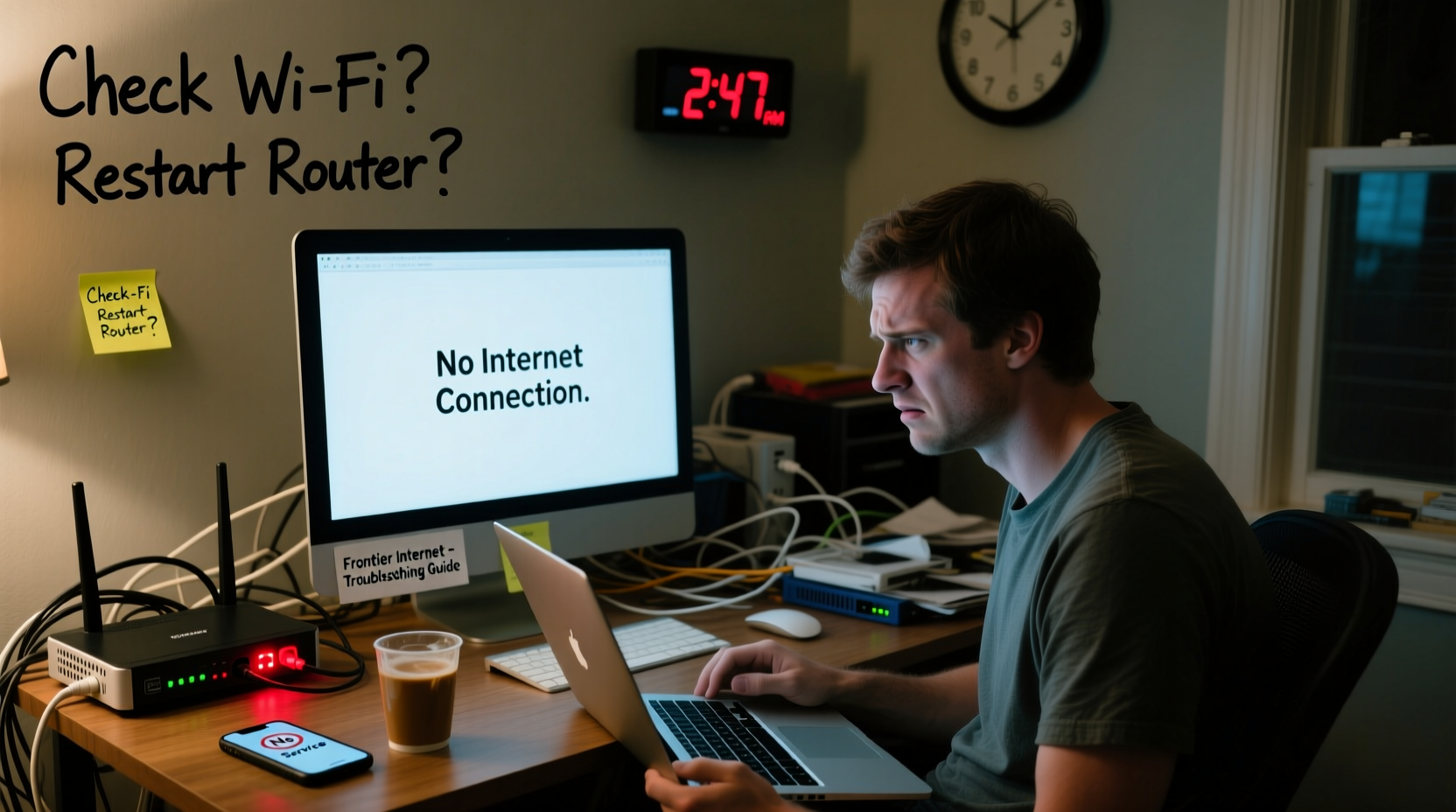
Before diving into fixes, it's essential to identify what might be causing the disruption. Frontier Internet relies on DSL or fiber-optic connections, depending on your region, and each technology has its own vulnerabilities.
- Modem or router malfunction: Overheating, outdated firmware, or hardware failure can interrupt connectivity.
- Service outages in your area: Frontier may be experiencing network maintenance or regional downtime.
- Line interference or damage: For DSL, phone line quality directly impacts performance; for fiber, physical cable damage is a concern.
- Account or billing issues: Service suspension due to overdue payments can silently disconnect your access.
- Wi-Fi signal degradation: Distance from the router, thick walls, or electronic interference weaken wireless signals.
- IP conflicts or DNS errors: Misconfigured network settings can prevent proper routing of data.
Step-by-Step Troubleshooting Guide
Follow this logical sequence to isolate and resolve the problem efficiently.
- Check for service outages. Visit Frontier’s outage map and enter your ZIP code. If an outage is reported, wait for restoration or contact support for updates.
- Inspect your equipment. Ensure all cables (power, Ethernet, phone/fiber) are securely connected. Look for blinking lights on the modem—steady green usually means normal operation.
- Restart your modem and router. Unplug both devices, wait 60 seconds, then plug the modem back in first. Wait two minutes for it to fully reboot before powering the router.
- Test with a direct Ethernet connection. Connect a computer directly to the modem via Ethernet. If the internet works, the issue lies with your Wi-Fi setup.
- Bypass the router temporarily. Connect only the modem to isolate whether the router is causing the blockage.
- Log into the modem interface. Access
192.168.1.1in your browser and check connection status. Look for error messages like “No Sync” or “DSL Down.” - Update firmware. Check Frontier’s support site for firmware updates specific to your modem model (e.g., Zyxel, Calix).
Do’s and Don’ts When Fixing Connectivity Issues
| Action | Do | Don't |
|---|---|---|
| Restart Equipment | Wait 60 seconds between power cycles to clear memory. | Yank cords repeatedly without waiting. |
| Check Cables | Inspect for frays, bends, or moisture damage. | Use third-party splitters or extension cords for DSL lines. |
| Update Settings | Follow official Frontier guides for configuration. | Change advanced settings without backup or knowledge. |
| Contact Support | Have your account number and modem MAC address ready. | Shut down equipment before speaking with tech support. |
Real-World Example: A Rural Home Connection Recovery
Jamie, a remote worker in rural Pennsylvania, woke up to no internet despite her Frontier fiber connection showing full signal strength. She followed basic steps—restarted the modem, checked cables—but nothing worked. After confirming no local outage, she connected her laptop directly via Ethernet. The internet loaded, but slowly. Running a speed test revealed 3 Mbps instead of her usual 50 Mbps.
She logged into her router settings and noticed multiple unknown devices connected. After changing her Wi-Fi password and enabling WPA3 encryption, speeds returned to normal. Later, a Frontier technician confirmed her outdoor fiber junction box had minor water intrusion, which was repaired. Jamie now schedules monthly reboots and uses a surge protector to prevent future disruptions.
Expert Insight on Network Reliability
“Many ‘outages’ are actually customer-side issues involving overheated modems or poor placement. Keeping equipment ventilated and updated prevents over 60% of avoidable service calls.” — Raj Patel, Senior Network Technician at Broadband Solutions Group
Troubleshooting Checklist
Use this checklist to methodically diagnose and fix Frontier Internet issues:
- ☐ Check Frontier’s outage map for your ZIP code
- ☐ Verify all cables are secure and undamaged
- ☐ Restart modem and router (wait 60 seconds)
- ☐ Test connection with Ethernet cable
- ☐ Log into modem interface (
192.168.1.1) and check sync status - ☐ Update modem firmware via Frontier’s support portal
- ☐ Reset router to factory settings if necessary (backup settings first)
- ☐ Contact Frontier support with modem MAC address and error codes
Frequently Asked Questions
Why does my Frontier Internet keep dropping intermittently?
Intermittent drops are often caused by line noise (in DSL), overheating modems, or Wi-Fi interference from appliances like microwaves or cordless phones. If you're on DSL, ensure filters are installed on all phone jacks. For persistent issues, request a line quality test from Frontier.
Can a bad router cause no internet even if the modem is online?
Yes. A malfunctioning or misconfigured router can block internet access while the modem maintains a connection. To test, connect a device directly to the modem via Ethernet. If the internet works, the router is the culprit and may need resetting or replacement.
How do I know if my issue is with Frontier or my home network?
If the modem’s WAN or Internet light is red or off, the problem is likely with Frontier’s service. If the light is green but Wi-Fi devices can’t connect, the issue is within your local network. Use the modem’s admin page to check upstream/downstream signal levels and error counts.
When to Call Frontier Support
Despite best efforts, some problems require professional intervention. Contact Frontier if:
- You’ve confirmed no local outage but still have no sync.
- The modem fails to acquire a WAN IP address after multiple reboots.
- You notice physical damage to external lines or the network interface device (NID).
- Signal levels in the modem interface show high attenuation or CRC errors.
- Your account is active but login attempts to Frontier services fail.
Prepare your account number, modem model, and a list of troubleshooting steps already taken. This speeds up diagnosis and reduces hold time.
Final Steps to Prevent Future Disruptions
Once your connection is restored, take proactive measures to minimize future downtime. Install a UPS (uninterruptible power supply) to protect against surges and brief outages. Schedule monthly reboots of your modem and router. Keep firmware updated through Frontier’s notifications. Position your router centrally, away from metal objects and large appliances.
For long-term reliability, consider upgrading to a mesh Wi-Fi system if you have a large home. These systems reduce dead zones and maintain consistent handoffs between nodes.
“Preventive maintenance is the most overlooked aspect of home networking. Ten minutes a month can save hours of frustration later.” — Lila Nguyen, ISP Customer Experience Consultant
Take Action Today
Frontier Internet not working doesn’t have to mean a day of lost productivity or entertainment. With the right approach, most issues can be diagnosed and resolved in under an hour. Start with the basics—restart, inspect, test—then move to advanced checks if needed. Share your experience in the comments below: What worked for you when your Frontier connection failed? Your insight could help another user get back online faster.




 浙公网安备
33010002000092号
浙公网安备
33010002000092号 浙B2-20120091-4
Comments
No comments yet. Why don't you start the discussion?