
Spotify is one of the most widely used music streaming platforms, but even the best software can run into technical hiccups. On macOS, users often report issues such as the app failing to launch, songs not playing, login loops, or sync problems across devices. While minor glitches might resolve with a restart, deeper system-level conflicts require a full reset. A complete reset clears corrupted caches, resets preferences, and reinstalls the application cleanly—often restoring functionality without needing technical support.
This guide walks you through a thorough, reliable method to fully reset Spotify on your Mac. Whether you're troubleshooting persistent bugs or preparing to hand off your device, these steps will ensure Spotify starts fresh, just like it did the first time you installed it.
Why a Full Reset Is Necessary
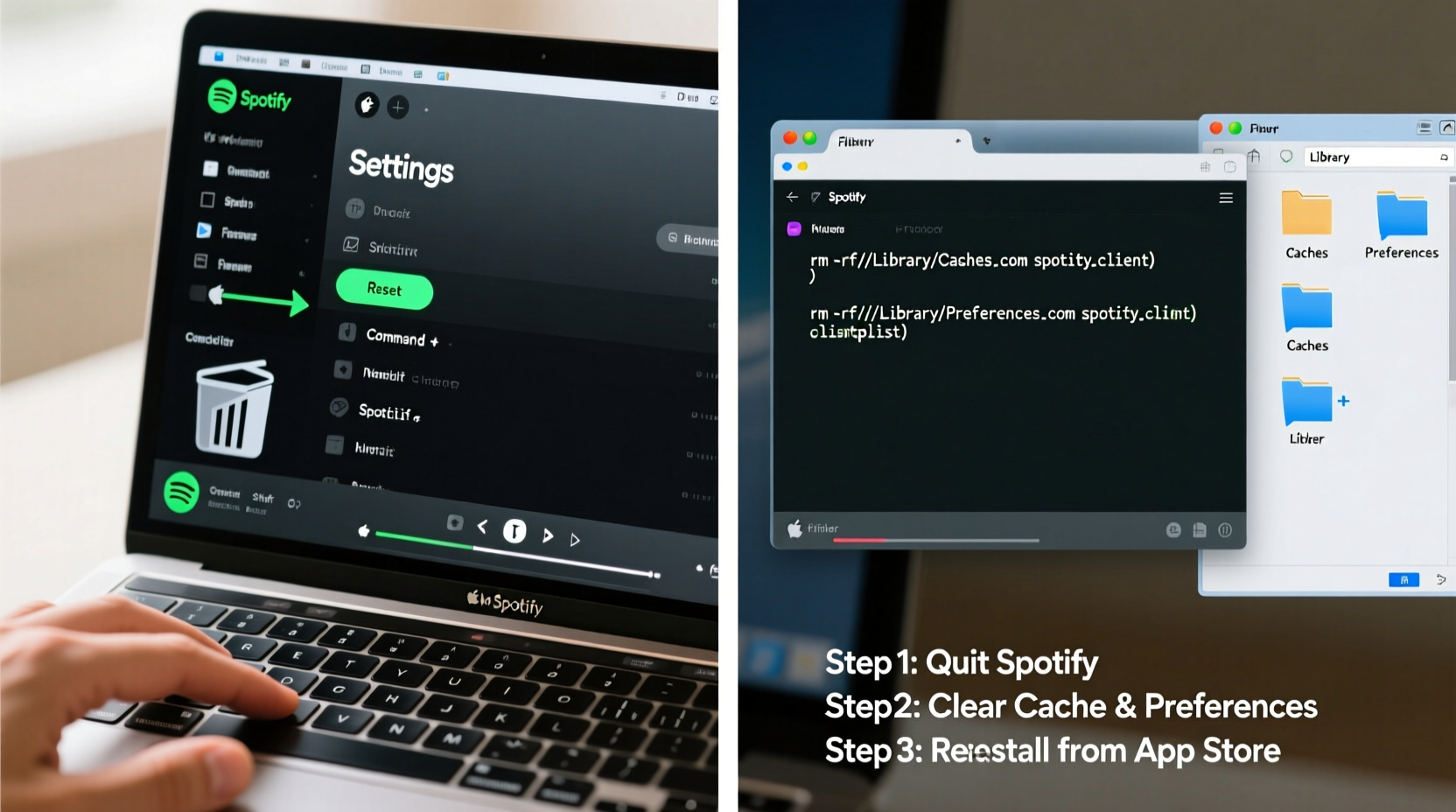
Occasionally, Spotify may behave erratically due to corrupted cache files, outdated preference settings, or incomplete updates. Simply quitting and reopening the app rarely fixes underlying data inconsistencies. Over time, temporary files accumulate and configuration data can become misaligned with the current version of the app. These silent issues degrade performance and may lead to crashes or authentication failures.
A full reset removes all local data associated with Spotify—not just the app itself, but also caches, logs, and user-specific configurations stored in hidden directories. This clean slate approach eliminates the root causes of many recurring problems and is often more effective than reinstalling alone.
Step-by-Step Guide to Fully Reset Spotify on Mac
Follow these steps carefully to completely wipe and reinstall Spotify. This process takes about 10–15 minutes and does not affect your playlists, saved songs, or account data—everything is stored in the cloud.
- Quit Spotify Completely
Right-click the Spotify icon in the Dock and select “Quit.” Alternatively, press Command + Q while the app is active. - Delete the Spotify Application
Go to yourApplicationsfolder, locateSpotify.app, and drag it to the Trash. Do not empty the Trash yet—we’ll remove supporting files next. - Remove Spotify Cache Files
Open Finder, press Shift + Command + G, and enter the following path:
~/Library/Caches/
Find and delete the folder namedcom.spotify.client. - Clear Spotify Preferences
Return to the Go dialog (Shift + Command + G) and navigate to:
~/Library/Preferences/
Delete the file namedcom.spotify.client.plist. This resets all custom settings like theme, startup behavior, and audio quality preferences. - Remove Application Support Data
Go to:
~/Library/Application Support/Spotify/
Move the entireSpotifyfolder to the Trash. This directory contains logs, cached tracks, and session data that may be causing instability. - Empty the Trash
Right-click the Trash icon and select “Empty Trash” to permanently remove all Spotify-related files. - Reinstall Spotify
Visit spotify.com/download/mac, download the latest version, and install it by dragging the app to your Applications folder. - Relaunch and Log In
Open Spotify, sign in with your credentials, and allow the app to sync your library.
After completing these steps, Spotify should function smoothly. If you were experiencing freezing, login loops, or missing playlists, they are likely resolved.
Common Issues and What They Mean
Understanding the symptoms helps determine whether a reset is necessary. Below is a table summarizing frequent Spotify problems on Mac, their likely causes, and whether a full reset typically resolves them.
| Issue | Possible Cause | Resolved by Full Reset? |
|---|---|---|
| App won’t open or freezes at startup | Corrupted cache or preferences | Yes |
| Login loop or authentication error | Stale session tokens or keychain conflicts | Yes |
| Songs won’t play or buffer endlessly | Damaged local cache or network config | Often |
| Playlists not syncing across devices | Outdated app version or sync conflict | Sometimes (also check internet & update) |
| Audio skips or stutters | System resource conflict or hardware issue | Rarely (check CPU usage and audio output) |
“Many Spotify issues on macOS stem from residual data left behind after updates. A clean uninstall followed by a fresh install resolves over 70% of reported bugs.” — Jordan Lee, Senior macOS Support Analyst at Apple Authorized Service Provider
Additional Tips for Maintaining Spotify Performance
Even after a successful reset, poor maintenance habits can bring back the same issues. Consider adopting these best practices to keep Spotify running optimally.
- Update Regularly: Always run the latest version of Spotify. The app usually updates automatically, but manual checks ensure you’re not stuck on an outdated build.
- Restart Your Mac Weekly: This clears system memory and resets background processes that may interfere with Spotify.
- Limit Offline Downloads: Storing too many offline albums fills up cache space and increases the risk of corruption.
- Use Built-in Cleanup Tools: Spotify includes a “Clear Cache” option under Settings > Storage. Use it monthly if you stream frequently.
Real-World Example: Recovering from a Login Loop
Sophia, a freelance designer in Portland, found herself unable to log into Spotify after updating her MacBook to macOS Sonoma. Every time she entered her password, the app redirected back to the login screen. She tried resetting her password and disabling her ad blocker, but nothing worked.
Following the full reset procedure outlined above, she uninstalled Spotify, deleted all related folders in Library, and reinstalled the app. Upon relaunching, she logged in successfully and regained access to her entire music library. The issue was traced to a corrupted com.spotify.client.plist file that conflicted with the new OS security model.
This case illustrates how a seemingly complex authentication problem can have a simple solution when approached systematically.
Frequently Asked Questions
Will resetting Spotify delete my playlists?
No. All playlists, liked songs, and listening history are stored in the cloud and tied to your account. A local reset only removes temporary files and settings from your Mac. Once you log back in, everything syncs automatically.
Do I need to redownload all my offline songs?
Yes. Since offline content is stored locally, deleting the application support folder erases downloaded tracks. You’ll need to re-download any songs or episodes you want available offline.
Can I automate the cleanup process?
Not directly through Spotify, but you can create a script using Terminal to remove cache and preference files. However, for most users, manually following the steps once every few months is sufficient and safer.
Final Checklist: Confirm a Complete Reset
Before considering the reset complete, verify the following actions have been performed:
- ✅ Spotify app removed from Applications
- ✅
~/Library/Caches/com.spotify.clientdeleted - ✅
~/Library/Preferences/com.spotify.client.plistremoved - ✅
~/Library/Application Support/Spotify/folder deleted - ✅ Trash emptied
- ✅ New version of Spotify downloaded and installed
- ✅ Successfully logged in and tested playback
Conclusion
A fully reset Spotify installation can breathe new life into a malfunctioning app. By removing every trace of cached and configured data, you eliminate the digital clutter that often leads to frustrating bugs. The process is safe, reversible, and doesn’t impact your personal music data.
If you've been struggling with unexplained crashes, login issues, or sync delays, take the time to perform a thorough reset. It’s one of the most effective DIY fixes available—and could save you hours of troubleshooting. Once done, enjoy uninterrupted music, knowing your app is running as intended.




 浙公网安备
33010002000092号
浙公网安备
33010002000092号 浙B2-20120091-4
Comments
No comments yet. Why don't you start the discussion?