
A clean, organized workspace or living room isn’t just visually pleasing—it enhances focus, reduces stress, and improves functionality. Yet one of the most common eyesores in modern homes is tangled cords snaking behind desks and entertainment centers. Whether it’s power strips, HDMI cables, charging wires, or Ethernet lines, managing these cords effectively transforms chaos into calm. The good news: with the right tools and techniques, hiding cords can be simple, affordable, and even permanent. This guide provides practical, tested strategies to help you achieve a sleek, wire-free look without sacrificing accessibility or safety.
Why Cord Management Matters
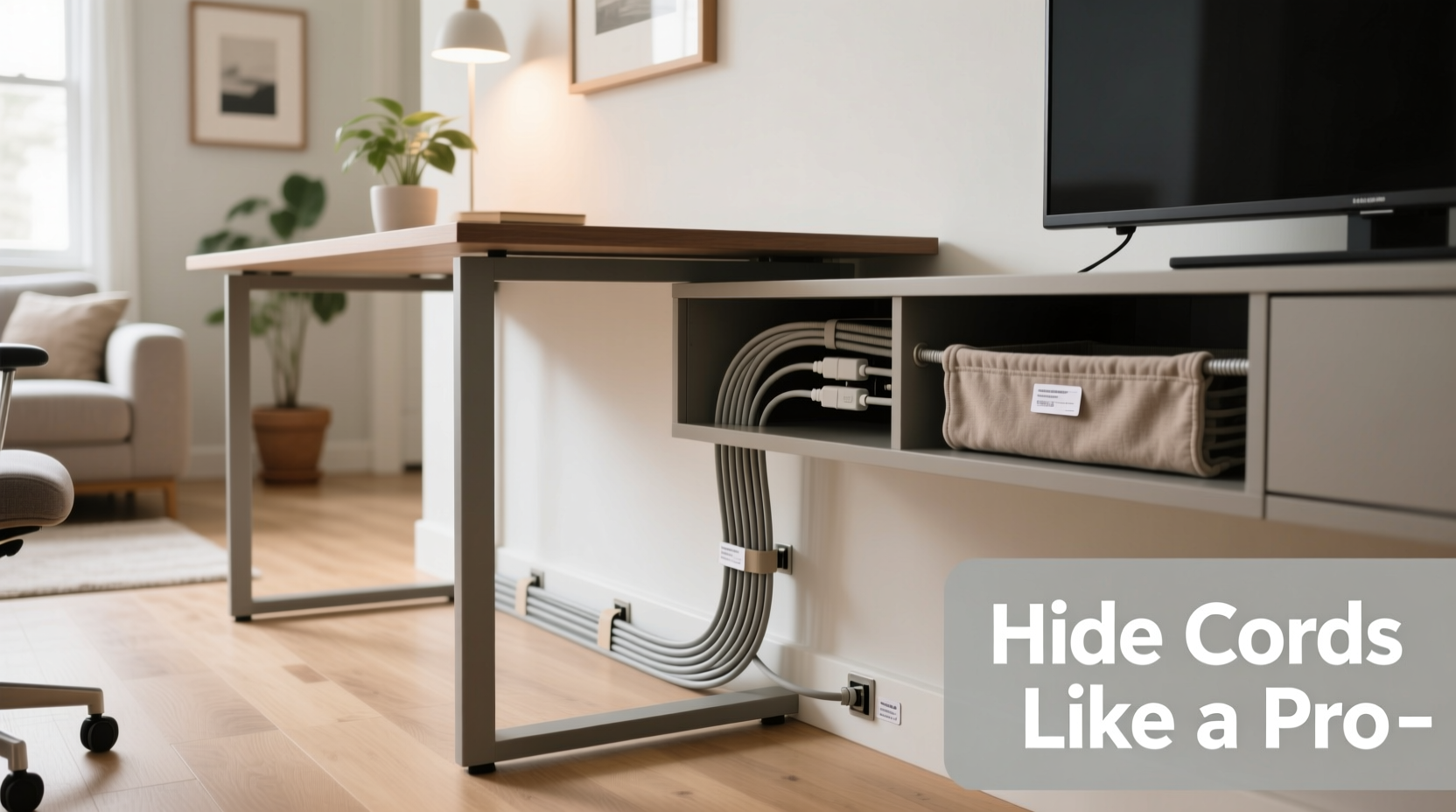
Exposed cords do more than create visual clutter—they pose tripping hazards, attract dust, and make maintenance difficult. In a workspace, tangled cables can disrupt workflow when you need to unplug or replace a device. Behind a TV stand, loose cords complicate cleaning and reduce airflow around electronics, potentially leading to overheating. A 2023 survey by the National Association of Home Organizers found that 68% of respondents reported feeling less stressed after decluttering visible wiring in their living areas.
Beyond aesthetics and safety, proper cord management supports device longevity. Secured cables are less likely to be yanked accidentally, reducing wear on ports and connectors. Additionally, organized cabling makes troubleshooting faster—no more guessing which cord powers which device.
“Cable clutter isn’t just messy—it’s inefficient. A well-managed setup saves time, prevents damage, and elevates the professionalism of any space.” — James Lin, Interior Technologist & Smart Home Consultant
Essential Tools for Hiding Cords
Before diving into installation, gather the right supplies. Not all cord-hiding solutions work universally; choosing the correct tools depends on your furniture layout, wall type, and frequency of access needed.
- Cable raceways: Plastic channels that mount to walls or furniture, concealing multiple cords in a low-profile strip.
- Cable sleeves: Flexible braided wraps that bundle cords together for a cleaner appearance.
- Cable clips: Adhesive-mounted guides that keep cords aligned along edges or legs.
- Under-desk trays: Mountable platforms that hold power strips and organize connections beneath work surfaces.
- Cord covers: Flat raceways designed to run along baseboards or across floors safely.
- Velcro straps or reusable zip ties: Ideal for grouping cords without damaging them during future adjustments.
- Grommet kits: Allow cords to pass through desktops or shelves cleanly, especially useful for standing desks.
Step-by-Step Guide: Taming Cords Behind Your Desk
Desks often accumulate the most cords—laptops, monitors, lamps, chargers, printers, and docking stations all contribute to the mess. Follow this sequence for a streamlined result.
- Unplug and assess: Turn off and disconnect all devices. Lay them out and identify redundant or outdated cables.
- Declutter first: Remove broken, unused, or duplicate cords. Recycle old electronics responsibly.
- Group by function: Bundle monitor cables together, separate charging cords, and isolate network lines.
- Use Velcro straps: Secure each group with adjustable straps—avoid tight plastic zip ties that can’t be reused.
- Install an under-desk tray: Mount a metal or plastic tray beneath the desk surface to house power strips and adapters, keeping them accessible but hidden.
- Route vertically: Use adhesive cable clips along the back edge of the desk to guide cords downward toward the floor.
- Secure to leg or base: Wrap remaining lengths around the desk leg using spiral wrap or a cable sleeve.
- Connect to floor outlet: If possible, use a floor grommet or wall outlet instead of extension cords.
For standing desks, consider a dynamic cable management system with a retractable loom that moves with the desk height. These systems prevent strain on wires during adjustment and maintain a tidy profile at all levels.
Managing Entertainment Center Wiring Like a Pro
Home entertainment setups are notorious for complex wiring: TVs, soundbars, gaming consoles, streaming boxes, routers, and subwoofers all require connections. Without planning, this area becomes a rat’s nest.
Start by measuring the distance between your TV and media components. If devices sit below the TV on a stand, vertical routing is ideal. For wall-mounted TVs, plan for in-wall concealment or external raceways.
| Solution | Best For | Installation Difficulty | Cost (USD) |
|---|---|---|---|
| Surface-mount raceway | Wall-mounted TVs, temporary setups | Low | $15–$30 |
| In-wall cable kit | Permanent installations, new builds | High | $50–$120 |
| Furniture cord cover | Entertainment centers with baseboards | Low | $10–$25 |
| Magnetic cable holder | Quick fixes, metal stands | Very Low | $8–$15 |
For non-invasive setups, a surface raceway running from the wall to the back of the TV stand works well. Choose a white or gray finish to blend with baseboards. Inside the raceway, use modular power strips with USB ports to minimize adapter bulk.
Real Example: From Cluttered to Clean in One Weekend
Sarah K., a remote worker in Austin, TX, struggled with a chaotic home office setup. Her L-shaped desk hosted two monitors, a desktop PC, a printer, and five charging stations. “Every time I moved my chair, I’d catch a cord,” she said. “I spent 10 minutes every week untangling something.”
She followed a structured approach: first, she labeled each cord with color-coded tags. Then, she installed a 4-port under-desk power hub and mounted adhesive raceways along the back edge. She grouped data cables in a black mesh sleeve and secured power cords with Velcro straps. The entire process took three hours over a Saturday morning. “Now, everything looks built-in,” Sarah shared. “My family even asked if I hired someone.”
Do’s and Don’ts of Cord Concealment
Avoid common pitfalls that compromise safety or usability. The following table summarizes best practices.
| Do | Don’t |
|---|---|
| Leave slack for movement and unplugging | Stretch cords tightly between points |
| Use fire-rated cable covers near outlets | Run cords under rugs or heavy furniture |
| Check ventilation around bundled electronics | Bury power strips under fabric or cushions |
| Label all cords clearly | Use permanent glue instead of removable adhesive |
| Test connections before sealing raceways | Ignore local electrical codes for in-wall installations |
One frequent mistake is over-bundling. While it’s tempting to wrap every cord into a single thick sleeve, mixing power and data cables in tight proximity can cause electromagnetic interference, especially with analog audio or older Ethernet lines. Keep high-voltage cords separated from signal cables when possible.
Advanced Options: Permanent and Built-In Solutions
For homeowners or long-term renters, consider upgrades that integrate cord management into the structure itself.
- In-wall cable routing: Using a fish tape and low-voltage box, run HDMI and power cables inside the wall behind the TV. Requires drywall access and adherence to electrical codes.
- Floor grommets: Install a pop-up outlet or grommet in the floor near your desk for direct plug-in access without trailing cords.
- Custom desk cutouts: When building or modifying a desk, add pre-drilled holes with rubber grommets to route cables through the surface.
- Wireless alternatives: Replace wired peripherals with Bluetooth keyboards, mice, and speakers where feasible.
While these options involve higher upfront effort, they deliver the cleanest results. A 2022 Houzz report noted that homes with integrated cable management sold 11% faster than those with visible wiring, underscoring its impact on perceived value.
FAQ: Common Questions About Hiding Cords
Can I paint cable raceways to match my wall?
Yes—most plastic raceways accept latex paint. Clean the surface with rubbing alcohol, apply a primer, and use a small brush for even coverage. Test on a sample piece first.
Is it safe to run cords behind a radiator or heating vent?
No. Heat degrades insulation over time, increasing fire risk. Always reroute cords away from heat sources and ensure they don’t block airflow to appliances.
How do I hide cords on a glass desk or entertainment stand?
Glass surfaces limit adhesive options. Use clear silicone mounts or magnetic holders (if metal framing exists). Alternatively, route cords down the side and along the floor using low-profile cord covers.
Final Checklist: Achieve a Wire-Free Look
Follow this concise action list to complete your cord-hiding project efficiently:
- Unplug all devices and remove unnecessary cables.
- Label each cord for future reference.
- Group cords by device or function using Velcro straps.
- Install under-desk trays or power hubs to centralize outlets.
- Mount raceways or clips along walls, desks, or baseboards.
- Route cables neatly through channels or sleeves.
- Secure loose ends and test all connections.
- Perform monthly checks for wear or tension.
Conclusion: Create a Cleaner, Safer Space Today
Hiding cords behind your desk and entertainment center isn’t about perfection—it’s about progress. With minimal investment and a few hours of focused effort, you can eliminate visual noise, reduce hazards, and create a space that feels intentional and calm. The tools are accessible, the methods are proven, and the benefits last far beyond the initial cleanup. Whether you choose simple adhesive clips or plan a full in-wall upgrade, every step forward counts. Start today: unplug, sort, secure, and enjoy the clarity that comes with a truly organized environment.




 浙公网安备
33010002000092号
浙公网安备
33010002000092号 浙B2-20120091-4
Comments
No comments yet. Why don't you start the discussion?