
In today’s hyper-connected world, location data is one of the most valuable commodities. While GPS features make navigation, weather updates, and local recommendations seamless, they also expose users to constant digital surveillance by apps that don’t need persistent access. Disabling location services entirely isn't practical—after all, you still want directions or nearby restaurant suggestions when needed. The solution lies in precision control: allowing only essential apps to access your location while restricting others. This guide walks through actionable strategies to regain privacy without sacrificing functionality.
Why Location Tracking Matters More Than You Think
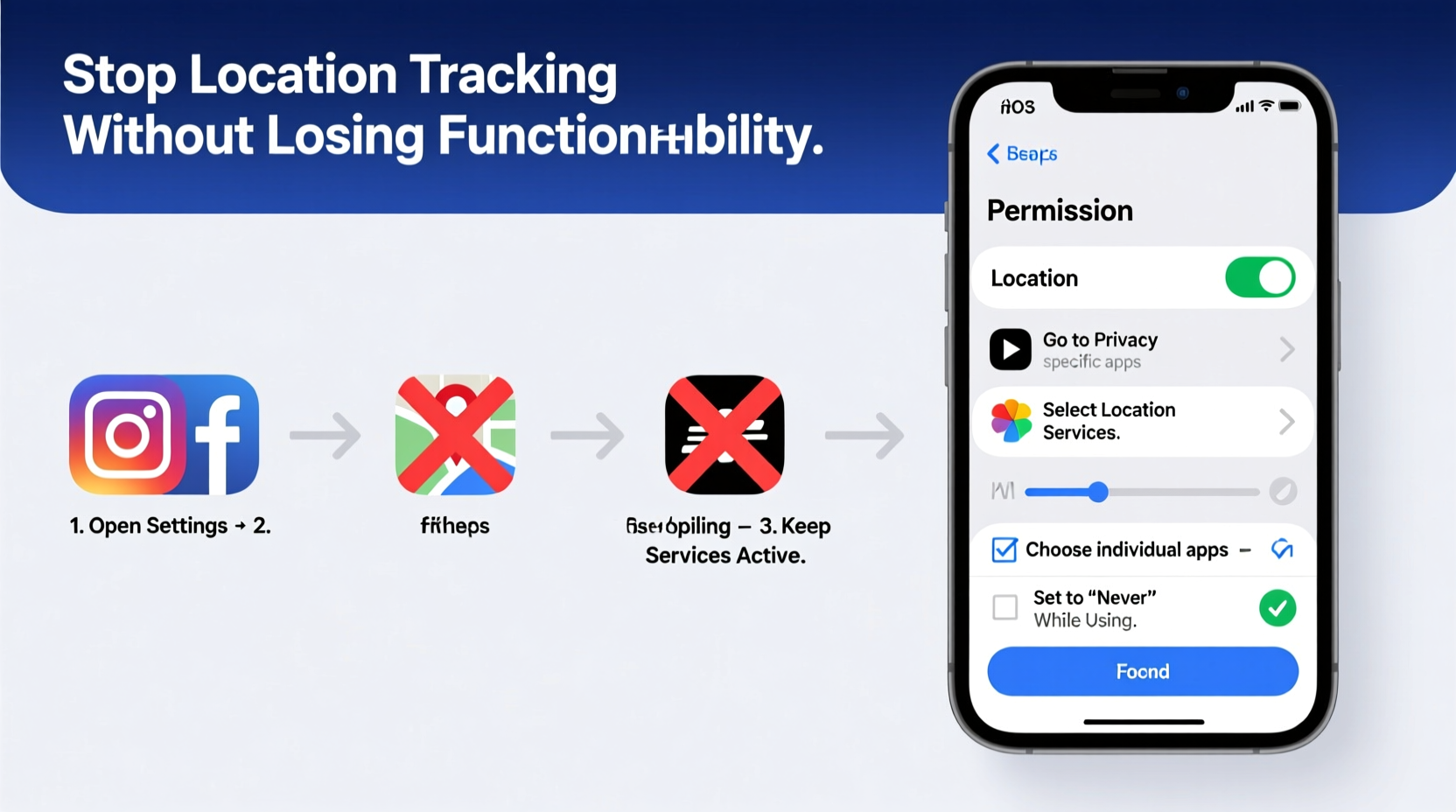
Every time an app accesses your location, it can build a detailed profile of your habits: where you live, work, shop, worship, or even which doctor you visit. Advertisers use this data to target ads; data brokers compile and sell it; some malicious apps exploit weak permissions to track movements over time. A 2023 report by the Electronic Frontier Foundation revealed that over 70% of free mobile apps collect location data—even those with no apparent need, like flashlight or calculator tools.
The risk isn’t just about targeted ads. Persistent location logging increases exposure to stalking risks, insurance discrimination based on lifestyle patterns, and unauthorized data sharing. Yet many users assume that turning off “Location Services” is the only way to protect themselves, which renders useful features unusable. Smart management—not total shutdown—is the key.
“Granular location controls are among the most underused privacy tools on smartphones. Most people either leave everything on or turn it all off—missing the middle ground.” — Dr. Lena Torres, Cybersecurity Researcher at Stanford University
Step-by-Step: Managing App Permissions by Platform
Both iOS and Android offer fine-tuned controls for location access. The goal is to shift from blanket permissions to context-aware access. Follow these steps based on your device.
iOS: Precision Control Through Granular Settings
Apple has long prioritized user privacy with clear permission tiers. On iPhones running iOS 14 or later, you can choose between three options for each app:
- Never: Blocks location access completely.
- Ask Next Time or When I Share: Prompts before granting access (ideal for occasional use).
- While Using the App: Allows access only when the app is open (recommended for most cases).
- Always: Grants background access (rarely needed).
To adjust settings:
- Open Settings.
- Tap Privacy & Security, then Location Services.
- Select any listed app to modify its access level.
- For sensitive apps (e.g., banking), set to “Never.” For maps or ride-sharing, use “While Using the App.”
- Scroll down to system services like Networking & Wireless or Analytics and disable non-essential ones.
Android: Customizing Access Per App
Google has improved location management significantly since Android 10. On newer versions (Android 10+), similar granular options exist:
- Allow all the time
- Allow only while using the app
- Ask every time
- Deny
To customize:
- Go to Settings → Apps → App Permissions → Location.
- Browse the list and tap any app to change its setting.
- Set social media, games, and utilities to “Deny” or “Ask every time.”
- Enable “Only while using” for navigation and delivery apps.
- Review Location History in Google Account settings and disable Web & App Activity if not required.
Smart Alternatives to Full-Time Tracking
You don’t need to give up convenience to gain privacy. Several techniques allow functional use of location-based tools without continuous monitoring.
Use Temporary Permissions
Both platforms let you grant one-time access. On iOS, selecting “Ask Next Time” forces a prompt each time the app requests location. On Android, choosing “Ask every time” does the same. This means Instagram might get your location when you post a story but won’t track you in the background.
Leverage Private Browsing or Guest Modes
When using apps temporarily—like checking a store location via a retailer’s app—open it in private mode (if available) or log out after use. Without account linkage, the app cannot tie your location history to a persistent profile.
Replace High-Access Apps With Privacy-Focused Alternatives
Consider switching to apps designed with minimal data collection:
- Maps: Use Organic Maps or OsmAnd instead of Google Maps.
- Ride Sharing: Some regional services require less data than Uber/Lyft.
- Weather: Try Weather Line or Dark Sky (offline-capable versions).
These alternatives often rely on local processing rather than cloud tracking, reducing exposure.
Checklist: Audit Your Current Location Exposure
Perform a monthly review using this checklist to maintain control:
- ✅ Open location settings and scan all installed apps with access.
- ✅ Revoke “Always” access from non-essential apps (social media, games, tools).
- ✅ Disable precise location for apps that don’t need it (e.g., news readers).
- ✅ Turn off Google’s Web & App Activity or Apple’s Significant Locations.
- ✅ Clear location history on your device and associated accounts.
- ✅ Test app functionality after changes to ensure core features still work.
Do’s and Don’ts of Location Management
| Do | Don’t |
|---|---|
| Grant \"While Using\" access to navigation and fitness apps. | Allow social media apps to access location \"Always.\" |
| Use approximate location when high precision isn’t needed. | Assume “location off” means no tracking—some apps infer position via Wi-Fi or IP. |
| Review permissions after app updates—they may reset. | Install apps from third-party stores without checking permissions first. |
| Disable ad personalization in Google/Apple settings. | Leave Location History enabled indefinitely without periodic cleanup. |
Real Example: How Sarah Reduced Her Digital Footprint
Sarah, a 34-year-old marketing consultant, noticed targeted ads following her around online. After visiting a fertility clinic, she began seeing baby product ads—even though she hadn’t searched for them. Concerned, she audited her phone’s location permissions and found that her health-tracking app had “Always” access, as did her podcast player and note-taking tool.
She changed all non-critical apps to “While Using” or “Never,” disabled Precise Location, and turned off Google’s Web & App Activity. Within days, irrelevant location-based ads disappeared. Her maps and ride apps continued working normally. She now performs a quick permission check every month during her calendar sync routine.
“I didn’t realize how much passive tracking was happening,” she said. “Now I feel back in control—and my phone works just as well.”
Frequently Asked Questions
Can apps still track me if I deny location access?
Yes, but less accurately. Apps may estimate your location using IP address, connected Wi-Fi networks, or Bluetooth beacons. However, this data is far less precise than GPS and usually insufficient for detailed profiling. Denying explicit location access remains the strongest defense.
Will changing permissions affect app performance?
Only if the app genuinely requires background location. Most do not. Navigation apps may need “While Using” access to provide turn-by-turn directions. Fitness trackers might pause recording if closed—but can resume when reopened. Test changes and revert only if critical functions break.
How often should I review app location permissions?
At least once per month. New apps install with default permissions, and updates sometimes reset existing settings. A quick five-minute audit prevents silent re-enabling of tracking.
Conclusion: Take Back Control Without Sacrificing Convenience
Stopping unwanted location tracking doesn’t mean abandoning modern conveniences. With thoughtful configuration, you can enjoy the benefits of GPS-enabled tools while denying invasive access to unnecessary apps. The power is already built into your smartphone—what’s missing is awareness and consistent action. By applying selective permissions, using temporary access, and replacing data-hungry apps with leaner alternatives, you reclaim autonomy over your digital footprint.




 浙公网安备
33010002000092号
浙公网安备
33010002000092号 浙B2-20120091-4
Comments
No comments yet. Why don't you start the discussion?