
Formatting a USB drive on Windows 10 is more than just erasing data—it’s an opportunity to optimize the device for faster transfers, better compatibility, and longer lifespan. Whether you're preparing a drive for regular use, system recovery, or sharing files across devices, choosing the right settings during formatting can significantly impact its performance. This guide walks through every step with precision, explains key decisions like file system selection, and reveals advanced options most users overlook.
Why Proper Formatting Matters
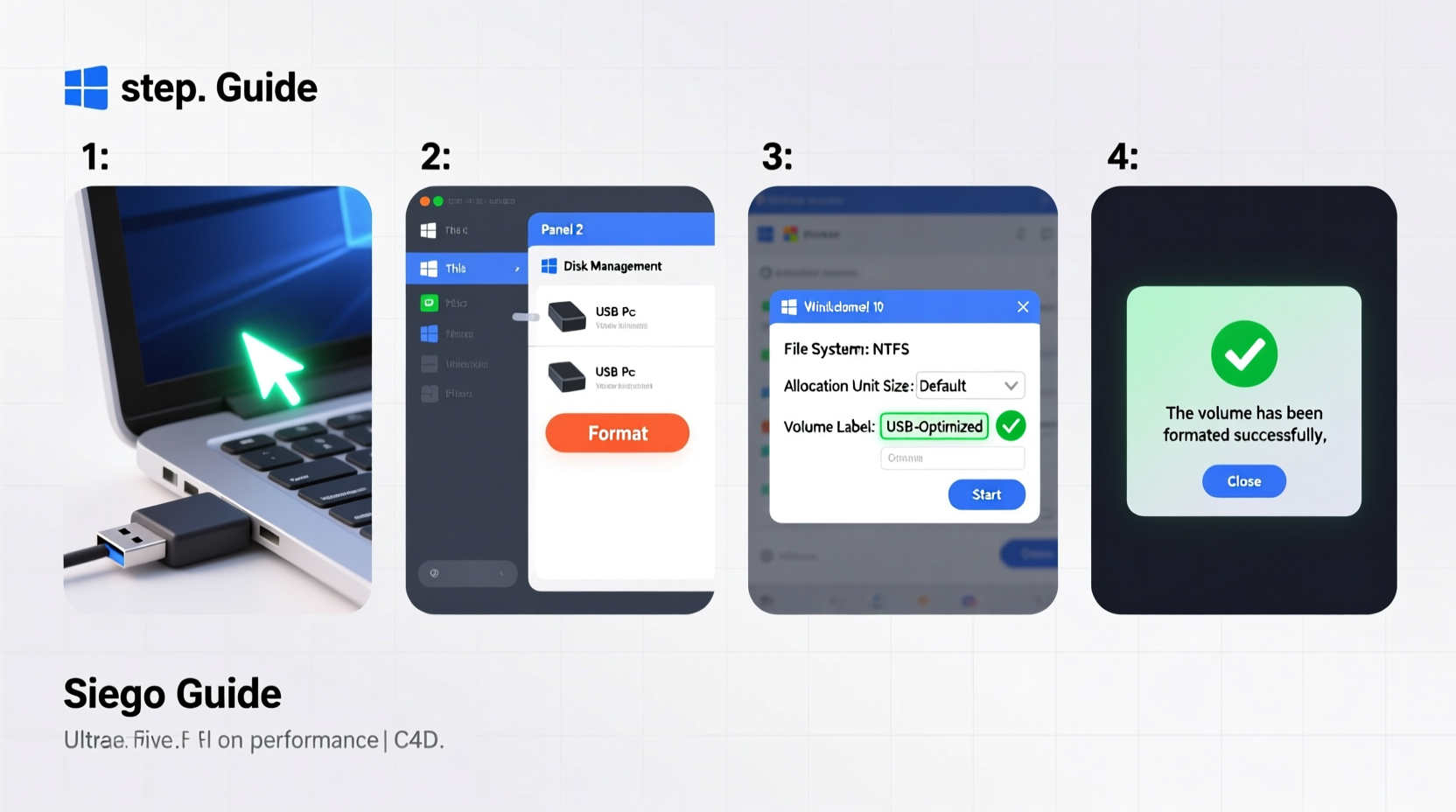
A USB drive that's simply plugged in and used without proper configuration may underperform. Default formatting often uses suboptimal cluster sizes or outdated file systems. Over time, this leads to slower write speeds, fragmentation, and reduced endurance. Proper formatting ensures the drive aligns with your intended use—be it transferring large media files, running portable applications, or creating bootable installations.
Moreover, reformatting cleans corrupted entries, resets wear-leveling algorithms in flash memory, and helps maintain consistent read/write speeds over the life of the device.
Understanding File Systems: FAT32, exFAT, and NTFS
The file system you choose determines compatibility, maximum file size, and performance characteristics. Here's a breakdown of the three most common options available when formatting a USB drive in Windows 10:
| File System | Max File Size | Max Volume Size | Cross-Platform Support | Best For |
|---|---|---|---|---|
| FAT32 | 4 GB | 8 TB (theoretical) | Excellent (Windows, macOS, Linux, consoles) | Small drives, legacy devices |
| exFAT | 16 EB (effectively unlimited) | 128 PB | Good (modern Windows/macOS/Linux) | Large files, flash drives |
| NTFS | 16 TB | 256 TB | Limited (full write on Windows only) | Internal-like usage, encryption needs |
For most users, exFAT is the ideal choice. It supports large files (like 4K videos), works across modern operating systems, and avoids the overhead of NTFS journaling, which slows down flash storage. FAT32 should only be used if you need compatibility with very old systems or embedded devices. NTFS is powerful but not recommended for frequent plug-and-play scenarios due to permission structures and potential write issues on non-Windows machines.
“Choosing the wrong file system can bottleneck even the fastest USB 3.2 drives. exFAT strikes the best balance for removable media.” — David Lin, Senior Storage Engineer at TechDrive Labs
Step-by-Step Guide to Format a USB Drive for Optimal Performance
Follow these steps carefully to ensure your USB drive is formatted correctly and tuned for peak efficiency.
- Connect the USB drive to a USB 3.0 (or higher) port. Avoid using hubs or extension cables during formatting.
- Press Windows + X and select Disk Management, or open Control Panel > Administrative Tools > Computer Management > Disk Management.
- Locate your USB drive in the list. Confirm its size and current drive letter to avoid selecting the wrong device.
- Right-click the partition on the USB drive and choose Format….
- In the Format window:
- Select exFAT as the file system.
- Set allocation unit size to Default unless you’re storing mostly large files (e.g., video). In that case, choose a larger size like 128 KB or 256 KB to reduce fragmentation.
- Check Quick Format for speed, but uncheck it if the drive has errors or has been used extensively.
- Enable Perform a quick scan only if Quick Format is selected.
- Assign a descriptive volume label (e.g., “BackupDrive_64GB”).
- Click OK, then confirm the action. Wait for completion (usually under a minute for quick format).
Once complete, safely eject and reconnect the drive to verify recognition and access.
diskpart, then
list disk,
select disk X (replace X with your USB number),
clean,
create partition primary,
format fs=exfat unit=64k label=\"MyUSB\" quick.
Optimization Techniques Beyond Basic Formatting
After formatting, apply these optimizations to enhance performance and longevity:
- Adjust Write Caching Policy: Right-click the Start menu > Device Manager > Disk Drives. Expand the list, right-click your USB drive, go to Properties > Policies. Select Better Performance (enables write caching). Note: Always use “Safely Remove Hardware” before unplugging.
- Disable Auto-Tuning for Large Transfers: On some systems, network-like auto-tuning can interfere with USB throughput. Run Command Prompt as admin and enter:
netsh interface tcp set global autotuninglevel=restricted. Revert withnormalif needed. - Defragmentation Is Not Needed: Unlike HDDs, USB flash drives do not benefit from defragmentation. Windows automatically disables it for removable drives. Do not force defrag.
- Use Reliable Brands and High-Quality Ports: A high-speed format won’t compensate for a low-grade USB stick or a damaged port. Invest in reputable brands (Samsung, SanDisk, Kingston) and test performance using tools like CrystalDiskMark.
Real Example: Recovering a Sluggish 64GB Drive
Sarah, a freelance photographer, noticed her 64GB USB drive took over 10 minutes to transfer a 20GB folder of RAW images—far below expected USB 3.0 speeds. She had previously formatted it as NTFS for Windows-only backup. After switching to exFAT with a 256KB allocation unit size and enabling write caching, her transfer time dropped to 3 minutes 12 seconds. The change wasn’t due to hardware upgrades, but correct formatting and policy settings.
Checklist: Preparing Your USB Drive for Peak Performance
Before and after formatting, follow this checklist to ensure optimal results:
- ✅ Back up all important data from the USB drive
- ✅ Identify the primary use case (file transfer, bootable OS, cross-platform sharing)
- ✅ Choose the correct file system (exFAT recommended for most cases)
- ✅ Select appropriate allocation unit size based on average file size
- ✅ Decide between Quick Format and Full Format
- ✅ Enable \"Better Performance\" in drive policies (if safe ejection is guaranteed)
- ✅ Test transfer speeds post-formatting with real-world files
- ✅ Label the drive clearly for future identification
Frequently Asked Questions
Can formatting improve USB drive speed?
Yes, especially if the drive was previously misconfigured. Switching to exFAT, correcting cluster size, and clearing logical errors can restore lost performance. However, formatting cannot overcome physical limitations of the hardware.
What allocation unit size should I use?
Use default for mixed file types. For large files (videos, disk images), increase to 128 KB or 256 KB. For many small files (documents, photos), smaller units (4 KB–32 KB) are more space-efficient. Balance depends on usage.
Is NTFS bad for USB drives?
Not inherently, but it’s often unsuitable. NTFS includes journaling and permissions that add overhead and reduce speed on flash memory. It also lacks reliable write support on macOS without third-party software. Use only if you need encryption or extremely large individual files on Windows-only systems.
Conclusion: Take Control of Your USB Performance
Formatting a USB drive properly is a simple yet powerful way to unlock its full potential. By selecting the right file system, adjusting performance policies, and understanding how formatting affects long-term reliability, you turn an ordinary flash drive into a responsive, dependable tool. Don’t settle for defaults—take a few extra minutes to configure your drive correctly, and enjoy faster transfers, fewer errors, and extended usability.




 浙公网安备
33010002000092号
浙公网安备
33010002000092号 浙B2-20120091-4
Comments
No comments yet. Why don't you start the discussion?