
Moving from Android to iPhone is more than just swapping devices—it’s stepping into a new digital ecosystem with different philosophies, workflows, and user expectations. While Apple’s iPhones are praised for their seamless integration, privacy controls, and long-term software support, the transition can be jarring for longtime Android users. From navigation quirks to app differences and data migration hurdles, adapting requires patience and strategy. This guide breaks down the most common challenges users face and offers actionable solutions to make your switch smoother, faster, and less frustrating.
The Core Differences: Why the Adjustment Isn’t Instant
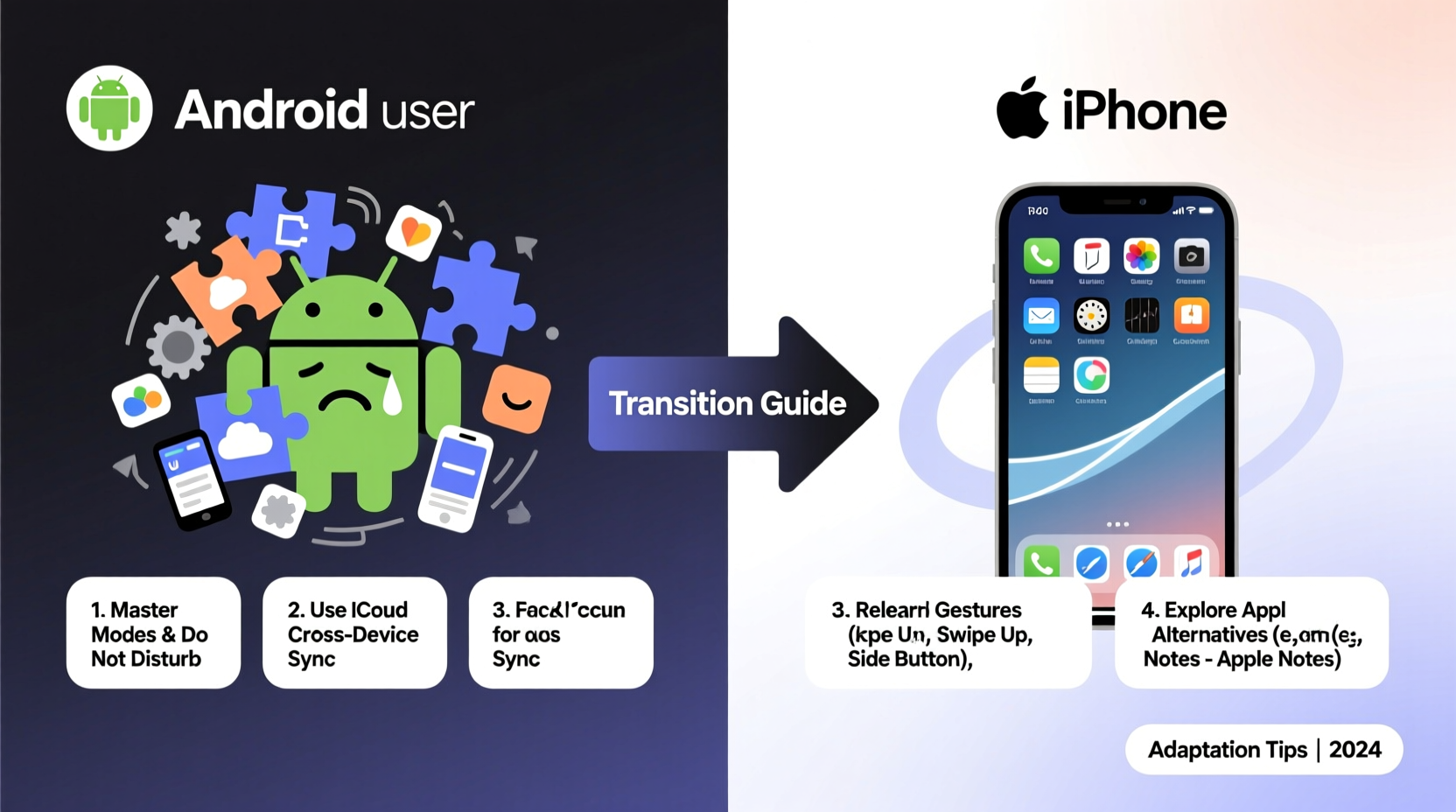
Android and iOS are built on fundamentally different design principles. Android emphasizes customization, flexibility, and openness. Users can change default apps, install third-party launchers, and deeply tweak system settings. In contrast, iOS prioritizes consistency, security, and simplicity. The interface is uniform across devices, and Apple tightly controls what apps can do in the background and how they interact with the system.
This divergence means that familiar habits—like swiping up from the bottom to return home or using Google Assistant as your go-to voice helper—no longer apply. Instead, you’re greeted with gestures like swipe-down-from-the-top-right for Control Center or Siri’s more limited contextual awareness. Recognizing these foundational differences is the first step toward adaptation.
“Switching ecosystems isn't just about learning a new phone—it's about rethinking how you interact with your digital life.” — Lisa Tran, Mobile UX Consultant
Top 5 Pain Points When Switching to iPhone (and How to Overcome Them)
1. Navigating Gestures Instead of Buttons
If you're used to physical or on-screen navigation buttons (Back, Home, Recent Apps), the iPhone’s gesture-based system can feel disorienting. There’s no back button; instead, you swipe from the left edge of the screen. To close an app, you swipe up and hold. To access the app switcher, swipe up and pause.
It takes time, but muscle memory develops quickly. Go to Settings > Accessibility > Touch > Reachability to enable a feature that temporarily lowers the top of the screen for easier one-handed use.
2. Transferring Data Seamlessly
One of the biggest fears when switching is losing contacts, messages, photos, and app data. Apple provides the “Move to iOS” app on the Google Play Store specifically for this purpose. It creates a private Wi-Fi connection between your Android and iPhone during setup, allowing encrypted transfer of key data including:
- Contacts
- Message history (SMS only, not RCS)
- Photos and videos
- Calendars
- Some account data (like Gmail and WhatsApp must be migrated separately)
Note: The transfer must happen during initial iPhone setup. If you skip it, you’ll need alternative methods like syncing via Google Account or iCloud.
3. Missing Google App Integration
Android users are deeply embedded in Google’s ecosystem—Gmail, Google Photos, Google Drive, Maps, and Chrome. On iPhone, while these apps are available, they don’t integrate as deeply. For example, Safari is the default browser and cannot be fully replaced system-wide (though you can set Chrome as default in Settings). Similarly, Google Photos doesn’t automatically back up screenshots unless manually configured.
To bridge the gap:
- Install and set up Google apps early.
- Use iCloud for native backups and Google services for cross-platform access.
- Leverage Chrome’s password sync and tab sharing features.
4. App Experience and Feature Gaps
Some apps behave differently—or lack features—on iOS due to Apple’s stricter app review process and API limitations. Examples include:
- No true dark mode scheduling in many third-party apps.
- Delayed rollout of new features (e.g., WhatsApp message editing).
- Limited automation compared to Android’s Tasker or Bixby Routines.
Apple’s Shortcuts app is powerful but has a steeper learning curve. Invest time in exploring pre-built shortcuts in the Gallery or creating simple automations like “When I plug in headphones, launch Spotify.”
5. Charging, File Management, and Customization Limits
Unlike many Android phones, iPhones still use Lightning (or USB-C on newer models) and lack expandable storage. File management is also more restrictive. The Files app exists, but direct access to system folders is limited. You can’t plug in a USB drive and browse files freely without third-party apps.
Customization is minimal: no widgets on the home screen (except on iOS 14+), no icon packs, and limited theming options. Live wallpapers and dynamic themes aren’t supported.
Solution: Embrace simplicity. Use iCloud Drive and third-party file managers like Documents by Readdle for better organization. Accept that customization is traded for stability and performance.
Step-by-Step Guide: Your First 7 Days on iPhone
Adaptation is easiest when broken into manageable phases. Follow this timeline to build confidence and familiarity.
- Day 1: Setup & Transfer
Use the Move to iOS app before powering on your iPhone. During setup, choose to transfer data, sign in with your Apple ID, and enable two-factor authentication. - Day 2: Install Essentials
Download Google apps, banking apps, social media, and any work tools. Set Chrome as default browser and configure email accounts. - Day 3: Master Basic Gestures
Practice navigating without buttons. Spend 10 minutes exploring apps using only gestures. Disable “Raise to Wake” if unused. - Day 4: Optimize Notifications
Go to Settings > Notifications. Customize which apps can alert you and how. Enable Focus modes for work, sleep, or personal time. - Day 5: Explore iCloud & Backup
Ensure iCloud Backup is on. Sync photos, contacts, and notes. Test restoring a note from iCloud.com to verify backup health. - Day 6: Learn Siri & Shortcuts
Try voice commands like “Hey Siri, set a timer for 10 minutes.” Create a shortcut to turn on Do Not Disturb and dim lights at bedtime. - Day 7: Evaluate & Adjust
Reflect on what’s working. Are notifications too noisy? Is battery lasting? Tweak settings accordingly. Join online communities for tips.
Checklist: Smooth Android-to-iPhone Transition
Use this checklist before, during, and after your switch:
- ✅ Back up Android device to Google Drive and locally
- ✅ Download “Move to iOS” app and prepare for transfer
- ✅ Sign out of sensitive accounts on Android after transfer
- ✅ Set up Face ID or Touch ID and create a strong passcode
- ✅ Install and configure Google apps (Gmail, Maps, Photos, etc.)
- ✅ Review privacy settings in Settings > Privacy & Security
- ✅ Enable Find My iPhone and activate Activation Lock
- ✅ Explore Control Center and customize frequently used toggles
- ✅ Migrate WhatsApp using iCloud backup (if applicable)
- ✅ Reset or factory wipe old Android device before selling or recycling
Real Example: Sarah’s Switch After 8 Years on Android
Sarah, a digital marketer from Austin, used Samsung Galaxy devices since 2015. She relied heavily on Google Calendar, custom widgets, and Samsung DeX for productivity. When her S21 failed, she opted for an iPhone 15 Pro, expecting a premium experience—but struggled initially.
“I missed my widget dashboard and couldn’t figure out why Siri didn’t understand half my requests,” she said. “The first week was frustrating. I kept swiping up expecting the app drawer.”
She adapted by:
- Using the Shortcuts app to recreate morning routines.
- Setting up Focus modes tied to her calendar events.
- Switching to Apple Notes for its rich formatting and iCloud sync.
- Attending a free session at her local Apple Store.
Within three weeks, she found herself preferring the iPhone’s consistency. “It’s not as customizable, but everything just works. My battery lasts longer, and updates arrive instantly,” she noted.
Comparison Table: Android vs iPhone – Key Differences
| Feature | Android | iPhone (iOS) |
|---|---|---|
| Default Apps | Changeable (browser, SMS, launcher) | Limited (can set default browser/email) |
| Navigation | Buttons or gestures | Gestures only (no buttons) |
| File System | Full access via My Files | Restricted (Files app + third-party tools) |
| App Sideloading | Allowed (with warnings) | Banned (except enterprise/testFlight) |
| Update Delivery | Varies by manufacturer (often delayed) | Direct from Apple (immediate for supported devices) |
| Customization | High (launchers, icons, themes) | Low (limited to wallpapers and widgets) |
| Cloud Backup | Google One (automatic for many settings) | iCloud (requires manual setup, paid for large storage) |
Frequently Asked Questions
Can I keep using my Google account on iPhone?
Absolutely. You can sign in to Gmail, Google Calendar, Drive, and YouTube just like on Android. Many Google apps are optimized for iOS, though deep system integration (like default search engine in Safari) isn’t possible.
Why can’t I transfer WhatsApp chats directly from Android to iPhone?
Due to encryption and platform differences, WhatsApp previously lacked a direct migration tool. However, as of 2021, WhatsApp introduced a migration tool for iPhone setup. It transfers chat history via a direct cable connection or local Wi-Fi. Make sure both devices are updated and follow the in-app prompts during setup.
Is the iPhone camera really better than Android?
It depends on priorities. iPhones excel in color accuracy, video stabilization, and consistent processing. High-end Android phones may offer superior zoom, night mode, or manual controls. For most users, the iPhone delivers reliable, point-and-shoot excellence with minimal tweaking.
Conclusion: Embrace the Shift, Not Just the Device
Switching from Android to iPhone isn’t about replacing one gadget with another—it’s about adopting a different philosophy of mobile computing. The initial friction is normal. Some features will feel limiting, others refreshingly simple. The key is to give yourself time, leverage built-in tools, and focus on what matters: reliability, security, and seamless integration with other Apple devices if you own them.
Don’t rush to replicate your old setup. Instead, explore what iOS does well—Focus modes, iMessage effects, AirDrop, FaceTime grid view—and let those become part of your new routine. Within a month, you might find that the things you thought you’d miss no longer matter as much.




 浙公网安备
33010002000092号
浙公网安备
33010002000092号 浙B2-20120091-4
Comments
No comments yet. Why don't you start the discussion?