
In today’s digital-first world, collaboration hinges on speed, clarity, and accessibility. Google Drive has become a cornerstone of modern teamwork, enabling individuals and organizations to store, access, and share files from anywhere in the world. Yet, many users only scratch the surface of its capabilities. When leveraged effectively, Google Drive transforms from a simple cloud storage tool into a dynamic hub for real-time collaboration, version control, and secure file exchange.
This guide walks through the most efficient methods to share files via Google Drive, ensuring your team stays aligned, productive, and informed—without unnecessary friction or confusion.
Understanding Sharing Permissions: The Foundation of Control
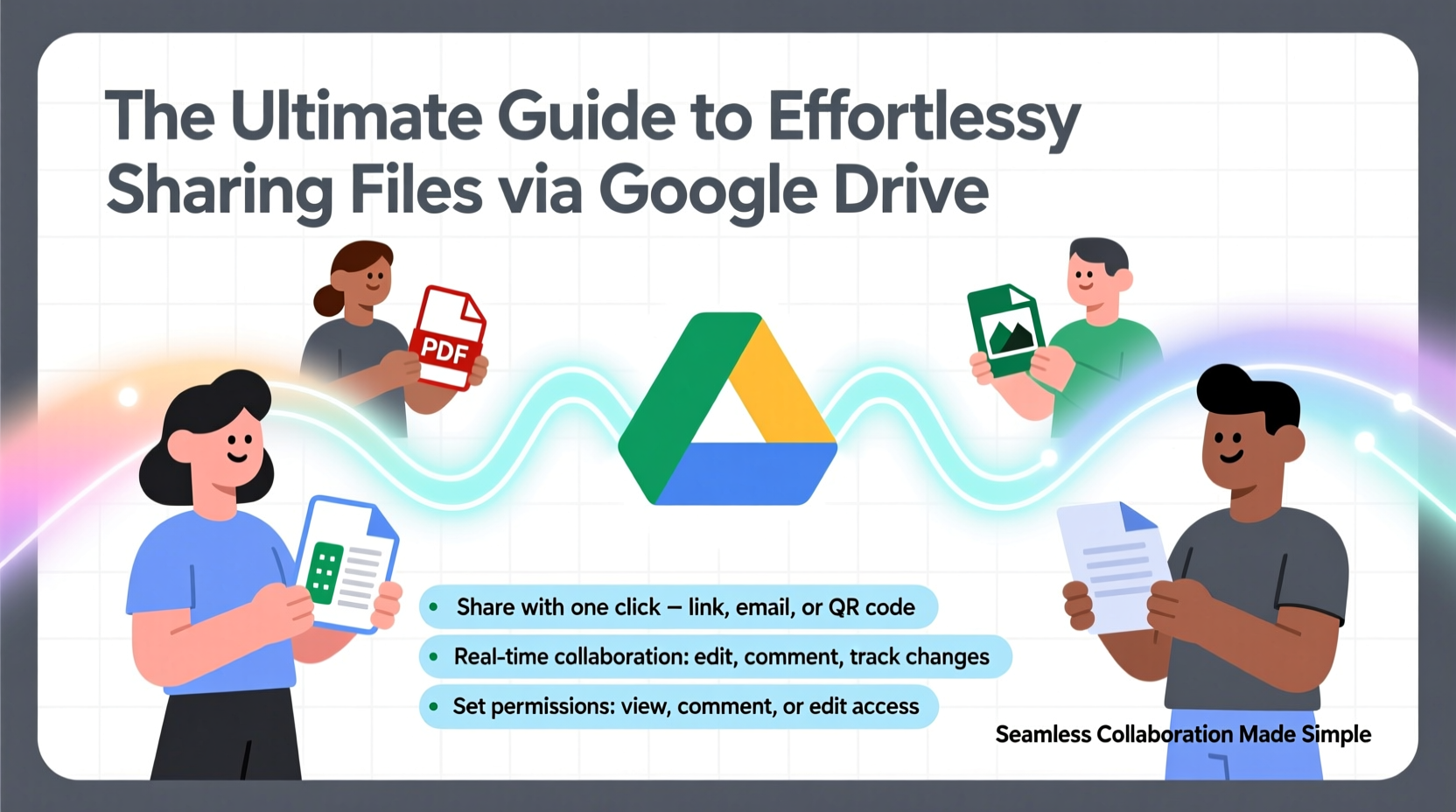
Before diving into sharing mechanics, it’s essential to understand Google Drive’s permission levels. These determine what others can do with your files and folders:
- Viewer – Can open and view the file but cannot edit or download (unless allowed by the owner).
- Commenter – Can view and add comments, but not make direct edits.
- Editor – Can make changes, add content, and upload new versions.
- Owner – Full control, including the ability to change permissions and transfer ownership.
Choosing the right level ensures security without sacrificing productivity. For instance, external consultants may only need comment access, while internal team members often require editor rights.
Step-by-Step Guide to Sharing Files and Folders
Sharing a file or folder in Google Drive is straightforward, but doing it correctly prevents miscommunication and access issues. Follow this sequence for optimal results:
- Navigate to Google Drive (drive.google.com) and locate the file or folder.
- Right-click the item and select “Share,” or click the file to open it, then press the “Share” button in the top-right corner.
- In the sharing dialog, enter email addresses of collaborators.
- Assign the appropriate permission level (Viewer, Commenter, Editor).
- Optionally, include a personalized message to provide context.
- Click “Send.”
For broader access, toggle “General Access” to “Anyone with the link” and choose the permission level. This is useful for distributing reports, portfolios, or public resources.
“Effective file sharing isn’t about convenience alone—it’s about intentionality. Knowing who needs what access, and when, reduces errors and enhances accountability.” — David Lin, Remote Work Strategist at TechFlow Solutions
Best Practices for Organized Collaboration
Effortless sharing goes beyond sending links. Structure and consistency are key to long-term collaboration success.
Use Shared Drives for Team Projects
Unlike My Drive, which ties files to individual accounts, Shared Drives belong to the team. Files remain accessible even if a member leaves the organization. Ideal for departments like marketing, HR, or product development.
Standardize Naming Conventions
Adopt clear file names such as:
ProjectX_Report_v2_2024-04-15
This avoids confusion and makes searching more effective.
Create Folder Hierarchies
Structure folders logically:
- Department > Project > Assets
- Client Name > Deliverables > Revisions
Do’s and Don’ts of File Sharing
| Do | Don’t |
|---|---|
| Use specific permissions instead of “Anyone with the link” for sensitive documents | Share entire folders unnecessarily—only grant access to required subfolders |
| Set expiration dates for external collaborators using Workspace Enterprise | Assume people know how to use commenting or suggestion mode—train your team |
| Organize shared files in a central location with consistent naming | Store outdated versions in the same folder—archive old files separately |
| Notify collaborators with a brief message when sharing | Make multiple copies of the same document across drives—this causes version chaos |
Real-World Example: Streamlining Client Onboarding
A mid-sized design agency struggled with client onboarding delays. Files were scattered across personal drives, feedback was lost in email threads, and version control was nonexistent.
Their solution? A standardized Shared Drive structure named “Client Hub,” with subfolders for Contracts, Design Assets, Feedback, and Final Deliverables. Each new client received a pre-built folder template. Editors included the project manager and lead designer; clients were given commenter access to design drafts.
Within six weeks, onboarding time dropped by 40%, client satisfaction increased, and internal miscommunications decreased significantly. The shift wasn’t due to new tools—but better use of existing ones.
Advanced Tips for Power Users
Take your collaboration further with these underused features:
- Link Sharing Settings: Right-click any file > “Get link” > adjust who can access. Disable link sharing for sensitive files even within your organization.
- Offline Access: Enable offline mode in Google Drive settings so team members can work without internet and sync later.
- Version History: Open any Google Doc, Sheet, or Slide, go to “File” > “Version history” > “See version history.” Restore previous versions or label major milestones.
- Shared Drive Retention: In Workspace Admin, set retention rules to automatically archive or delete inactive files.
Checklist: Before You Share a File
- ✅ Confirm the file contains no sensitive or personal data
- ✅ Choose the correct permission level (Viewer, Commenter, Editor)
- ✅ Verify recipients’ email addresses are correct
- ✅ Include a brief message explaining purpose and next steps
- ✅ Set an expiration date (if available in your Workspace plan)
- ✅ Double-check folder location—avoid duplicating files
Frequently Asked Questions
Can someone share my file further if I only gave them view access?
Yes, unless you restrict link sharing. By default, viewers can generate and share links. To prevent this, disable “Editors and viewers can change permissions and share” in the sharing settings.
What happens to files when someone leaves the company?
If stored in My Drive, files remain tied to the user’s account and may be lost unless transferred. In Shared Drives, files persist regardless of membership changes. Administrators can also transfer ownership of personal files before offboarding.
How do I collaborate in real time without overwriting each other’s work?
Google Docs, Sheets, and Slides support simultaneous editing. Changes appear instantly. Use “Suggesting” mode for proposed edits, and @mention teammates in comments to assign tasks or request feedback.
Conclusion: Turn File Sharing Into Seamless Collaboration
Google Drive is more than a storage platform—it’s a collaboration engine. When used intentionally, it eliminates bottlenecks, clarifies responsibilities, and keeps teams moving forward in unison. The difference between chaotic file exchanges and smooth workflows lies not in technology, but in method: structured permissions, clear communication, and disciplined organization.
Start small. Apply one tip from this guide today—whether it’s cleaning up shared folder access, setting up a Shared Drive, or training your team on version history. Small changes compound into powerful improvements in efficiency and trust.




 浙公网安备
33010002000092号
浙公网安备
33010002000092号 浙B2-20120091-4
Comments
No comments yet. Why don't you start the discussion?