
There’s a uniquely frustrating experience many computer users know all too well: your screen locks up completely—windows unresponsive, programs frozen—but the cursor glides smoothly across the display as if nothing is wrong. This partial freeze, where the mouse remains functional but the rest of the system stalls, points to a specific type of performance bottleneck rather than a full system crash. Understanding what causes this behavior is the first step toward restoring smooth operation and preventing future disruptions.
This phenomenon typically indicates that the operating system is still partially operational at the driver or input level, allowing low-level hardware like the mouse to function, while higher-level processes are overwhelmed or stuck. The issue may stem from software conflicts, insufficient system resources, outdated drivers, or even underlying hardware degradation. Resolving it requires both diagnostic insight and methodical troubleshooting.
Understanding the Mechanics Behind Mouse Responsiveness During a Freeze
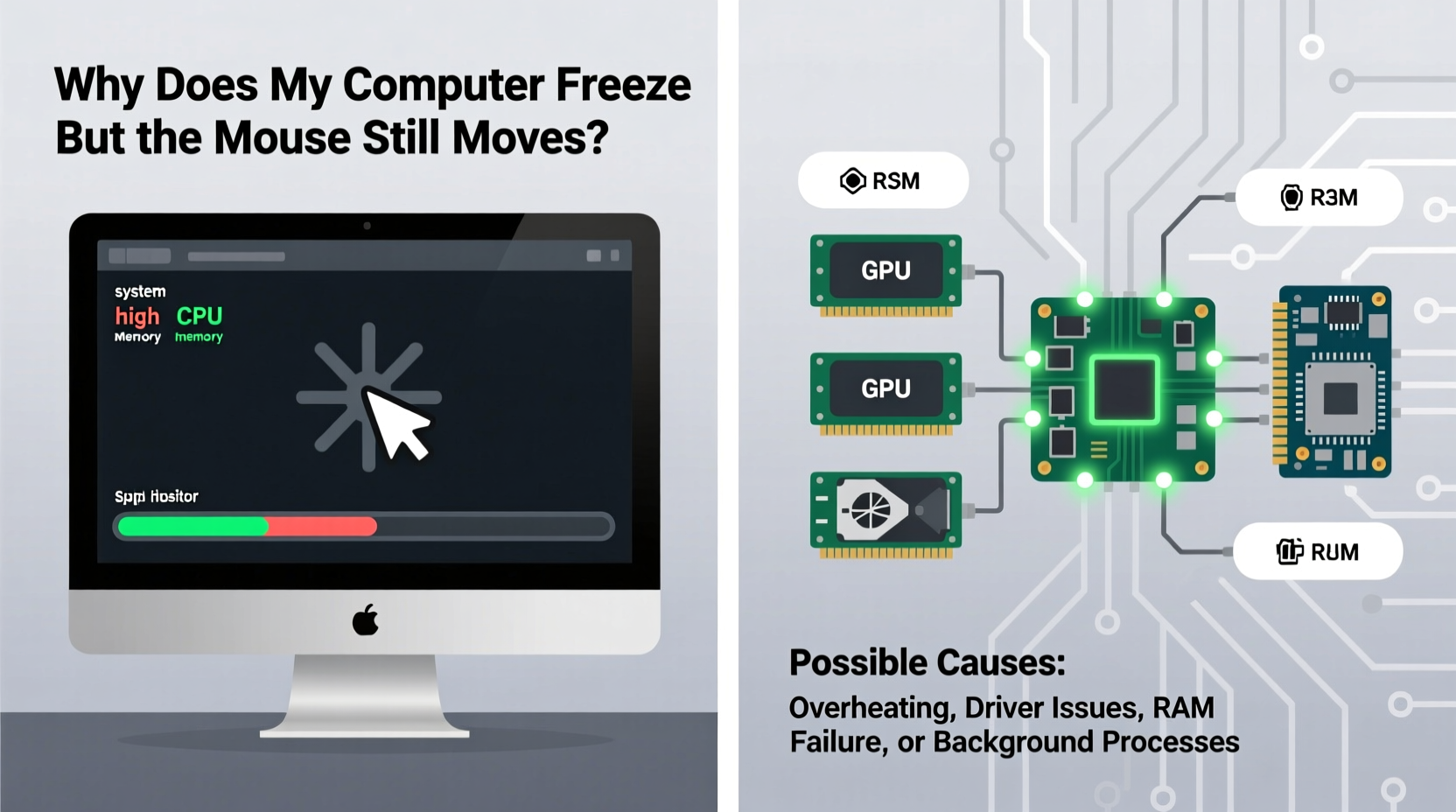
The reason your mouse continues to move during a system freeze lies in how modern operating systems manage input devices. Mouse movement is handled by a separate subsystem—often managed directly by the kernel or via dedicated input drivers—that operates with high priority and minimal overhead. This design ensures that user input remains responsive even when other parts of the system struggle.
In contrast, applications, desktop environments, and background services run on higher layers of the OS architecture. When one of these components consumes excessive CPU, hangs due to a bug, or triggers a memory leak, it can freeze the graphical interface without necessarily halting lower-level operations. As a result, you see a “live” cursor over a static screen—a visual cue that the problem isn’t total system failure, but rather a critical resource jam.
“Input devices like mice and keyboards often bypass the GUI rendering pipeline, which is why they remain usable during UI freezes.” — Dr. Lin Zhao, Systems Engineer at OpenOS Labs
Common Causes of Partial System Freezes
A variety of factors can lead to a situation where only part of your system becomes unresponsive. Identifying the root cause is essential for applying the right fix.
1. High CPU or Disk Usage
When a single application or background process monopolizes the CPU or storage I/O, it can prevent other tasks from executing. For example, an antivirus scan, Windows Update service, or runaway browser tab might spike disk usage to 100%, freezing window redraws and app responses—even though basic input functions continue.
2. Outdated or Corrupted Drivers
Graphics and chipset drivers play a crucial role in rendering the desktop environment. If these drivers are outdated, incompatible, or corrupted, they may fail to update the screen properly while still allowing mouse input through alternate pathways. This is especially common after major OS updates or hardware changes.
3. Insufficient RAM or Memory Leaks
If your system runs out of physical memory, it begins relying heavily on virtual memory (page file), which is significantly slower. Some applications have memory leaks—continuously consuming RAM without releasing it—which eventually starve the system of available memory, leading to sluggishness or freezes.
4. Background Software Conflicts
Overlapping startup programs, particularly security suites or optimization tools, can interfere with each other. Two antivirus programs running simultaneously, for instance, may trigger system-wide delays due to constant scanning and file locking.
5. Failing Hardware
Hard drives nearing the end of their lifespan often exhibit slow read/write speeds or bad sectors, causing the system to hang when accessing certain files. Similarly, overheating CPUs or GPUs can throttle performance or induce instability, resulting in temporary freezes.
Troubleshooting Steps to Diagnose and Fix the Issue
Resolving a partial freeze requires systematic investigation. Follow this structured approach to isolate and eliminate the underlying cause.
Step 1: Monitor Resource Usage During Normal Operation
Open Task Manager (Ctrl+Shift+Esc) and observe the Performance tab under typical use. Look for consistent spikes in CPU, memory, or disk usage. Pay attention to which processes are active when performance degrades.
Step 2: Identify and End Problematic Processes
If you notice a process consuming more than 80% of any resource for extended periods, research its purpose. Legitimate system processes like svchost.exe or System Interrupts are usually safe, but third-party executables with unclear names may need further scrutiny.
Step 3: Update Your Operating System and Drivers
Ensure your OS is up to date. On Windows, go to Settings > Windows Update. Then, visit your motherboard or laptop manufacturer’s website to download the latest chipset, graphics, and audio drivers. Avoid using third-party driver updater tools, which often install incorrect versions.
Step 4: Disable Unnecessary Startup Programs
Too many apps launching at boot can overload system resources early. In Task Manager, navigate to the Startup tab and disable non-essential entries such as cloud sync tools, chat apps, or media utilities.
Step 5: Run Diagnostic Tools
- Check Disk: Open Command Prompt as Administrator and run
chkdsk /f /rto scan for hard drive errors. - Memory Test: Use Windows Memory Diagnostic or MemTest86 to detect faulty RAM.
- SFC Scan: Run
sfc /scannowin an elevated Command Prompt to repair corrupted system files.
Step 6: Adjust Power Settings
Some power plans limit CPU performance to save energy. Switch to \"High Performance\" in Control Panel > Power Options to ensure full processing capability is available.
Step 7: Clean Internal Components
Dust buildup inside your PC can block airflow and cause overheating. Shut down the machine, unplug it, and carefully clean fans and heatsinks with compressed air every 6–12 months.
Do’s and Don’ts When Dealing With System Freezes
| Do’s | Don’ts |
|---|---|
| Regularly update your OS and drivers | Ignore recurring freeze warnings |
| Monitor resource usage weekly | Install multiple antivirus programs |
| Keep at least 15% of your drive free | Use aggressive registry cleaners |
| Clean dust from internal components | Force-shutdown frequently during freezes |
| Back up data regularly | Download drivers from unofficial sites |
Real-World Example: Recovering From Chronic Freezing
Consider the case of Maria, a freelance graphic designer working on a three-year-old laptop. She began experiencing frequent freezes where her Adobe Photoshop session would lock up, yet she could still move the mouse. Initially, she assumed it was a software issue and reinstalled Photoshop multiple times with no improvement.
After monitoring her system, she discovered that her disk usage consistently hit 100% whenever she opened large image files. A deeper inspection revealed that her aging mechanical hard drive had developed several bad sectors. By replacing it with a SATA SSD and reinstalling her OS, Maria not only eliminated the freezing but also improved overall system responsiveness dramatically.
This scenario underscores the importance of diagnosing hardware health before assuming the issue is purely software-related. In Maria’s case, upgrading a single component resolved what seemed like an intractable performance problem.
Preventive Maintenance Checklist
To minimize the risk of future freezes, follow this monthly maintenance routine:
- ✅ Check Task Manager for abnormal resource consumption
- ✅ Run
sfc /scannowto verify system file integrity - ✅ Update all installed software, especially browsers and drivers
- ✅ Clear temporary files using Disk Cleanup or CCleaner
- ✅ Defragment HDDs (not required for SSDs)
- ✅ Verify backup status and test restore procedure
- ✅ Physically inspect and clean internal components if accessible
Frequently Asked Questions
Can a virus cause my computer to freeze while the mouse still works?
Yes. Malware can consume system resources in the background, leading to unresponsiveness. Crypto-mining malware, for example, often runs hidden processes that max out CPU usage. Use a trusted antivirus tool to perform full system scans regularly.
Is it safe to force restart my computer when it freezes?
Occasional forced restarts are generally safe, but doing so frequently increases the risk of file system corruption or hardware wear. Try pressing Ctrl+Alt+Del first—if the login screen appears, you can safely choose “Sign Out” or “Restart” instead.
Why does my computer freeze only when I open certain programs?
This suggests a compatibility or resource issue with those specific applications. It could be due to insufficient RAM, outdated software, or missing dependencies like .NET Framework or Visual C++ Redistributables. Reinstalling the program or updating your OS may resolve the conflict.
Conclusion: Take Control of Your System’s Stability
A computer that freezes while the mouse still moves is not beyond help—it’s sending you a signal. Whether it’s crying out for more memory, begging for updated drivers, or warning of failing hardware, the symptoms provide valuable clues. By adopting a proactive approach to system monitoring and maintenance, you can prevent minor hiccups from escalating into chronic performance problems.
The key is consistency: regular checks, timely updates, and smart usage habits make a lasting difference. Don’t wait for complete system failure. Start today by opening Task Manager, reviewing your startup programs, and ensuring your machine has room to breathe—both digitally and physically.




 浙公网安备
33010002000092号
浙公网安备
33010002000092号 浙B2-20120091-4
Comments
No comments yet. Why don't you start the discussion?