
Google Home devices are designed to respond instantly to voice commands, making everyday tasks easier. But when your device starts echoing responses or reacting to conversations it shouldn’t, the experience quickly shifts from helpful to frustrating. Unintended triggers—when Google Home activates without being properly called upon—are more common than many users realize. These false awakenings can result in awkward moments, privacy concerns, or simply a loss of trust in the device’s reliability.
The root causes vary: background noise, similar-sounding phrases, overly sensitive microphones, or even interference from other smart devices. The good news is that most of these issues are fixable with a combination of hardware adjustments, software settings, and behavioral tweaks. This guide dives into the technical and environmental factors behind unwanted activations and provides actionable solutions to restore control over your smart speaker.
Understanding Why Google Home Triggers Unexpectedly
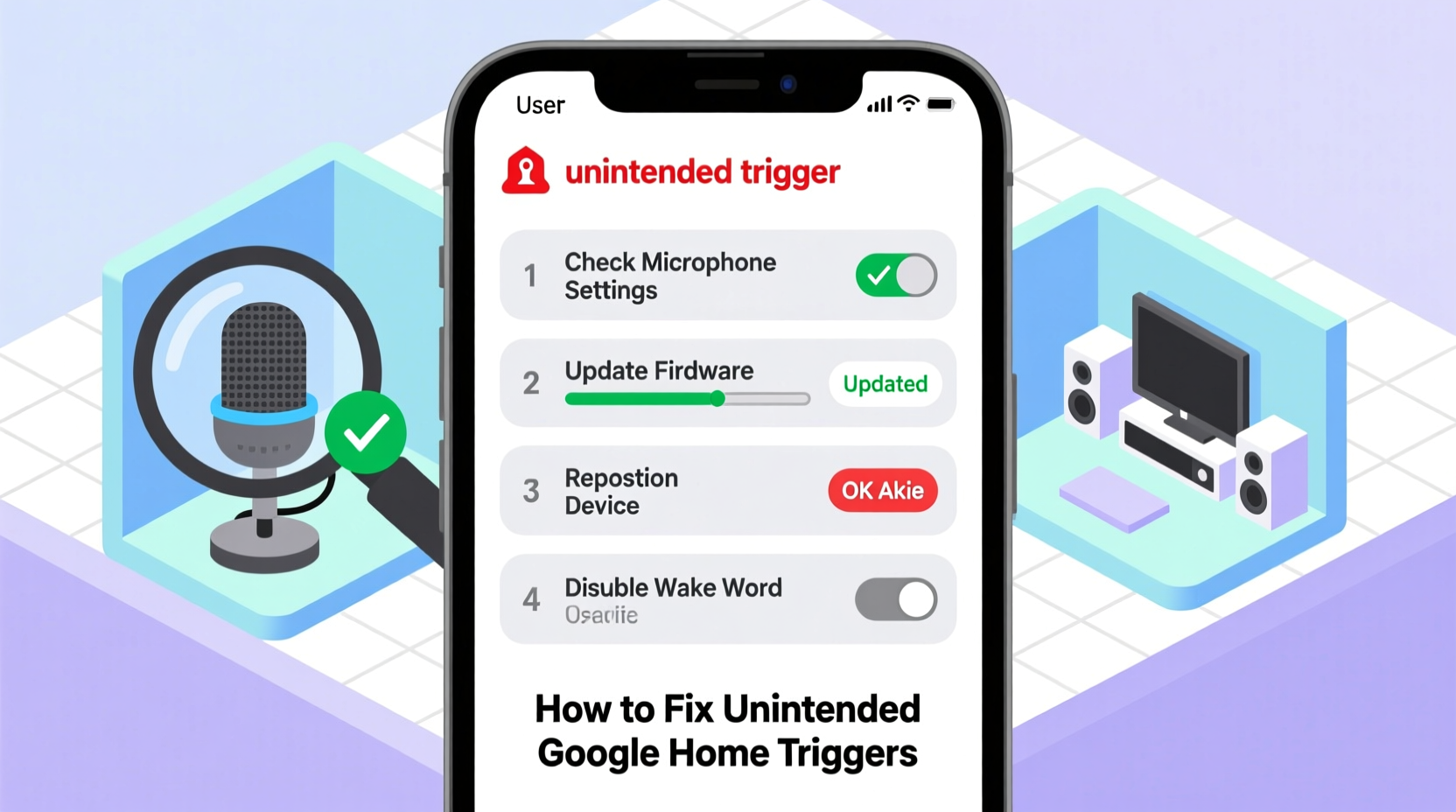
Google Home uses advanced voice recognition powered by machine learning to detect its wake word—typically “Hey Google” or “OK Google.” When you speak those words, the device wakes up, processes your request, and responds. However, this system isn’t perfect. It can misinterpret sounds that resemble the wake phrase, especially in noisy environments or when voices overlap.
False triggers occur because the audio detection model prioritizes responsiveness over absolute accuracy. Google engineers intentionally design the algorithm to err on the side of activation rather than missing legitimate commands. While this ensures you don’t have to repeat yourself constantly, it also increases the chance of accidental wake-ups.
Common triggers include:
- TV dialogue containing phrases like “OK, Google” or similar cadence
- Conversations where someone says “Hey, Gordon” or “Okay, go tell her,” which sound phonetically close
- Background music with rhythmic patterns that mimic speech patterns
- Other smart speakers or ads using the same wake words
- Children mimicking the assistant or playing with voice commands
“Voice assistants operate in real-world environments filled with unpredictable noise. Even small improvements in false trigger rates require massive datasets and continuous model refinement.” — Dr. Lena Torres, Senior Researcher in Human-Computer Interaction, MIT Media Lab
Step-by-Step Guide to Reduce Unwanted Activations
Fixing unintended triggers requires both immediate adjustments and long-term configuration. Follow this sequence to systematically reduce false activations:
- Check Physical Placement: Ensure your Google Home isn’t near reflective surfaces (like glass or tile) that bounce sound and distort voice input. Place it at least 6–12 inches away from walls and avoid corners where audio can echo.
- Adjust Microphone Sensitivity (if available): Some Nest Audio and Nest Mini models allow sensitivity tuning via firmware updates. Check for updates in the Google Home app under Device Settings > Firmware.
- Use Voice Match More Effectively: Enable Voice Match so only recognized voices can trigger certain actions. Go to Google Home app > Settings > Voice Match & Sound Recognition > Turn on “Recognize your voice.” Train the device by repeating “Hey Google” several times in quiet conditions.
- Disable Broadcasts and Routines Temporarily: If your device repeats phrases automatically through routines or intercom features, disable them briefly to test if they’re causing the echo effect.
- Review Recent Activity: Open the Google Home app, tap your device, go to Settings > Assistant > History. Look for recent unintended queries. Tap any entry to delete it and help retrain the system.
- Restart the Device: Unplug your Google Home for 30 seconds, then plug it back in. This clears temporary glitches and resets audio processing buffers.
Optimizing Settings in the Google Home App
The Google Home app offers granular control over how your device listens and responds. Many users overlook key settings that directly impact false triggers. Here’s what to configure:
| Setting | Recommended Option | Purpose |
|---|---|---|
| Voice Match | Enabled + voice trained | Limits responses to known users |
| Sound Detection | Disabled for non-critical alerts | Prevents reactions to doorbells, alarms, etc. |
| Routine Triggers | Audit and limit voice-only triggers | Reduces automatic responses |
| Mute Microphone | Use physical switch at night | Eliminates all listening during downtime |
| Response Volume | Set below 50% | Minimizes disruptive loud replies |
In addition, consider disabling “Continued Conversation” mode if not needed. This feature keeps the microphone open for follow-up questions after a response, increasing exposure time to ambient noise. To turn it off: Google Home app > Assistant > Continued Conversation > Toggle off.
Real-World Example: Fixing a Persistent Echo Issue
Sarah, a teacher living in a two-bedroom apartment in Chicago, noticed her Google Nest Mini kept responding during dinner. It would suddenly announce weather updates or confirm timers she never set. At first, she assumed it was picking up TV audio. But after unplugging her smart TV, the issue persisted.
She reviewed her Assistant history and found entries triggered by her son saying “Hey, Gordy!”—a nickname for his friend. The device interpreted it as “Hey Google.” She followed these steps:
- Trained Voice Match using her and her son’s voices
- Moved the speaker from the kitchen counter (near a tiled backsplash) to a fabric-covered shelf
- Lowered the microphone sensitivity via a beta firmware update
- Created a routine that mutes the mic at 9 PM daily
Within two days, unintended triggers dropped from 5–7 per day to zero. Sarah now checks the activity log weekly and resets the device monthly to maintain performance.
Checklist: Prevent Google Home From Echoing Responses
Use this checklist to audit and optimize your Google Home setup:
- ✅ Position device away from hard, reflective surfaces
- ✅ Enable and train Voice Match for all household members
- ✅ Disable \"Continued Conversation\" unless actively used
- ✅ Review and delete false activations in Assistant history
- ✅ Mute the microphone overnight or during private conversations
- ✅ Update device firmware regularly
- ✅ Limit use of broadcast-based routines (e.g., “Announce dinner”)
- ✅ Test with similar-sounding phrases to verify improvements
When Ads or Media Trigger Your Device
One of the most surprising sources of false triggers is media content. Commercials, YouTube videos, and podcasts sometimes include phrases like “OK Google” as part of demonstrations or jokes. If your device hears it, it may activate—even if the voice isn’t yours.
In 2022, a national ad campaign featuring a child saying “Hey Google, play music” caused widespread unintended activations across millions of devices. Google responded by refining its acoustic fingerprinting system to better distinguish between live speech and pre-recorded audio.
While improvements continue, you can protect yourself:
- Turn off the microphone during commercial breaks or while watching tech-related videos
- Use headphones when possible to prevent audio leakage
- Install ad blockers on streaming devices connected to the same network
Additionally, report problematic media triggers via the Google Home app feedback tool. This data helps improve future detection algorithms.
Frequently Asked Questions
Can other smart speakers cause my Google Home to respond?
Yes. If another voice assistant (like Amazon Alexa) says “OK Google” during a demonstration or test, your Google Home may react. This is rare but possible in homes with multiple voice platforms. Physically muting devices when not in use prevents cross-talk.
Does background music really trigger Google Home?
It depends on the content. Songs with spoken-word segments, rap lyrics, or rhythmic phrasing resembling commands are more likely to trigger false positives. Classical or instrumental music poses little risk. If music frequently causes issues, consider lowering the device’s volume sensitivity or relocating it.
Will resetting my Google Home erase my settings?
A factory reset will remove all preferences, Wi-Fi details, routines, and Voice Match profiles. However, most settings are backed up to your Google account and can be restored after setup. Only perform a reset if other fixes fail, and ensure you know your Wi-Fi password beforehand.
Expert Tips for Long-Term Performance
Maintaining consistent performance goes beyond fixing current issues. Proactive habits ensure your Google Home remains reliable over time.
Also, consider segmenting your smart home by room. For example, disable voice responses in bedrooms at night using automation. Create a routine titled “Bedtime” that mutes all bedroom Google Homes and turns off lights at a set time.
Finally, educate family members about responsible usage. Children often enjoy testing how far the wake word can be detected. Setting clear rules—like not yelling commands from another room—reduces wear on the system and minimizes disruptions.
Conclusion: Take Control of Your Smart Speaker Experience
Your Google Home should enhance your life, not interrupt it. Unintended echoes and false triggers undermine confidence in the technology, but they’re rarely permanent. With thoughtful placement, precise settings, and regular maintenance, you can significantly reduce—or eliminate—unwanted responses.
Start today by reviewing your device’s location and enabling Voice Match. Then work through the checklist, test changes, and monitor results. Small adjustments compound into a smoother, more private, and more reliable voice assistant experience.




 浙公网安备
33010002000092号
浙公网安备
33010002000092号 浙B2-20120091-4
Comments
No comments yet. Why don't you start the discussion?