
Outlook is a cornerstone of modern productivity for millions of professionals, students, and organizations. When it suddenly stops working—crashing on startup, freezing during use, or closing without warning—it disrupts workflows, delays communication, and creates frustration. While the cause isn’t always obvious, most Outlook crashes stem from predictable issues: corrupted data files, add-in conflicts, outdated software, or system-level incompatibilities. The good news? Many of these problems can be resolved quickly with targeted troubleshooting.
This guide breaks down the most frequent reasons behind Outlook crashes and walks you through proven, step-by-step solutions. Whether you're using Outlook on Windows 10, 11, or Mac, the fixes outlined here are practical, safe, and effective—most requiring no technical expertise.
Common Causes of Outlook Crashes
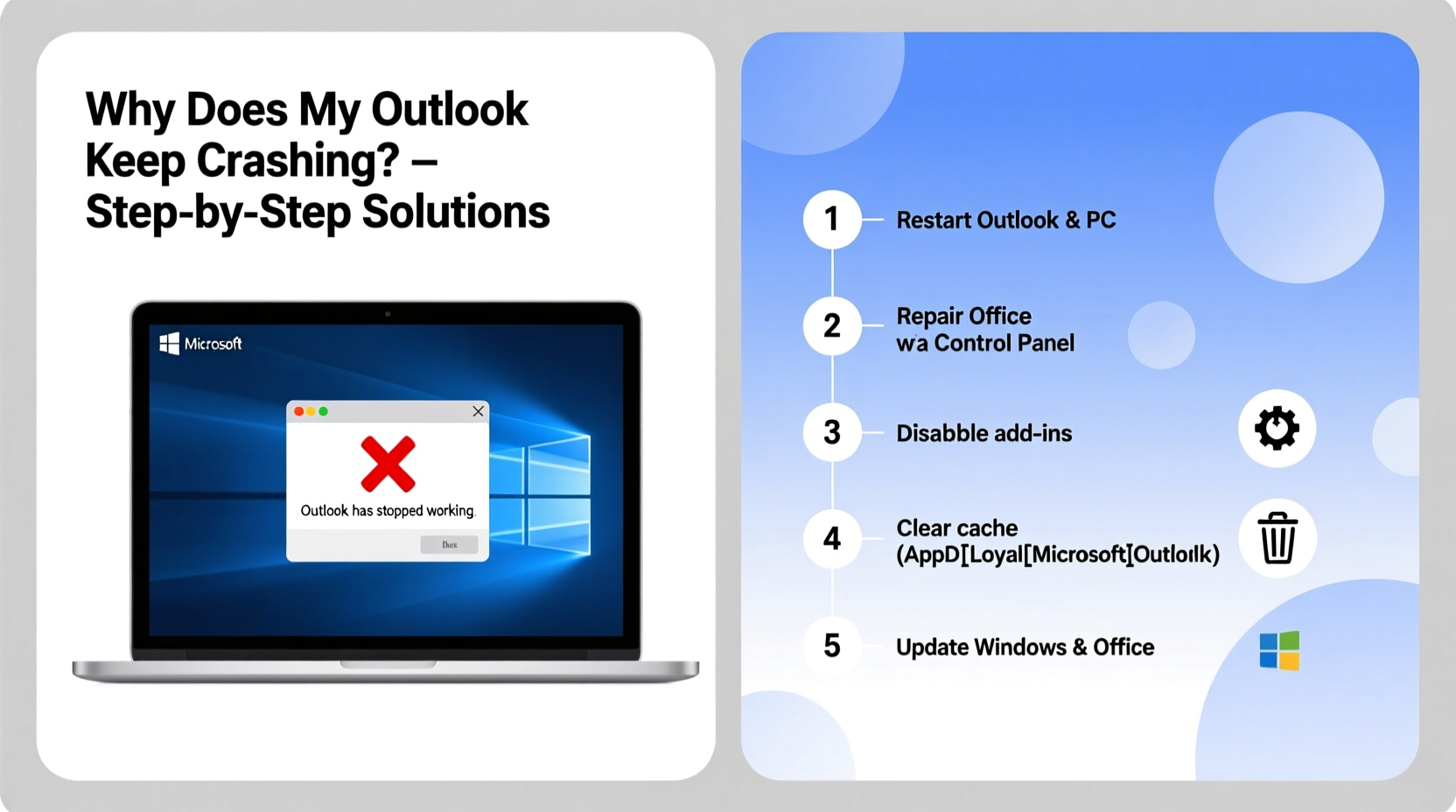
Before jumping into fixes, it’s essential to understand what might be triggering the instability. Identifying the root cause helps avoid unnecessary changes and speeds up recovery.
- Corrupted PST or OST files: These are Outlook’s local data storage files. If they become damaged due to improper shutdowns or disk errors, Outlook may fail to launch or crash unexpectedly.
- Problematic add-ins: Third-party plugins—like CRM tools, calendar sync apps, or antivirus integrations—can interfere with Outlook’s core processes.
- Outdated software: Running an older version of Outlook or Windows can lead to compatibility issues, especially after security patches or feature updates from Microsoft.
- Graphics driver conflicts: Some users report crashes tied to GPU rendering. Outlook uses hardware acceleration by default, which can clash with outdated or buggy graphics drivers.
- Insufficient system resources: Low RAM, high CPU usage, or nearly full storage can prevent Outlook from running smoothly.
- Profile corruption: Your Outlook profile stores account settings, preferences, and service connections. If this becomes corrupt, Outlook may fail during initialization.
Step-by-Step Troubleshooting Guide
Follow this logical sequence to isolate and resolve the issue. Start with the least invasive steps and progress only if needed.
- Restart your computer
A surprising number of Outlook issues disappear after a reboot. This clears temporary memory, resets network connections, and stops rogue processes that might be interfering. - Launch Outlook in Safe Mode
Safe Mode disables all add-ins and custom toolbars, helping determine if a plugin is causing the crash.
PressWindows + R, typeoutlook.exe /safe, and press Enter.
If Outlook runs normally in Safe Mode, an add-in is likely the problem. - Disable problematic add-ins
Go to File > Options > Add-ins. At the bottom, set \"Manage\" to \"COM Add-ins\" and click \"Go…\"
Uncheck all add-ins, then restart Outlook normally. If it works, re-enable them one at a time to identify the offender. - Repair Office installation
Corrupted program files can cause instability. Use Microsoft’s built-in repair tool:
Open Settings > Apps > Installed apps > Microsoft 365 (or Office) > Modify > Quick Repair. If that fails, try Online Repair.
Online Repair reinstalls Office while preserving your data and settings. - Run the Inbox Repair Tool (SCANPST.EXE)
This utility scans and repairs corrupted PST/OST files.
Locate SCANPST.EXE—usually inC:\\Program Files\\Microsoft Office\\root\\OfficeXX(where XX matches your version).
Run it, browse to your Outlook data file (often inAppData\\Local\\Microsoft\\Outlook), and follow the prompts to scan and repair. - Create a new Outlook profile
If settings are corrupted, a fresh profile often resolves startup crashes.
Open Control Panel > Mail (Microsoft Outlook) > Show Profiles > Add.
Set up your email account again, then set the new profile as default. Test Outlook stability. - Update Windows and Outlook
Ensure your system is current. Outdated components are a leading cause of crashes.
Go to Settings > Windows Update and install all pending updates. Also check for Office updates via File > Account > Update Options. - Turn off hardware graphics acceleration
If crashes occur during scrolling or viewing rich HTML emails, GPU rendering may be the issue.
Go to File > Options > Advanced. Under Display, check \"Disable hardware graphics acceleration.\" Restart Outlook.
Troubleshooting Checklist
Use this checklist to methodically address potential issues. Mark each item as complete once tested.
- ✅ Restarted the computer
- ✅ Launched Outlook in Safe Mode (
outlook.exe /safe) - ✅ Disabled all COM add-ins
- ✅ Performed Quick Repair of Microsoft Office
- ✅ Ran SCANPST.EXE on Outlook data files
- ✅ Created a new Outlook profile
- ✅ Installed all Windows and Office updates
- ✅ Disabled hardware graphics acceleration
- ✅ Verified sufficient disk space and system resources
Real-World Example: Fixing Recurring Crashes in a Corporate Setting
A marketing manager at a mid-sized firm reported daily Outlook crashes every time she opened a shared calendar invite. The issue began after installing a new project management plugin. Initially dismissed as a fluke, the crashes escalated—eventually preventing Outlook from launching at all.
IT support first tried a reboot and Safe Mode test. In Safe Mode, Outlook worked perfectly, pointing to an add-in conflict. They disabled all plugins and re-enabled them one by one. The project management add-in triggered the crash immediately upon activation.
The solution was two-fold: the add-in developer had released an updated version two weeks prior that addressed Outlook compatibility. After updating the plugin, the crashes stopped. As a precaution, the IT team also ran SCANPST.EXE, which found minor corruption in the user’s OST file—likely caused by repeated forced closures. Repairing the file restored missing calendar entries.
This case illustrates how multiple factors can compound. Addressing just the add-in would have helped, but repairing underlying data damage ensured long-term stability.
Do’s and Don’ts: Outlook Stability Best Practices
| Do | Don’t |
|---|---|
| Keep Windows and Office updated regularly | Ignore update notifications or delay patches |
| Back up PST files monthly | Store critical data only in Outlook without backups |
| Test new add-ins one at a time | Install multiple third-party plugins simultaneously |
| Use Safe Mode to diagnose startup issues | Reinstall Office immediately without diagnosing |
| Monitor system resources (RAM, CPU, disk space) | Run Outlook on systems with less than recommended specs |
“Over 60% of Outlook crashes we see in enterprise environments trace back to either add-in conflicts or unpatched software. Proactive maintenance prevents most of these.” — David Lin, Senior Systems Administrator at TechGuard Solutions
Frequently Asked Questions
Why does Outlook crash only when I open certain emails?
This typically points to a rendering issue. The email may contain malformed HTML, embedded fonts, or large attachments that strain Outlook’s display engine. Try disabling hardware acceleration. You can also open such messages in your web browser (via Outlook Web Access) to view safely.
Can a full hard drive cause Outlook to crash?
Yes. Outlook requires free space to create temporary files, cache data, and expand PST/OST files. If your system drive has less than 1–2 GB free, performance degrades and crashes become more likely. Aim to keep at least 10–15% of your drive capacity free.
Is it safe to run SCANPST.EXE? Could I lose data?
The Inbox Repair Tool is designed to be safe. It creates a backup of your original file before making changes. However, always manually back up your PST/OST file before running SCANPST, just in case. Never run the tool on a file currently in use by Outlook.
Preventing Future Crashes
Once you’ve restored Outlook functionality, take steps to maintain stability:
- Schedule regular maintenance: Monthly checks for updates, add-in reviews, and data file backups go a long way.
- Limit active add-ins: Only keep essential plugins enabled. Disable those used infrequently.
- Archive old emails: Large mailboxes slow Outlook and increase corruption risk. Use AutoArchive or manual archiving to move older items to local .pst files.
- Use cloud-first habits: Rely on Exchange or Microsoft 365 server storage rather than local files when possible. This reduces dependency on OST integrity.
- Monitor system health: Tools like Windows Performance Monitor or Resource Monitor can alert you to memory leaks or high CPU usage before they impact Outlook.
Conclusion: Take Control of Your Outlook Experience
Outlook crashes don’t have to be a recurring headache. With a clear understanding of common causes and a structured approach to troubleshooting, most issues can be resolved in under an hour. The key is systematic diagnosis—starting with simple fixes like Safe Mode and updates before moving to deeper interventions like profile rebuilding or data repair.
By applying the steps in this guide, you’re not just fixing a broken app—you’re building resilience into your digital workflow. Stable email access means fewer interruptions, better communication, and greater confidence in your tools.




 浙公网安备
33010002000092号
浙公网安备
33010002000092号 浙B2-20120091-4
Comments
No comments yet. Why don't you start the discussion?