
It’s a familiar scenario: you’re on a road trip, relying on GPS navigation to guide you through unfamiliar territory, and suddenly your phone grows uncomfortably warm—sometimes hot enough to make you worry. This isn’t just an annoyance; persistent overheating can affect performance, drain the battery faster, and even shorten your device’s lifespan. Understanding why this happens is the first step toward managing it effectively.
GPS navigation is one of the most resource-intensive tasks a smartphone performs regularly. It doesn’t just rely on a single system—it activates multiple hardware components simultaneously, all working in concert to deliver real-time location data. When these systems run continuously, they generate significant heat. But what exactly causes this thermal buildup, and how can you minimize it without compromising navigation accuracy?
How GPS Navigation Works on Smartphones
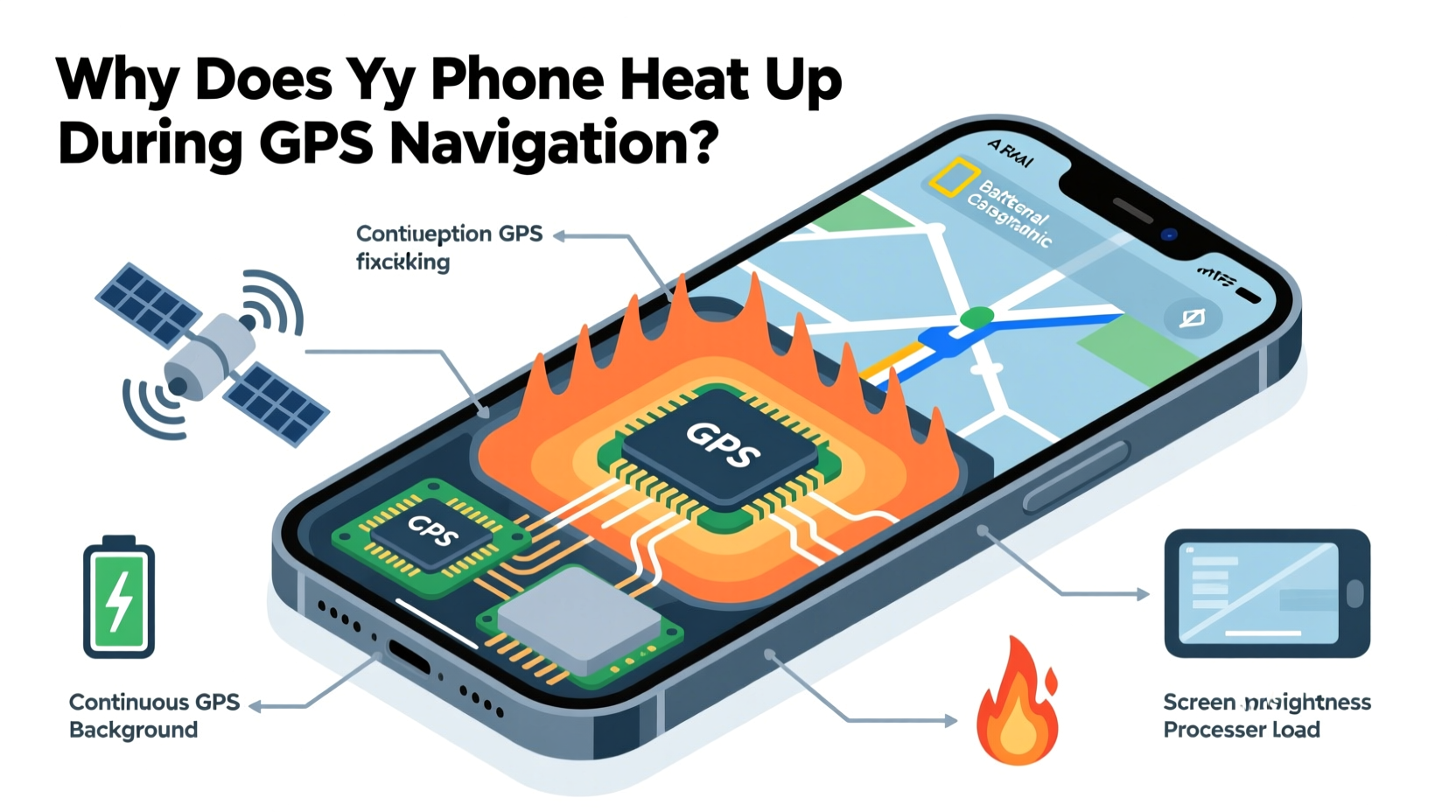
Modern smartphones use a hybrid positioning system that combines several technologies to determine your location with high precision. While commonly referred to as “GPS,” the process actually involves more than just the Global Positioning System operated by the U.S. government. Your phone leverages:
- GPS (Global Positioning System): Uses satellite signals to triangulate position. Most accurate outdoors but power-hungry.
- GLONASS, Galileo, BeiDou: Other global satellite networks that enhance accuracy and speed of location lock.
- Wi-Fi positioning: Detects nearby Wi-Fi networks (even if not connected) to estimate location based on known access point databases.
- Cellular triangulation: Uses signal strength from nearby cell towers to approximate position.
- Sensors: Accelerometer, gyroscope, and magnetometer help track movement and orientation when satellite signals are weak (e.g., tunnels).
When you open a navigation app like Google Maps or Waze, your phone activates all these systems at once. The longer the app runs, the more sustained the demand on processing power and connectivity modules—each contributing to heat generation.
The Hardware Behind the Heat
Your smartphone is essentially a mini-computer packed into a compact, thermally constrained design. When multiple subsystems operate at full capacity, they generate heat faster than the device can dissipate it. Here’s a breakdown of which components contribute most to heating during GPS use:
| Component | Role in GPS Navigation | Heat Contribution |
|---|---|---|
| Processor (CPU/GPU) | Processes map rendering, route calculations, voice guidance | High – especially during complex routing or 3D maps |
| GPS Receiver | Constantly listens for satellite signals | Moderate – increases with poor signal conditions |
| Radio Modules (4G/5G, Wi-Fi, Bluetooth) | Downloads map updates, traffic data, syncs with car systems | High – continuous data streaming uses significant power |
| Display | Kept bright and active during navigation | High – especially on OLED screens at high brightness |
| Battery | Supplies power to all above systems | Indirect – inefficiencies in power delivery generate heat |
Unlike laptops, smartphones lack active cooling systems like fans. Heat dissipation relies entirely on passive conduction through the chassis. In prolonged GPS use—especially in direct sunlight or inside a poorly ventilated car mount—the internal temperature can rise rapidly.
“Smartphones are engineered for burst performance, not sustained workloads. Continuous GPS usage pushes them beyond typical operating profiles, leading to thermal throttling and user discomfort.” — Dr. Lena Park, Mobile Systems Engineer at Stanford University
Environmental and Usage Factors That Exacerbate Heating
While hardware demands are the primary cause, external factors can dramatically increase the risk and severity of overheating.
Poor Ventilation and Enclosed Spaces
Mounting your phone on a dashboard may seem convenient, but it often places the device in direct sunlight and traps heat. Car interiors can exceed 70°C (160°F) on sunny days, pushing your phone well beyond its ideal operating range (typically 0°C to 35°C).
Signal Conditions
In rural areas, tunnels, or urban canyons (dense cityscapes), GPS signals weaken. Your phone compensates by increasing receiver sensitivity and polling more frequently across multiple networks. This \"searching\" mode consumes significantly more power—and generates more heat—than stable signal conditions.
Background App Activity
Running other apps while navigating multiplies the load. Social media refreshes, music streaming, or incoming calls force the CPU to multitask aggressively, raising temperatures further.
Charging While Navigating
Using GPS while charging creates a heat loop: the battery generates heat during charging, and the navigation workload adds more. Combined, they can trigger thermal protection modes that throttle performance or shut down GPS temporarily.
Step-by-Step Guide to Reduce GPS-Related Overheating
You don’t have to stop using navigation to protect your phone. Instead, follow this practical sequence to minimize heat buildup:
- Download Offline Maps: Use Google Maps or HERE WeGo to download regional maps before departure. This reduces reliance on constant data fetching.
- Lower Screen Brightness: Set brightness manually to 50–60% or enable adaptive brightness. Disable auto-brightness delays that keep the screen overly bright.
- Close Background Apps: Swipe away unused apps before starting navigation to free up memory and reduce CPU strain.
- Enable Battery Saver Mode: This limits background processes, reduces processor speed, and dims the display slightly—cutting heat production.
- Use Airplane Mode Strategically: If you’ve downloaded offline maps, turn on airplane mode and re-enable only Wi-Fi or Bluetooth as needed (e.g., for audio). This disables cellular radios, a major heat source.
- Position for Ventilation: Mount your phone where airflow exists—near an air vent (but not blowing directly on it), and avoid enclosed cases during long trips.
- Take Breaks During Long Trips: Every 1–2 hours, pause navigation for 5–10 minutes to let the phone cool down, especially if it feels hot to the touch.
“Even a 10-degree Celsius drop in operating temperature can extend component longevity by over 50%. Thermal management isn’t just about comfort—it’s about durability.” — TechRadar Hardware Analysis Team, 2023
Mini Case Study: Sarah’s Cross-Country Drive
Sarah drove from Denver to Phoenix—a 12-hour journey through mountain passes and desert highways. She relied solely on her Android phone for navigation, music, and occasional check-ins via messaging apps. After six hours, her phone began lagging, the screen dimmed unexpectedly, and a warning appeared: “Device too hot. GPS paused.”
She pulled over, turned off the phone, and let it cool for 15 minutes. Upon restarting, she implemented changes:
- Downloaded Arizona and New Mexico offline maps
- Set screen brightness to 50%
- Closed Spotify and switched to pre-downloaded podcasts
- Mounted the phone near the passenger-side vent (cool air flow)
- Disabled mobile data and used a hotspot only when necessary
The remainder of the trip proceeded smoothly. Her phone stayed within a safe temperature range, and GPS remained uninterrupted. Sarah later reported that these adjustments not only prevented overheating but also extended her battery life by nearly 40%.
Checklist: Prevent GPS Overheating Before Your Next Trip
- ✅ Download offline maps for your route
- ✅ Close unused background apps
- ✅ Lower screen brightness manually
- ✅ Remove thick or insulated phone case
- ✅ Mount phone in shaded, ventilated area
- ✅ Avoid charging at maximum speed during use
- ✅ Enable battery saver or navigation-specific power mode
- ✅ Monitor phone temperature periodically
Frequently Asked Questions
Can GPS overheating damage my phone permanently?
Occasional heating is normal and unlikely to cause permanent damage. However, repeated exposure to extreme temperatures (above 45°C) can degrade battery capacity, weaken adhesive seals, and accelerate wear on internal components. Modern phones have thermal safeguards, but consistent overheating shortens overall lifespan.
Does using a car’s built-in navigation prevent phone overheating?
Yes, in many cases. Factory-installed or aftermarket car navigation systems use dedicated hardware designed for continuous operation and better heat dissipation. They also reduce the need to run your phone at full load. If available, pairing your phone via Android Auto or Apple CarPlay allows you to use navigation features safely while minimizing strain on the device.
Is it safe to keep using GPS after a heat warning?
No. When your phone displays a temperature warning, it means critical components are nearing unsafe levels. Continuing to use GPS or other intensive apps risks temporary shutdown, data corruption, or accelerated battery aging. Power down the device, move it to a cooler environment, and wait until the internal sensors confirm it has cooled before resuming use.
Conclusion: Navigate Smarter, Not Harder
Your phone’s tendency to heat up during GPS navigation isn’t a flaw—it’s a consequence of powerful technology operating under demanding conditions. By understanding the interplay between hardware, software, and environment, you can take meaningful steps to keep your device running efficiently and safely.
Simple habits—like downloading maps ahead of time, optimizing settings, and ensuring proper ventilation—can make a dramatic difference. These aren’t just quick fixes; they’re sustainable practices that enhance both performance and longevity.




 浙公网安备
33010002000092号
浙公网安备
33010002000092号 浙B2-20120091-4
Comments
No comments yet. Why don't you start the discussion?