
Suddenly being unable to watch a YouTube video can be frustrating—especially when you're relying on it for work, study, or entertainment. Whether the video won’t load at all, keeps buffering, or shows a black screen, playback issues are common but usually solvable. The root cause varies: from browser glitches and outdated software to network instability or corrupted cache. Understanding how to methodically diagnose and resolve these problems saves time and restores access fast.
This guide walks through practical, step-by-step solutions that apply across devices—desktops, smartphones, tablets, and smart TVs. No technical expertise is required. By following these methods in order, most users can resolve their YouTube playback issues within minutes.
Check Your Internet Connection
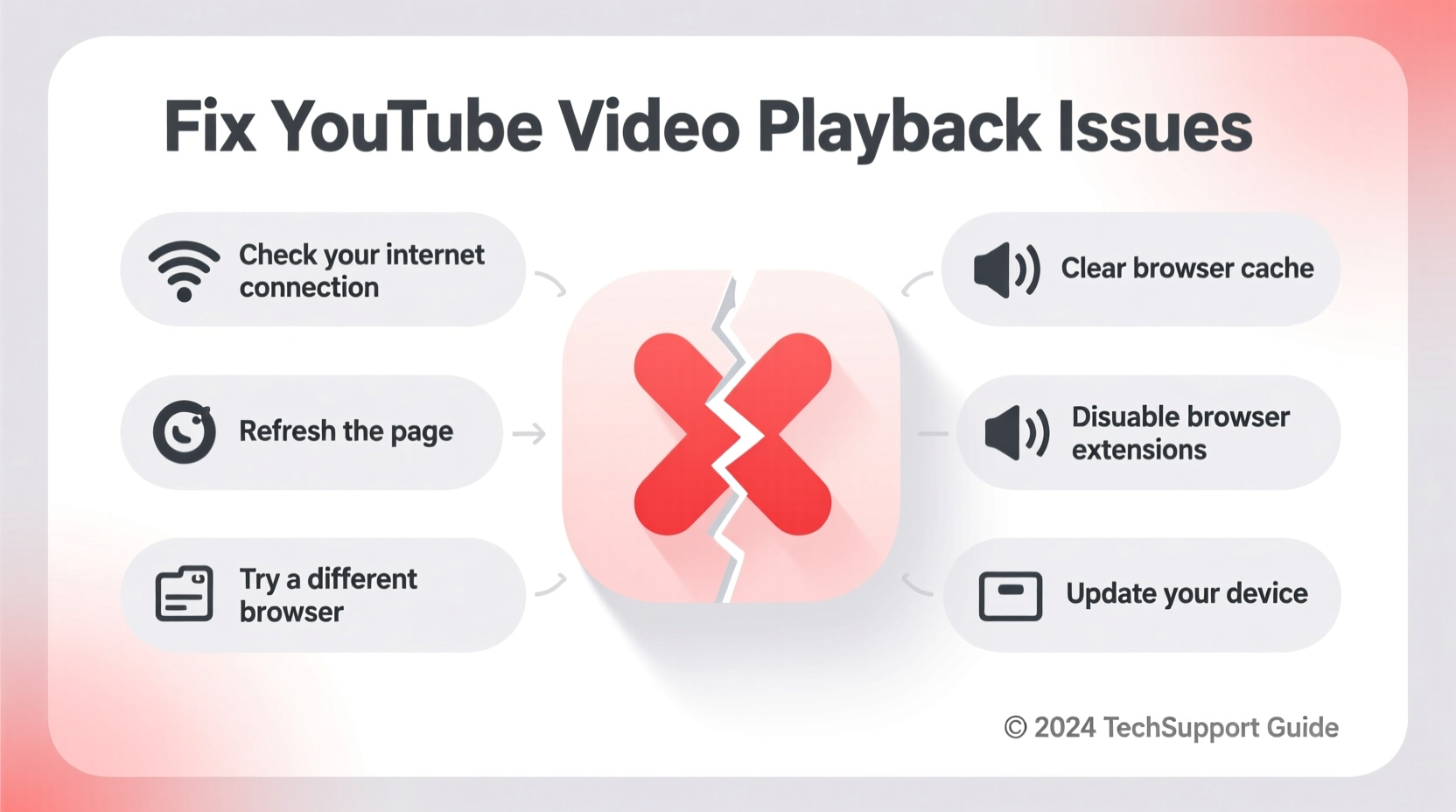
A stable internet connection is essential for smooth YouTube playback. Even high-speed networks can experience temporary hiccups that disrupt streaming. Before diving into complex fixes, verify your connection status.
Start by testing if other websites or streaming services load properly. If they don’t, the issue likely lies with your network. Try restarting your router: unplug it for 30 seconds, then plug it back in. Wait for all lights to stabilize before testing again.
If only YouTube is affected, proceed to the next steps. But if multiple services fail, contact your internet service provider or run a speed test using tools like Speedtest.net. For HD video, a minimum of 5 Mbps is recommended; 25 Mbps or higher ensures buffer-free viewing.
Clear Browser Cache and Cookies
Over time, accumulated cache and cookies can interfere with website functionality, including YouTube’s player. This is especially common after updates or prolonged browsing sessions.
To resolve this, clear your browser's stored data:
- Open your browser settings.
- Navigate to Privacy & Security or History.
- Select “Clear browsing data” or similar.
- Choose a time range (e.g., “All time”).
- Ensure “Cookies and site data” and “Cached images and files” are checked.
- Click “Clear data.”
After clearing, restart the browser and reload YouTube. Many playback errors disappear after this simple reset.
Update or Switch Browsers
Outdated browsers may lack support for modern web standards used by YouTube, such as HTML5 video rendering or DRM protection for premium content. Ensure your browser is up to date.
For Chrome, Firefox, Safari, or Edge, go to the browser menu and check for updates under “Help” or “About.” If updating doesn’t help, try opening the same video in a different browser. This isolates whether the problem is browser-specific.
| Browser | Check for Updates | YouTube Compatibility |
|---|---|---|
| Google Chrome | Menu → Help → About Google Chrome | Excellent (default) |
| Mozilla Firefox | Menu → Help → About Firefox | Excellent |
| Microsoft Edge | Settings → Help & Feedback → About Microsoft Edge | Excellent |
| Safari | Apple Menu → System Settings → Software Update | Good (macOS only) |
| Older IE | No longer supported | Poor – avoid |
If one browser works while another doesn’t, consider making the functional one your default for media consumption.
Disable Extensions and Ad Blockers
While helpful, browser extensions—especially ad blockers, script blockers, or privacy tools—can mistakenly block YouTube components. They may prevent ads, tracking scripts, or even the video player itself from loading.
To test this:
- Open an incognito or private browsing window (most extensions are disabled here by default).
- Go to YouTube and play a video.
- If playback works, an extension is likely interfering.
Return to your regular tab, disable extensions one by one (via browser settings), and reload YouTube after each change. Once playback resumes, you’ve identified the culprit. You can choose to remove it or configure it to allow YouTube domains.
“Over 40% of reported YouTube playback issues in browsers stem from third-party extensions disrupting JavaScript execution.” — Sarah Lin, Web Performance Analyst at Mozilla
Step-by-Step Fix: Mobile and App-Specific Issues
YouTube problems aren’t limited to desktops. On Android and iOS, app-specific bugs often cause videos not to play. Follow this timeline to resolve mobile playback failures:
- Force close the YouTube app: Swipe it away from recent apps or use app settings to force stop.
- Clear app cache: Go to Settings → Apps → YouTube → Storage → Clear Cache.
- Update the app: Visit Google Play Store or Apple App Store and ensure YouTube is current.
- Reinstall the app: Uninstall, restart the device, then reinstall from the official store.
- Check device date and time settings: Incorrect time can break secure connections (HTTPS) needed for video delivery.
This sequence resolves most mobile-related playback issues. If problems persist, try watching the same video via a mobile browser—this helps determine if the issue is with the app or your account/device.
Hardware Acceleration and Graphics Drivers
On computers, YouTube relies on hardware acceleration to decode video efficiently using your GPU. When misconfigured or outdated, this feature can cause black screens, stuttering, or crashes.
To adjust hardware acceleration:
- In Chrome: Settings → System → “Use hardware acceleration when available” → Toggle off.
- Restart the browser and test playback.
If performance improves, leave it disabled temporarily. However, re-enable it later if possible, as it reduces CPU load during long viewing sessions.
Additionally, update your graphics drivers:
- Windows: Use Device Manager or visit NVIDIA/AMD/Intel driver portals.
- Mac: Install system updates via System Preferences → Software Update.
Fresh drivers often include fixes for video decoding issues affecting platforms like YouTube.
Troubleshooting Checklist
✅ YouTube Playback Troubleshooting Checklist:
- Test internet connection speed and stability
- Restart router and device
- Clear browser cache and cookies
- Try YouTube in incognito/private mode
- Disable browser extensions (especially ad blockers)
- Update browser or switch to another (e.g., Chrome → Firefox)
- Update YouTube app on mobile
- Clear YouTube app cache and data
- Check device date, time, and region settings
- Update operating system and graphics drivers
- Try a different network (e.g., switch from Wi-Fi to mobile data)
Real Example: Office Training Video Won’t Load
Jamie, a remote team lead, scheduled a training session using a critical YouTube tutorial. During the meeting, the video wouldn't play—just a spinning wheel. Colleagues confirmed they could view it, ruling out account or regional blocks.
Jamie first tested other websites—no issues. Then tried the video in Firefox instead of Chrome. It played instantly. Returning to Chrome, Jamie opened an incognito window: the video worked. This pointed to an extension conflict.
After disabling a recently added pop-up blocker, YouTube functioned normally in Chrome. The fix took less than five minutes. Without systematic testing, Jamie might have wasted time reinstalling the browser or blaming the network.
FAQ: Common YouTube Playback Questions
Why do some YouTube videos not play while others work fine?
This often indicates a problem with specific video encoding, age, or region restrictions rather than a broad platform issue. It can also occur if the video uses features (like HDR or live streaming) unsupported by your device or app version.
Does logging out and back in help with YouTube playback?
Occasionally. Signing out clears temporary session data that might be corrupted. It’s especially useful if you see messages like “Playback ID error” or “Video unavailable.” After logging back in, restart the app or browser.
Can antivirus software block YouTube videos?
Yes. Some security suites include network filtering or firewall rules that interfere with streaming traffic. Temporarily disable real-time scanning to test—if YouTube works, adjust settings to whitelist youtube.com and googlevideo.com.
Conclusion: Take Control of Your Viewing Experience
YouTube playback issues are rarely permanent. Most stem from small, correctable glitches in software, connectivity, or configuration. By applying logical troubleshooting—from checking your internet to managing browser settings—you regain control quickly. The key is to move methodically, test changes individually, and document what works.




 浙公网安备
33010002000092号
浙公网安备
33010002000092号 浙B2-20120091-4
Comments
No comments yet. Why don't you start the discussion?