
In today’s hyper-connected world, managing digital access is essential—especially when it comes to children, employees, or personal device security. Blocking an Android phone doesn’t mean permanently disabling it; rather, it involves restricting access to certain apps, functions, or the entire device based on specific needs. Whether you're a parent seeking to limit screen time, an employer enforcing workplace policies, or someone securing a lost device, this guide provides actionable, ethical, and technically sound strategies.
Understanding Why You Need to Block an Android Device
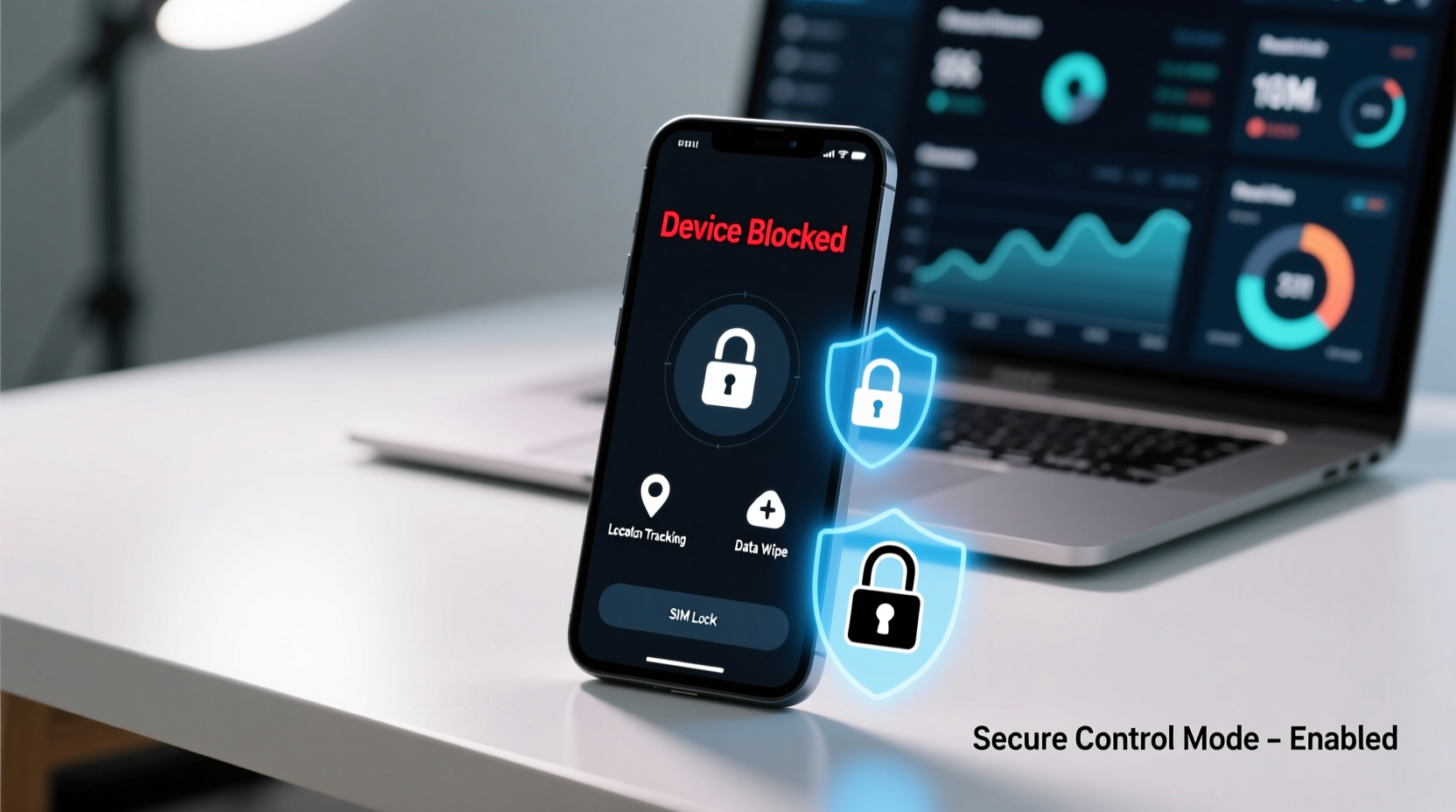
Blocking an Android phone serves multiple legitimate purposes. Parents may want to prevent underage exposure to inappropriate content. Employers might restrict non-work-related apps during office hours. Individuals recovering from digital addiction may benefit from self-imposed limitations. In cases of theft, blocking ensures data privacy and prevents unauthorized use.
It's crucial to emphasize that these actions should be performed only on devices you own or have legal authority over. Unauthorized access to another person’s device violates privacy laws in most jurisdictions.
“Digital boundaries are as important as physical ones. Responsible blocking empowers users without infringing on rights.” — Dr. Lena Torres, Cybersecurity Behavioral Analyst
Step-by-Step Methods to Block an Android Phone
The following sequence outlines practical, progressive techniques—from basic app restrictions to full device lockdown. Choose the method that aligns with your control objectives.
1. Enable Built-in Digital Wellbeing Tools
Android’s native Digital Wellbeing suite offers granular control over usage patterns. This is ideal for parents or individuals practicing mindful tech habits.
- Open Settings on the target Android device.
- Navigate to Digital Wellbeing & parental controls.
- Select Dashboard to view app usage statistics.
- Tap any app and set a daily time limit.
- Enable Focus Mode to temporarily disable distracting apps.
- Under Parental controls, restrict content in Google Play, YouTube, and Chrome.
2. Use Google Family Link for Parental Supervision
Family Link allows guardians to manage up to six child accounts remotely. It supports real-time location tracking, app approvals, and screen time enforcement.
- Download Google Family Link (parent and child devices).
- Create a child account or link an existing one.
- Follow setup prompts to sync devices.
- Use the parent app to lock the device instantly, even remotely.
- Review activity reports and adjust settings weekly.
This method is especially effective for children under 13 but can be adapted for teens needing structured digital boundaries.
3. Install Third-Party Parental Control Apps
For deeper functionality, third-party tools like Kaspersky Safe Kids, Qustodio, or Net Nanny offer advanced monitoring and filtering.
| App Name | Key Features | Best For |
|---|---|---|
| Kaspersky Safe Kids | Web filtering, location tracking, app blocking | Families wanting real-time alerts |
| Qustodio | Cross-platform support, detailed reports, panic button | Multi-device households |
| Net Nanny | AI-powered content filtering, profanity blocking | Strong web protection |
After installation, configure the app to require a PIN for uninstallation or setting changes—preventing bypass attempts.
4. Activate Device Administrator Controls
To enforce restrictions at the system level, designate a management app as a Device Administrator. This prevents users from easily disabling controls.
- Go to Settings > Security > Device administrators.
- Enable administrator status for your chosen parental or monitoring app.
- Confirm permissions for app blocking, location access, and remote lock.
- Test by attempting to uninstall the app—you should be blocked without credentials.
Note: Removing a Device Administrator requires explicit deactivation first, adding a layer of security.
5. Remotely Lock or Erase via Find My Device
If the goal is to completely block access—such as in cases of loss or theft—use Google’s Find My Device.
- Ensure the target phone has Location and Find My Device enabled.
- Visit google.com/android/find from any browser.
- Sign in with the Google account linked to the device.
- Select the device from the dashboard.
- Click Secure Device to lock it with a new password.
- Optionally, display a recovery message with contact info.
- To permanently block access, choose Erase Device (irreversible).
This method renders the phone unusable without the Google account credentials, deterring misuse.
Checklist: Essential Steps Before Blocking an Android Phone
- ✅ Confirm ownership or legal authority over the device.
- ✅ Back up important data before applying restrictions.
- ✅ Set up Google Account recovery options.
- ✅ Enable location services and 'Find My Device'.
- ✅ Create strong, unique passwords for management apps.
- ✅ Test remote lock functionality while device is accessible.
- ✅ Document control procedures for future reference.
Real-World Example: Securing a Child’s First Smartphone
Sarah, a single mother of two, gave her 12-year-old daughter a refurbished Android phone for school communication. Concerned about social media exposure and excessive gaming, she used Google Family Link to set 1-hour daily limits on TikTok and Roblox. She also enabled automatic bedtime locking from 9 PM to 7 AM. When her daughter attempted to uninstall the app, the Device Administrator warning prevented it. Weekly reports showed declining screen time, and Sarah reported improved focus on homework. The balance between trust and oversight proved effective without creating conflict.
Do’s and Don’ts of Blocking Android Devices
| Do’s | Don’ts |
|---|---|
| Use built-in tools before installing third-party apps. | Don’t spy without consent on adult users. |
| Regularly update blocking software for security patches. | Don’t share admin passwords with restricted users. |
| Educate users about why restrictions are in place. | Don’t rely solely on technical blocks—combine with dialogue. |
| Test remote lock features proactively. | Don’t erase a device unless absolutely necessary. |
Frequently Asked Questions
Can I block an Android phone without physical access?
Yes, if the device is already linked to your Google Account or a management app like Family Link. Remote locking and wiping are possible through Find My Device, provided location and sync were previously enabled.
Will blocking the phone delete all data?
Not necessarily. Basic restrictions like app timers or focus modes preserve data. However, selecting “Erase Device” via Find My Device will permanently remove all personal information and require a factory reset to reuse.
Are there legal risks in blocking someone else’s phone?
Only if done without consent or authority. Blocking a child’s device under your care is legally acceptable. Monitoring an employee’s company-issued phone is permitted with clear policy disclosure. Tracking or blocking a partner’s personal phone without permission may violate wiretapping or privacy laws.
Conclusion: Take Control Responsibly
Blocking an Android phone isn't about restriction—it's about responsibility. With the right tools and intentions, you can protect vulnerable users, secure lost devices, or foster healthier digital habits. The key lies in combining technology with transparency. Apply these methods thoughtfully, maintain open communication, and revisit settings as needs evolve.




 浙公网安备
33010002000092号
浙公网安备
33010002000092号 浙B2-20120091-4
Comments
No comments yet. Why don't you start the discussion?